Transfer ownership
Hand your aircraft and its complete Yolog logbook history to a new owner when you sell.
When you sell your aircraft, you can transfer it to the buyer inside Yolog. The whole record goes with the aircraft: every logbook (airframe, engine, propeller), every signed entry back to the first one, and the hash chain that proves nothing was changed. Nothing changes until the buyer accepts.
Only the owner can start a transfer. Co-owners and members can’t.
Before you start
- Download your own copy. Once the buyer accepts, you lose access to the aircraft in Yolog. If you want to keep a copy for yourself, export the PDF and CSV first. See Exports and sharing.
- Tidy up who has access. A transfer only moves the owner role. Co-owners and members you invited keep their access, and so do share links, verification links, the pedigree page and API tokens you issued. Remove or revoke anything the buyer shouldn’t inherit. See Co-owners and members.
- Check open signing links. A mechanic’s link stays live until it’s signed or cancelled. Cancel any you don’t want signed after the sale.
- Confirm the buyer’s email. The buyer must sign in with the exact address you enter to accept.
Send the transfer
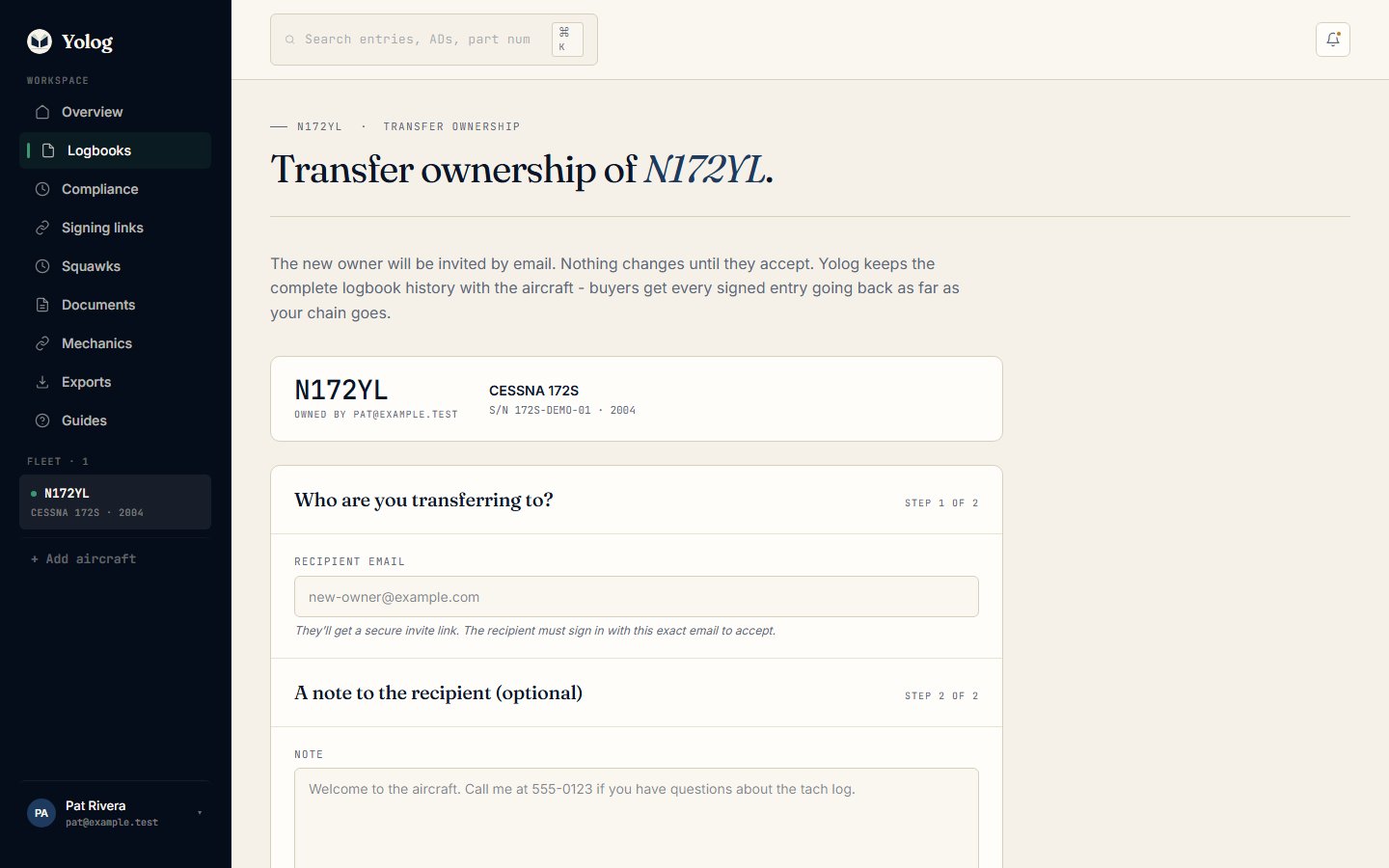
- Open your aircraft’s page and choose Transfer ownership.
- Yolog may ask you to confirm it’s you. Choose Send me a confirmation link and click the link in your email. It expires in 15 minutes.
- Enter the buyer’s Recipient email.
- Add an optional Note, for example where the paper logbooks are or how to reach you.
- Choose Send transfer invite.
Yolog emails the buyer a secure link. The next page also shows the link once, with a Copy link button, in case the email doesn’t arrive. It isn’t stored anywhere you can get back to, so copy it now if you might need it. If you lose it, cancel and send a fresh invite.
The invite expires after 14 days. Only one transfer can be open for an aircraft at a time.
Cancel before it’s accepted
You can cancel any time while the invite is still open. Choose Cancel this invite on the page you see after sending, or go back to Transfer ownership and choose Cancel it next to the open transfer. The link stops working and nothing changes.
What the buyer does
- They open the link from the email. If they aren’t signed in, Yolog asks them to sign in with the invited email first.
- If they’re signed in with a different address, Yolog tells them the invite is for someone else and offers to sign them out.
- They see the aircraft, how many logbooks and engines it has, your note, and what accepting means.
- They choose Accept & take ownership or Decline.
Buyers who sign in to Yolog another way will also see the transfer on their You’ve been invited. page, with Accept ownership and Decline.
What happens when they accept
- The buyer becomes the owner and the aircraft appears in their account.
- Your access to the aircraft ends immediately.
- Every signed entry stays exactly as it was signed. The buyer can’t edit history they inherit, and neither could you. Mistakes are still fixed with a new correction entry. See Fixing mistakes.
- Both of you get an email confirming the transfer.
If the buyer declines, or the invite expires, nothing changes and you keep the aircraft. You’ll get an email if they decline.
Records and the sale
Under 14 CFR 91.419, a seller transfers certain maintenance records to the buyer at the time of sale. A Yolog transfer moves the electronic records in Yolog, and your paper logbooks should still go with the aircraft as usual. Yolog doesn’t decide what the sale requires. If you’re unsure, check with your mechanic, your broker or an aviation attorney.
Still stuck? Contact us - a real person reads every message.