Signing an entry
Open an owner's signing link, write up the work and sign a locked logbook entry from any device.
An aircraft owner has sent you a Yolog signing link. It opens a page where you write up the work, enter your certificate details and sign. You don’t need an account, and it works on a phone. Once you sign, the entry is sealed into the aircraft’s logbook and can never be edited or deleted, so take a moment to get it right.
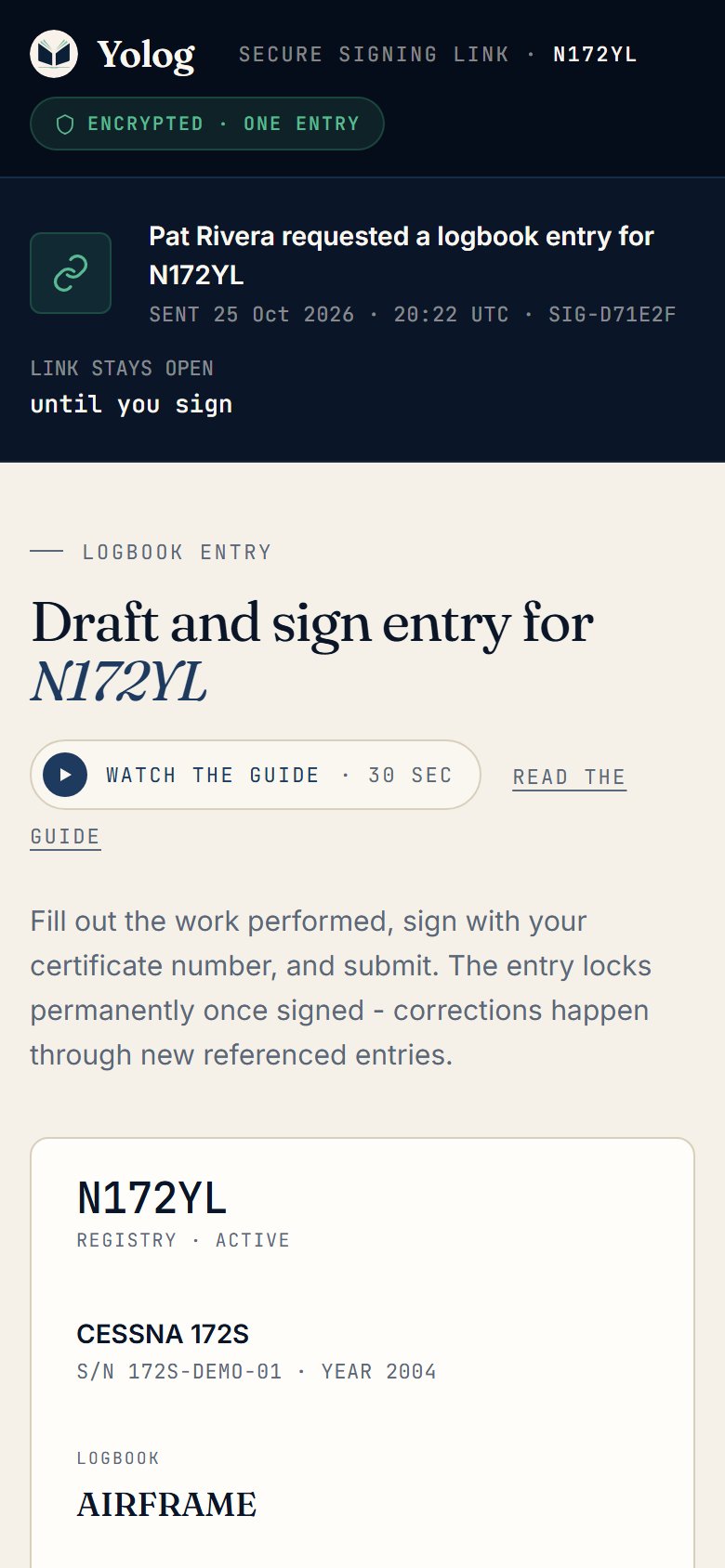
Before you start
The top of the page shows who asked, the aircraft, the logbook, and how long the link works. To check the history first, choose Browse all of (tail number)’s logbooks (below the form on a phone). It’s read-only while the link is live.
Your work saves as you type (Draft saved appears near the bottom). If your connection drops, open the same link again and pick up where you left off.
Step 1: Entry type
Pick Annual, 100-hour, AD compliance or Maintenance. The owner may have pre-selected one; you can change it. The fields below change to match.
Step 2: Work performed
- Tach time, Hobbs time, and the total time for this logbook: Total time (TTAF) for the airframe, Engine total time (TSN) for an engine, or Prop time for a propeller. Engine and propeller logbooks also ask for time since overhaul (SMOH or SPOH). Some aircraft also ask for Engine cycles.
- Description of work performed is required. This text becomes the permanent record, so include part numbers, measurements and references as needed.
For Annual and 100-hour, you’ll also see Scope & items inspected and Approved for return to service?, where you choose either Approved for return to service or NOT approved - list of discrepancies provided to owner. 14 CFR 43.11 requires the inspection type and scope, the aircraft’s total time in service, and either an airworthiness statement or a note that a discrepancy list was given to the owner. If you leave total time blank on an inspection, Yolog warns you but still lets you sign.
For AD compliance, pick the AD from Open AD on this aircraft if it’s listed (signing marks it complied for the owner), or type the AD number. Add Recurring? Next-due in if it repeats, and describe the Method of compliance, citing the AD paragraph.
The entry is dated and timed when you sign. If the work was finished on an earlier day, say so in the description.
Resolving an open squawk
If the owner has logged problems, you’ll see Open squawks above the form. Tap one to select it. If the description is empty, it’s filled in with the squawk for you to edit. When you sign, that squawk is marked resolved by your entry. Tap it again to unselect.
Photos and supporting files
Optional: under Photos & supporting files, choose a photo or PDF and Upload. Each file’s fingerprint is sealed into the entry when you sign, so it can’t be swapped later without it showing.
Step 3: Your credentials
Enter your Full name as it appears on your certificate, your Certificate number, and your Certificate type (A&P with IA, A&P, or Repair Station). Certificate expiration is optional.
When you sign, Yolog checks your name and certificate against FAA Airmen Registry data, and the result is stored with your signature. If it can’t match you, it won’t sign the entry, and you’ll see a message starting Could not sign. Check the spelling of your name and the number, then try again. Your draft is kept.
Step 4: Signature and the three statements
The name you type in Full name appears in the signature box. That typed name, with your certificate number and the server’s timestamp, is your signature on this entry. Use Clear to start over.
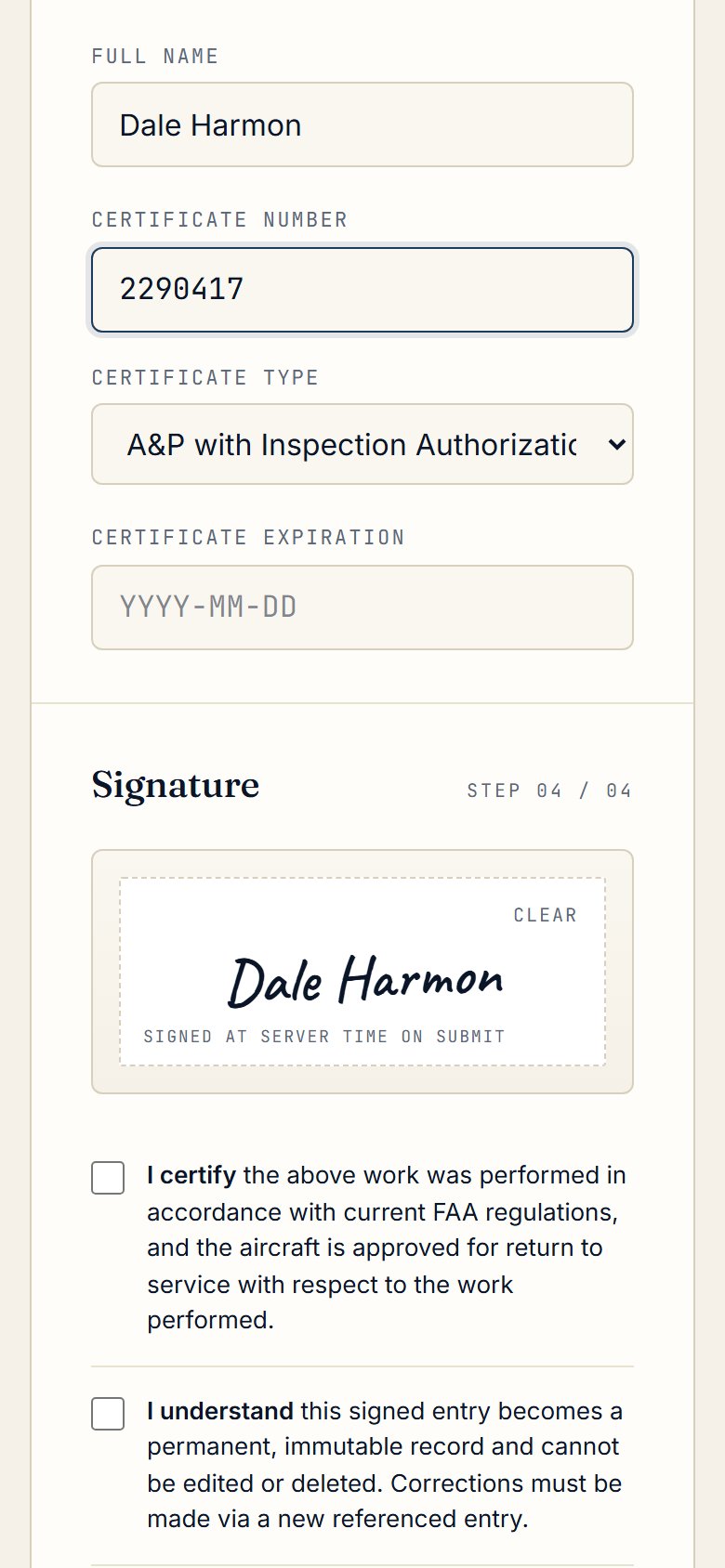
You must tick all three statements:
- I certify the work was done in accordance with current FAA regulations and the aircraft is approved for return to service with respect to the work performed.
- I understand the signed entry is permanent and can’t be edited or deleted. Corrections are made through a new entry.
- I authorize Yolog to timestamp and store the entry, with your certificate number visible to the owner and anyone they authorize, such as buyers, insurers or the FAA.
Then choose Sign & lock entry.
Yolog’s electronic signature and record approach is designed around FAA AC 120-78B. The record content rules are in 14 CFR 43.9 (description of work, completion date, your name, signature, certificate number and type) and 43.11 for inspections.
After you sign
You’ll see Signed & sealed. with a receipt, and the owner is notified. From now on the link only shows this receipt.
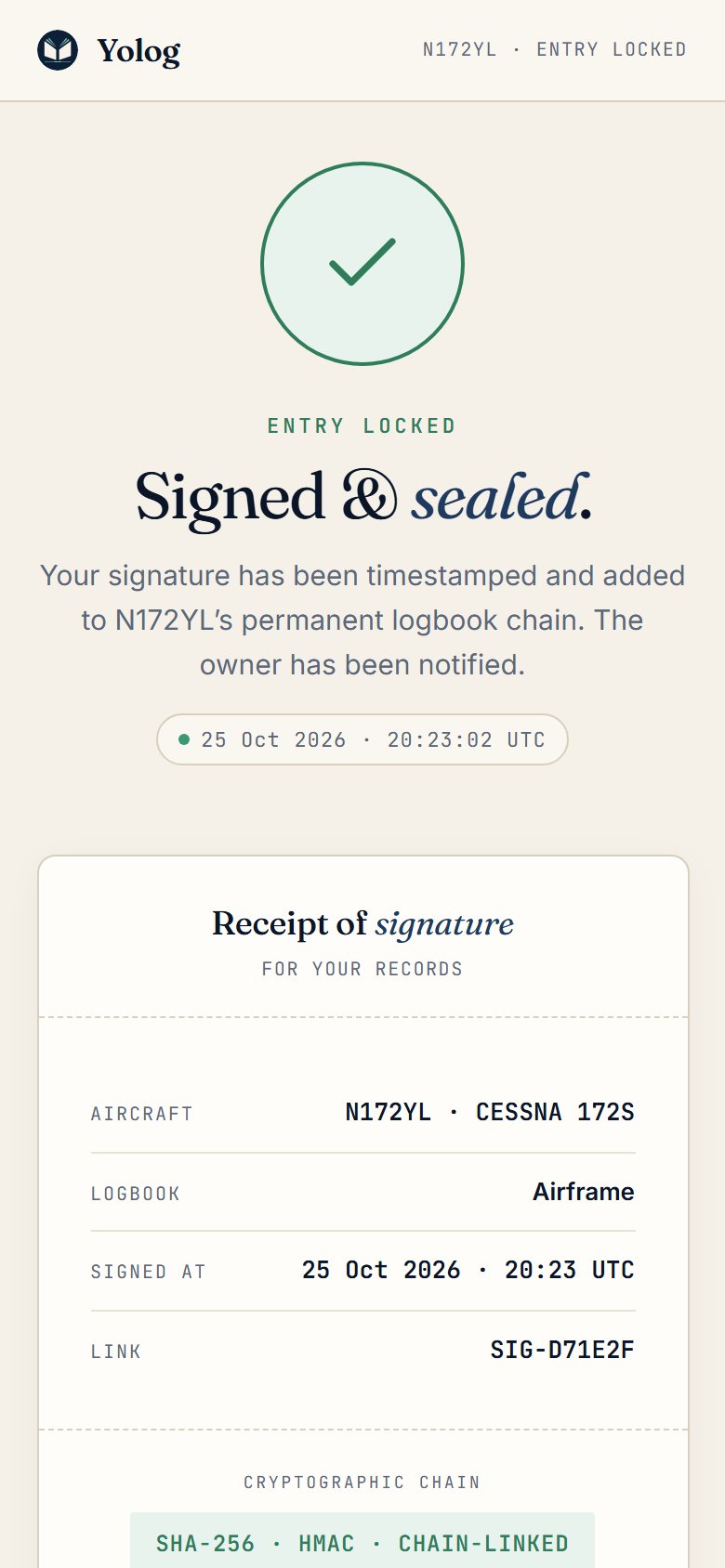
If you sign for more than one owner, choose Get my shop link on the receipt. Enter your email and choose Send me the link to open a free shop dashboard of everything signed under your certificate. See Your mechanic shop account.
Made a mistake after signing? You can’t change the entry. Ask the owner for a new link and sign a new entry that corrects it. See Fixing mistakes.
Expired or canceled links
If you see This link has expired., the owner’s cutoff date passed. If you see This link has been revoked., the owner canceled it. Nothing was signed either way. Ask the owner to send a fresh link.
Still stuck? Contact us - a real person reads every message.