Starting hours
Enter your aircraft's current totals so due dates and overhaul countdowns start from real numbers.
Step 2 of setup asks Where are we starting from? You enter your aircraft’s current hours from its logbooks, so Yolog has a baseline to count from. Hours-based items, like a 100-hour inspection or an oil change, can’t be tracked without one.
Have your logbooks or the last annual entry nearby. Every field is optional, so enter what you have and leave the rest blank.
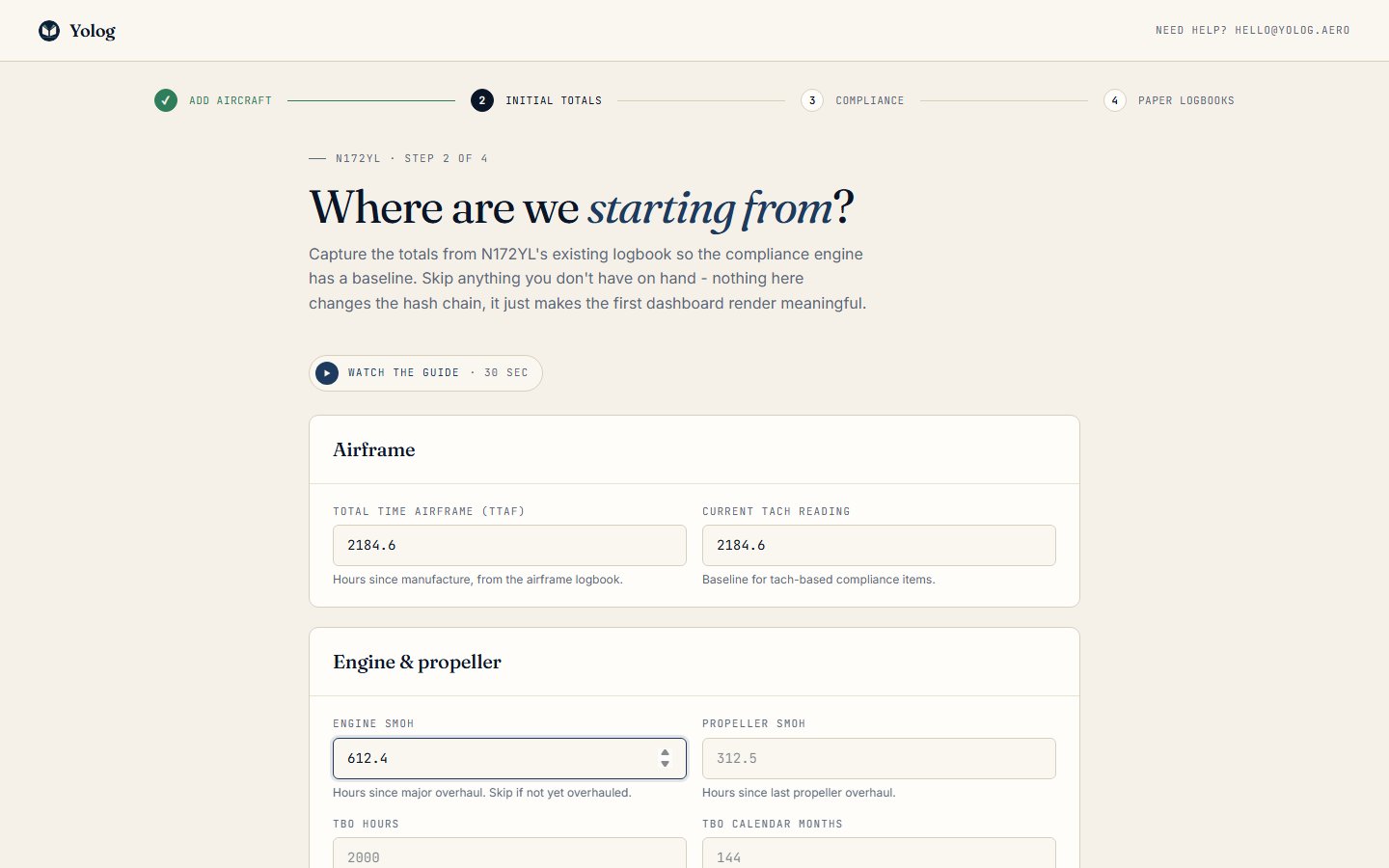
The airframe
Total Time Airframe (TTAF) is the total hours on the airframe since it was built. You’ll usually find it in the most recent entry in the airframe logbook.
Current tach reading is what the tachometer shows today. Yolog uses it as the baseline for tach-based items, like a 100-hour inspection counted in tach hours.
The engine and propeller
For each engine you’ll see a section with these fields. A twin gets one section per engine.
Engine SMOH is the hours since the engine’s last major overhaul. If the engine has never been overhauled, leave it blank.
Propeller SMOH is the hours since the propeller’s last overhaul.
TBO hours is the manufacturer’s recommended time between overhauls for your engine model, for example 2,000 hours. Check your engine’s documentation or ask your mechanic if you’re not sure.
TBO calendar months is the manufacturer’s calendar limit, if they publish one. For example, 144 for 12 years. This one is optional.
If you enter a TBO, Yolog adds an Engine overhaul (TBO) item to your compliance list and shows how many hours you have left before reaching it. Without a TBO, there’s no overhaul countdown.
Tip: TBO is a manufacturer recommendation. Whether it’s mandatory for your aircraft depends on how it’s operated, so talk to your mechanic about what applies to you.
Turbine engines also show an Engine cycles field for the total number of starts. Most piston owners won’t see it.
Save or skip
Click Save and continue to move on to step 3, choosing what to track. See What to track.
If you don’t have the numbers on hand, click Skip - I’ll do this later. Be aware that skipping here ends setup and takes you to your aircraft’s page, so you also skip steps 3 and 4. You can come back to each of them:
- Starting hours: see “Changing them later” below.
- What to track: go to the compliance page. See Compliance and ADs.
- Paper logbooks: click Import paper logbook on your aircraft’s page. See Scan your paper logbooks.
Changing them later
You can correct your starting hours at any time. This is for the owner only.
- Open your aircraft’s page.
- In the Airframe specifications card, click Edit next to Initial TTAF. (If an engine shows “TBO not configured” or “SMOH/TBO not configured”, its Add link goes to the same place.)
- The page is now called Hours baselines. Change the numbers you need.
- Click Save baselines.
How baselines and signed entries work together
These starting numbers are a fallback. They don’t change any signed entry and they aren’t part of the sealed record.
Once a mechanic signs an entry that records the total time or time since overhaul, that signed entry takes over as the reference point, and Yolog counts forward from it. A signed entry always wins over a baseline you typed in.
Day to day, you’ll keep hours current from Update hours on your aircraft’s page. See Hours, trends and weight and balance.
Still stuck? Contact us - a real person reads every message.