Review and apply your scanned entries
Prepare your scanned pages, check what Yolog read against each page, and file the history into your logbook.
Once your PDF is uploaded (see Scan your paper logbooks), Yolog turns it into draft entries for you to check. You review every page against the scan, fix anything it misread, and then apply the approved entries to your logbook. Nothing goes into the record until you click Apply.
Only the owner or a co-owner can review and apply an import. You can leave at any point and come back later from Import paper logbook on your aircraft’s page, under Imports in progress.
1. Render the pages
On the import’s page you’ll see “PDF received”. Click Render pages. Yolog splits the PDF into individual pages and shows its progress (“Rendering page 3 of 40”). The page refreshes itself every 2 minutes, or you can come back later.
If it ever says rendering stalled, click Resume rendering. Pages already done are kept.
2. Turn any sideways pages
Next you’ll see every page as a tile, under Step 1 of 2 - orient each page. Yolog has already tried to straighten portrait scans. For any page that’s still sideways or upside down, click 0°, 90°, 180° or 270° until it reads the right way up. This doesn’t change your PDF, only how the page is sent to be read.
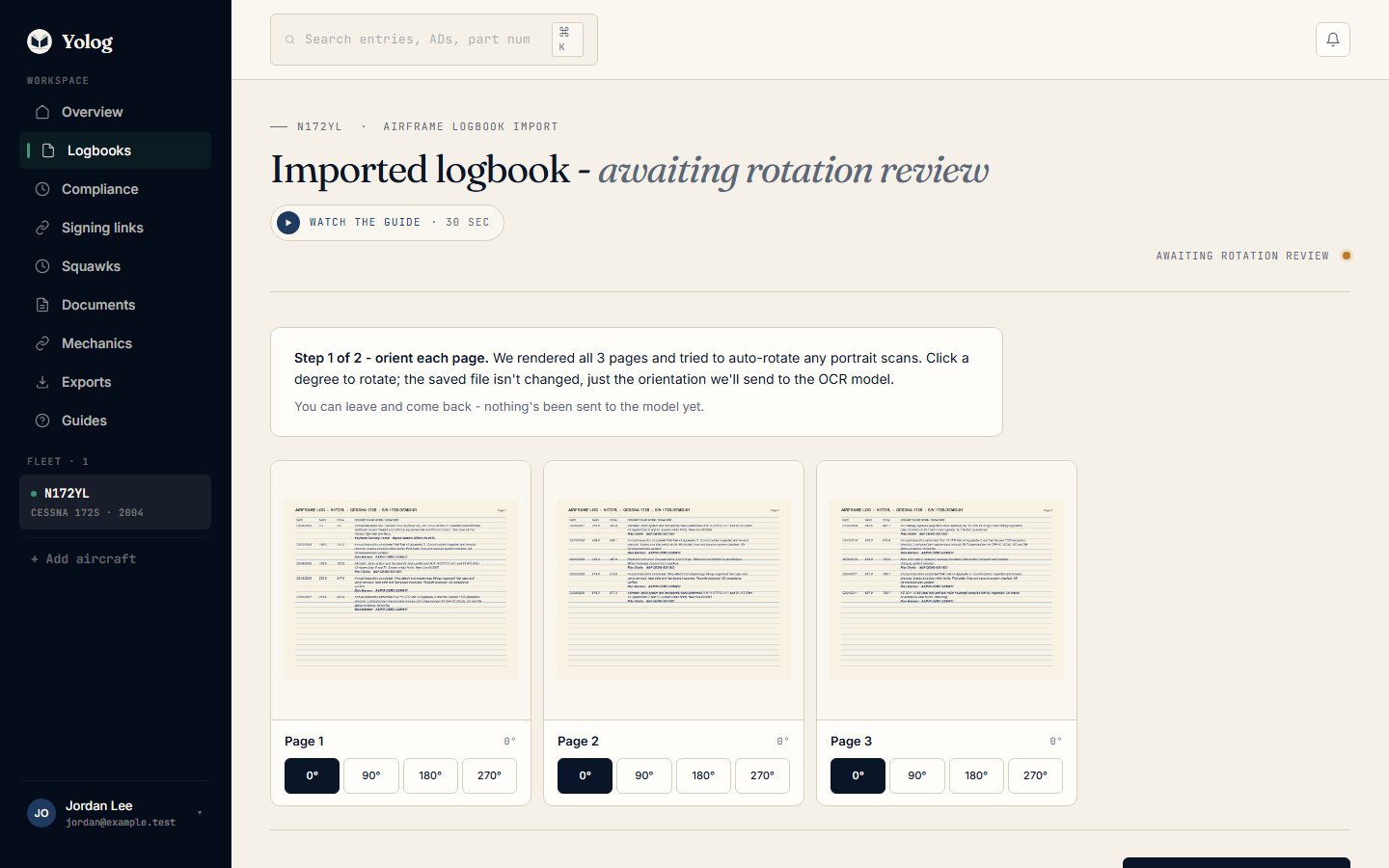
When the pages look right, click Run OCR - translate (the button also shows how many pages). Yolog reads each page and drafts the entries it finds, which takes a few seconds per page. If it stalls, click Resume extraction.
3. Review each page
When reading is done, you’ll see counts of pages that are Extracted, Approved, Rejected and Applied, and a tile for each page still waiting on you.
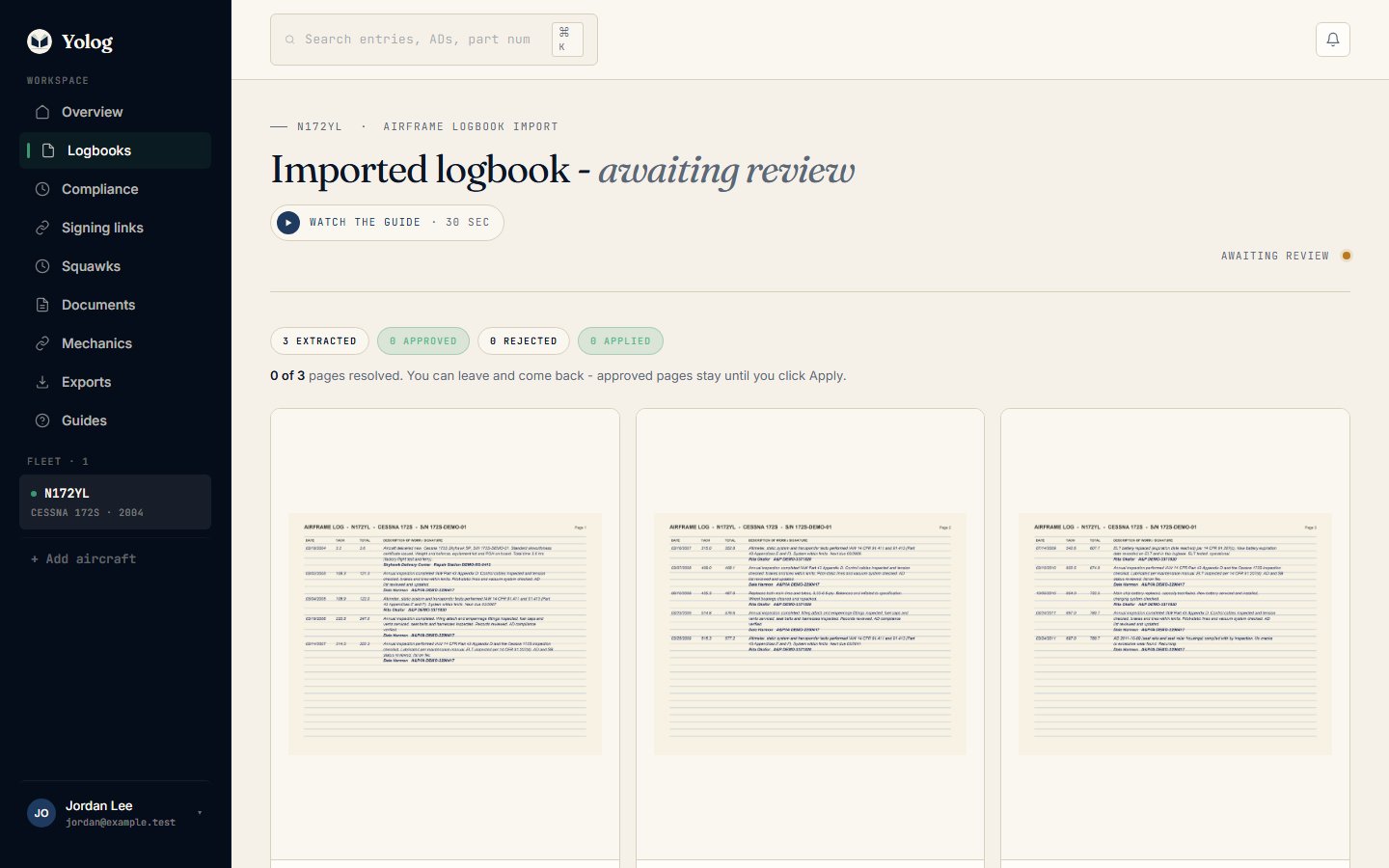
Click Review on a page. The scan is on the left and Review & correct entries is on the right. Work through every field, top to bottom, comparing it with the page:
- Date of work and Entry type, such as Annual inspection or Maintenance / repair.
- Description (verbatim from page): the words as written, not a summary.
- The times recorded: Tach time, Hobbs time, and total time and time since overhaul where the book records them.
- Under Signing mechanic (per scan): Full name, Cert number, Cert type and Attestation text (verbatim), as written on the page.
- Entry notes (optional) for anything unclear.
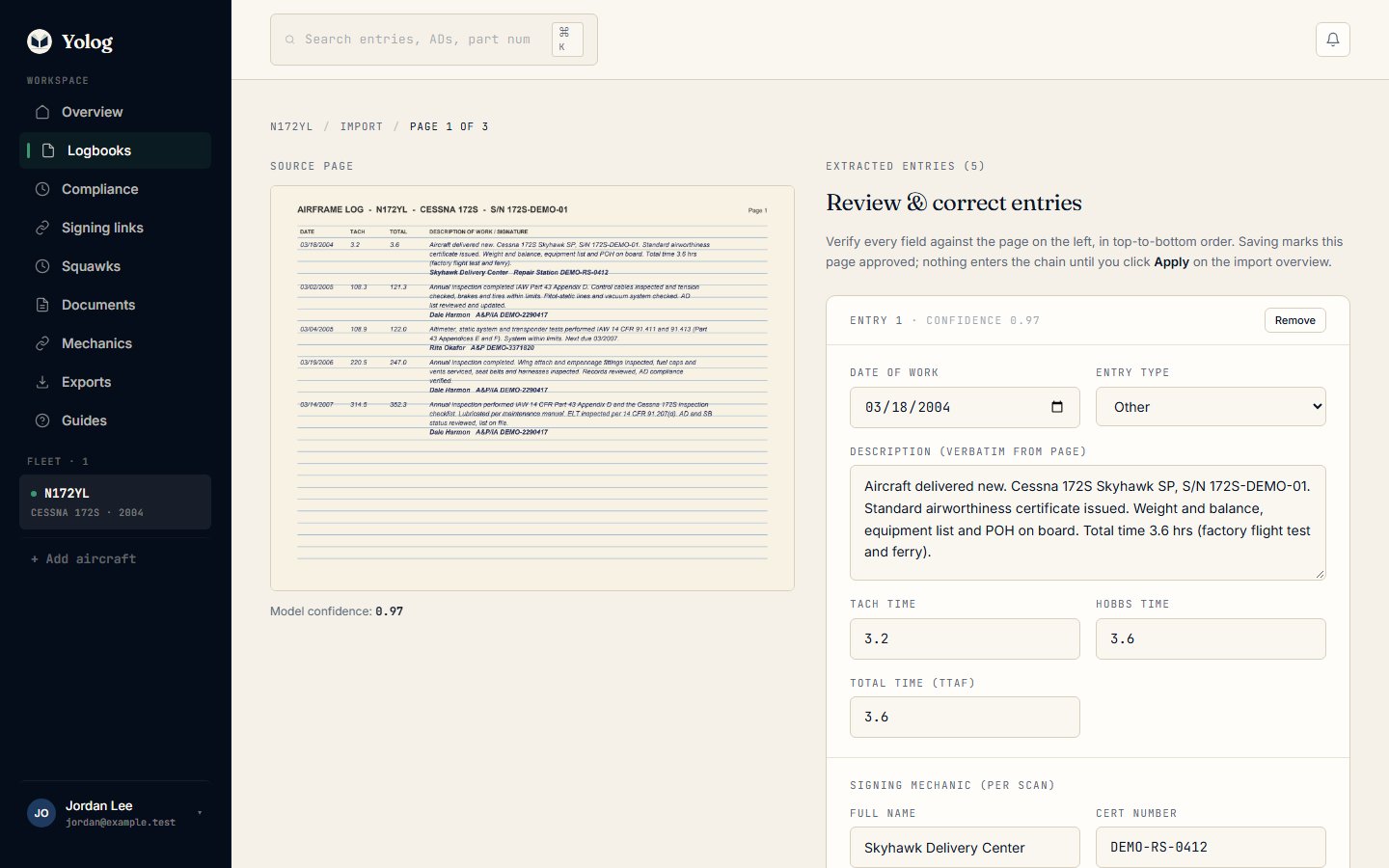
Paper pages often hold several entries. Yolog drafts one block per entry it finds. If it missed one, click + Add another entry. If it made one up or split one in two, click Remove on the extra block. Use Page notes (optional) for things like an entry that carries on to the next page. Each entry also shows how confident Yolog was in its reading; take extra care with low numbers.
When the page is right, click Approve page, or Approve & next to go straight to the next page. Yolog won’t accept a work date in the future, which usually means a year typo like 9191 for 1991.
Pages that aren’t entries. For a cover, a blank page or an index, click Skip on its tile instead. Skipped pages move to Reviewed pages at the bottom, and you can open one again from there if you change your mind.
Pages that couldn’t be read. If a page failed, click Retry OCR on its tile, or Skip it.
4. Apply the approved entries
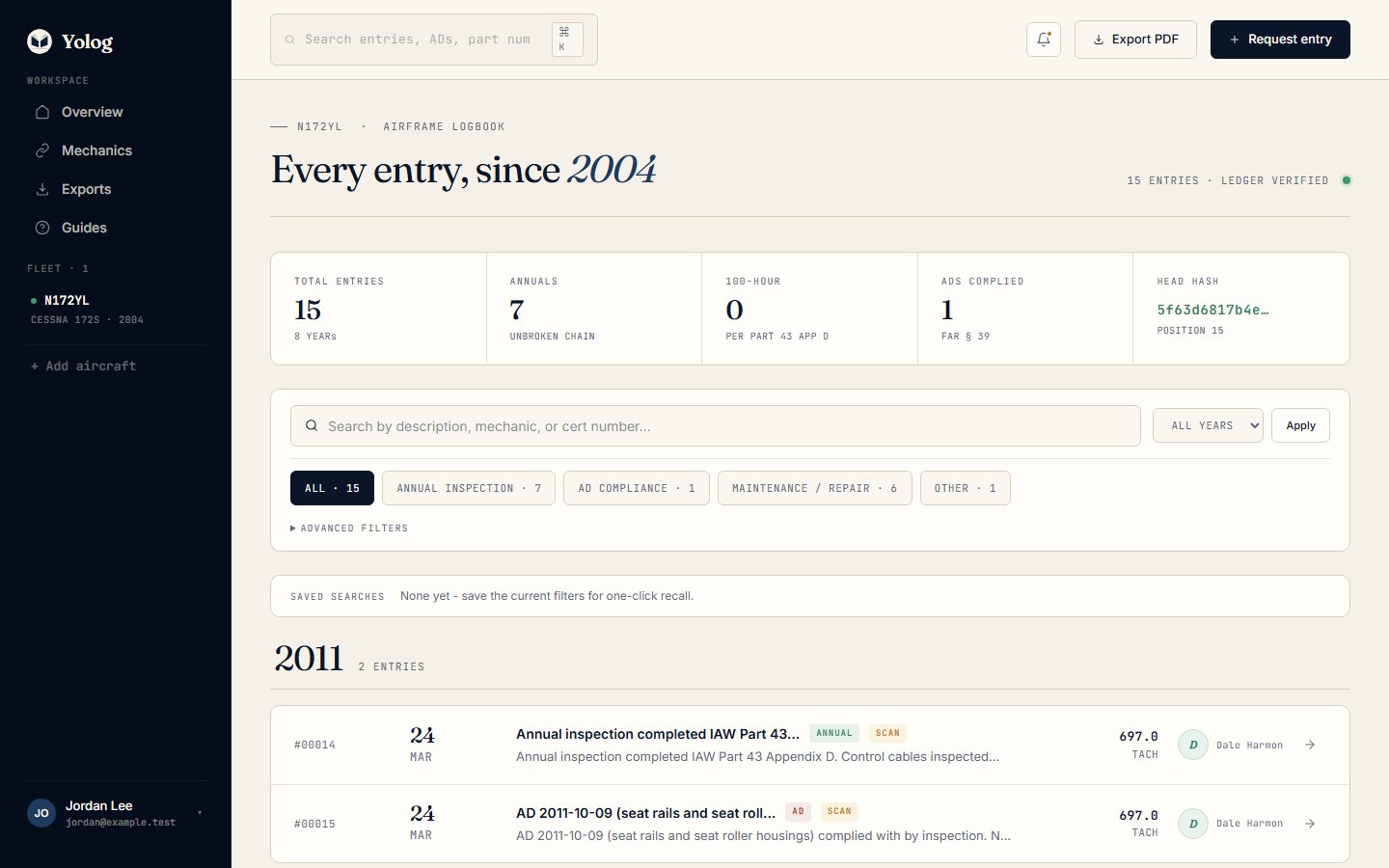
When you’ve approved some pages, click Apply approved entries to chain (the button shows the count). Yolog files each approved entry into the logbook with the date the work was actually done, and takes you to the logbook.
You don’t have to review the whole book first. You can apply in batches as you go.
Warning: Applying is permanent. Applied entries are sealed into the record like any other entry and can’t be edited or deleted. If you find a mistake later, it’s fixed with a new correction entry signed by a mechanic. See Fixing mistakes. Check each page carefully before you approve it.
What “imported from scan” means
Imported entries carry a Scan badge in the logbook. Opening one shows that it was imported from a scanned paper logbook and that the original mechanic did not sign it in Yolog. Click Compare with scan to see the original page beside it.
An imported entry is a record of your paper history as you reviewed it. It doesn’t claim the mechanic signed on Yolog. The signature that counts for that work is still the one in your paper logbook, which is why you keep the originals (14 CFR 91.417).
5. Tell Yolog when you’re done
While you’re importing, compliance tracking is paused for this aircraft. Due dates worked out from half a logbook would be wrong, so Yolog waits until you say the history is complete.
When every book is in, look for Done importing your paper logbooks? at the top of your aircraft’s page.
- If you’d like emails when something comes due, tick the reminder box. It’s off unless you tick it.
- Click I’m done importing - start tracking.

Yolog then works out due dates from the newest matching entries in your history. Found another binder later? In Settings, on the Aircraft records card, click Pause tracking, import it, then click Mark import complete. Pausing never changes any entries.
Still stuck? Contact us - a real person reads every message.