Co-owners and members
Invite partners and helpers to your aircraft and control exactly what each person can do.
Most aircraft aren’t flown or looked after by one person. Yolog lets you give other people their own sign-in to your aircraft, with one of three roles:
- Owner is you, the person who added the aircraft or accepted it in a transfer. There is one owner.
- Co-owner is a partner with full read and write access to day-to-day records.
- Member is someone who can look but not change things, unless you tick specific extras for them. A flying club member, an A&P who helps you track things, or a family member are typical members.
Nobody in any role can edit or delete a signed logbook entry. Signed entries are permanent for everyone.
What each role can do
| Owner | Co-owner | Member | |
|---|---|---|---|
| View logbooks, entries and search | Yes | Yes | Yes |
| View compliance items and ADs | Yes | Yes | Yes |
| Edit compliance items and record ADs | Yes | Yes | No |
| Export PDF and CSV | Yes | Yes | Yes |
| Request a signed entry from a mechanic | Yes | Yes | No |
| Import paper logbooks | Yes | Yes | No |
| Add hours readings | Yes | Yes | If ticked |
| Edit or delete an hours reading | Yes | Yes | No |
| Add and manage squawks | Yes | Yes | If ticked |
| Upload documents | Yes | Yes | If ticked |
| Delete documents | Yes | No | No |
| Trends and oil analysis, Weight & balance | Yes | Yes | No |
| Share links, verification links, pedigree page, API tokens | Yes | Yes | No |
| Open the Co-owners & partners page | Yes | Yes (members only) | No |
| See the Activity log | Yes | No | No |
| Transfer ownership | Yes | No | No |
Members can see the Trends & oil analysis and Weight & balance buttons on the aircraft page, but those pages only open for the owner and co-owners.
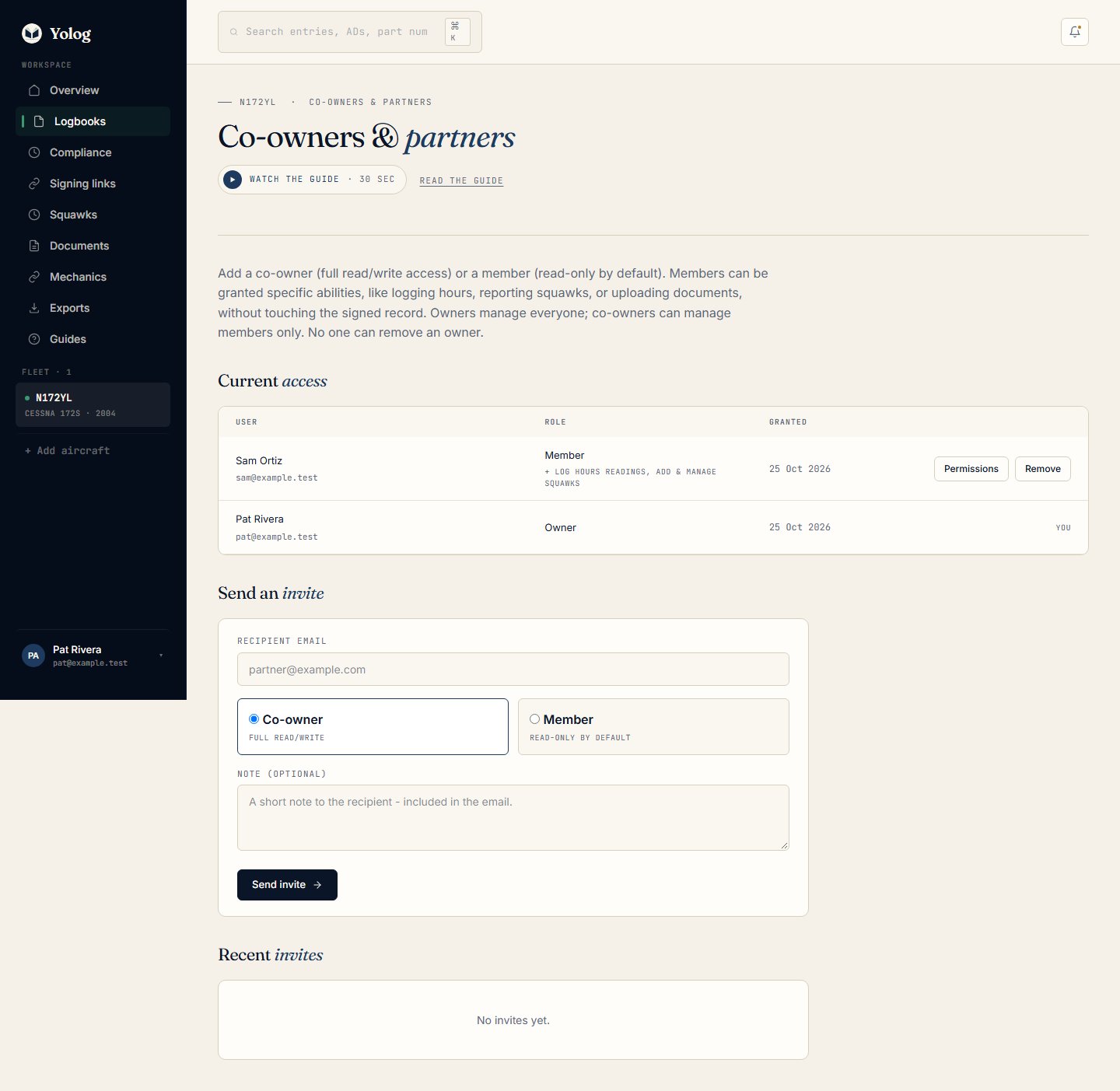
Invite someone
- Open your aircraft’s page and choose Co-owners & partners.
- Under Send an invite, type their Recipient email.
- Pick Co-owner or Member. If you pick Member, tick anything extra they should be able to do: Log hours readings, Add & manage squawks, Upload documents. Leave them all unticked for read-only access.
- Add an optional Note. It’s included in the email.
- Choose Send invite.
Yolog emails them an invite link. Right after you send it, the page also shows the link once, with a Copy URL button, in case the email ends up in spam. Copy it then if you think you’ll need it, because it isn’t shown again.
Invites expire after 14 days. You can only have one open invite per email address on an aircraft; to change it, choose Cancel next to it under Recent invites and send a new one.
Tip: Co-owners can invite members too, but only the owner can invite a co-owner.
What the person you invite sees
They open the link and sign in with the email address you invited. Yolog uses one-time email sign-in links, so there’s no password to set up. They’ll see who invited them, your note, what their role allows, and two buttons: Accept invite and Reject. If they sign in some other way first, Yolog shows a You’ve been invited. page with Accept and Decline for every open invite sent to that address.
If they’re signed in with a different email, Yolog tells them it’s the wrong account and offers to sign them out. If the address you typed was wrong, cancel the invite and send a new one to the right address.
Change what a member can do
- On Co-owners & partners, find the member under Current access.
- Choose Permissions, tick or untick the boxes, and choose Save.
Changes take effect straight away. To turn a member into a co-owner, the owner sends them a new co-owner invite; when they accept, their role is upgraded.
Remove someone
Choose Remove next to their name under Current access and confirm. They lose access to the aircraft immediately. Anything they added while they had access, like hours readings, squawks or documents, stays on the aircraft.
- The owner can remove co-owners and members.
- A co-owner can remove members only.
- No one can remove the owner. Ownership only changes through a transfer. See Transfer ownership.
You’re responsible for keeping your aircraft’s maintenance records under 14 CFR 91.417, whoever else you invite to help. Giving someone access doesn’t change that.
Still stuck? Contact us - a real person reads every message.