Documents
Keep your POH, insurance, certificates and photos in one vault, with expiry reminders.
The document vault holds the paperwork that lives alongside your logbooks: the POH, Form 337s, weight and balance reports, insurance, the airworthiness and registration certificates, the radio station license, photos and receipts.
Open it from Documents in the sidebar, or Documents under Quick actions on the dashboard.
Who can do what
| Action | Who |
|---|---|
| View and download | Everyone on the aircraft |
| Upload | Owner, co-owners, and members with Upload documents |
| Delete | Owner only |
See Co-owners and members to give a member upload access.
Upload a document
- Click Upload at the top of the vault (or Upload your first document if it’s empty).
- Under Kind, choose what it is, such as Insurance certificate or Pilot Operating Handbook.
- Under File, pick the file. PDF, JPEG, PNG, HEIC and WebP are accepted, up to 50 MB.
- If the document expires, set Expires on (optional). This is mostly for insurance, but works for anything with an expiry date.
- Add Notes (optional), such as “2024 policy”.
- Click Upload.
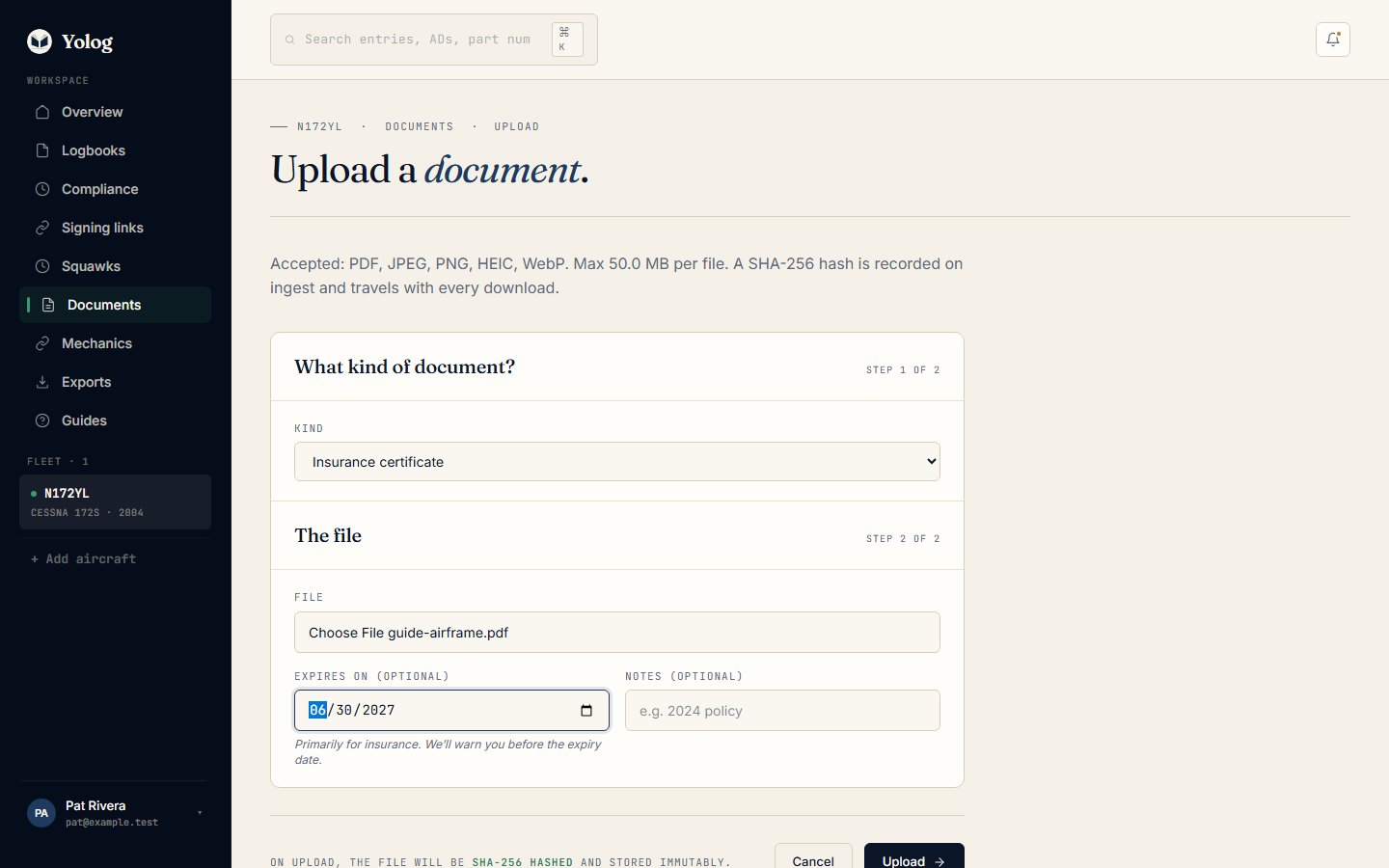
When the file arrives, Yolog records its SHA-256 fingerprint, a long code that changes if even one byte of the file changes. The fingerprint is shown on the document’s card and is sent along with every download, so anyone can confirm later that the file is exactly the one you uploaded.
Find and open documents
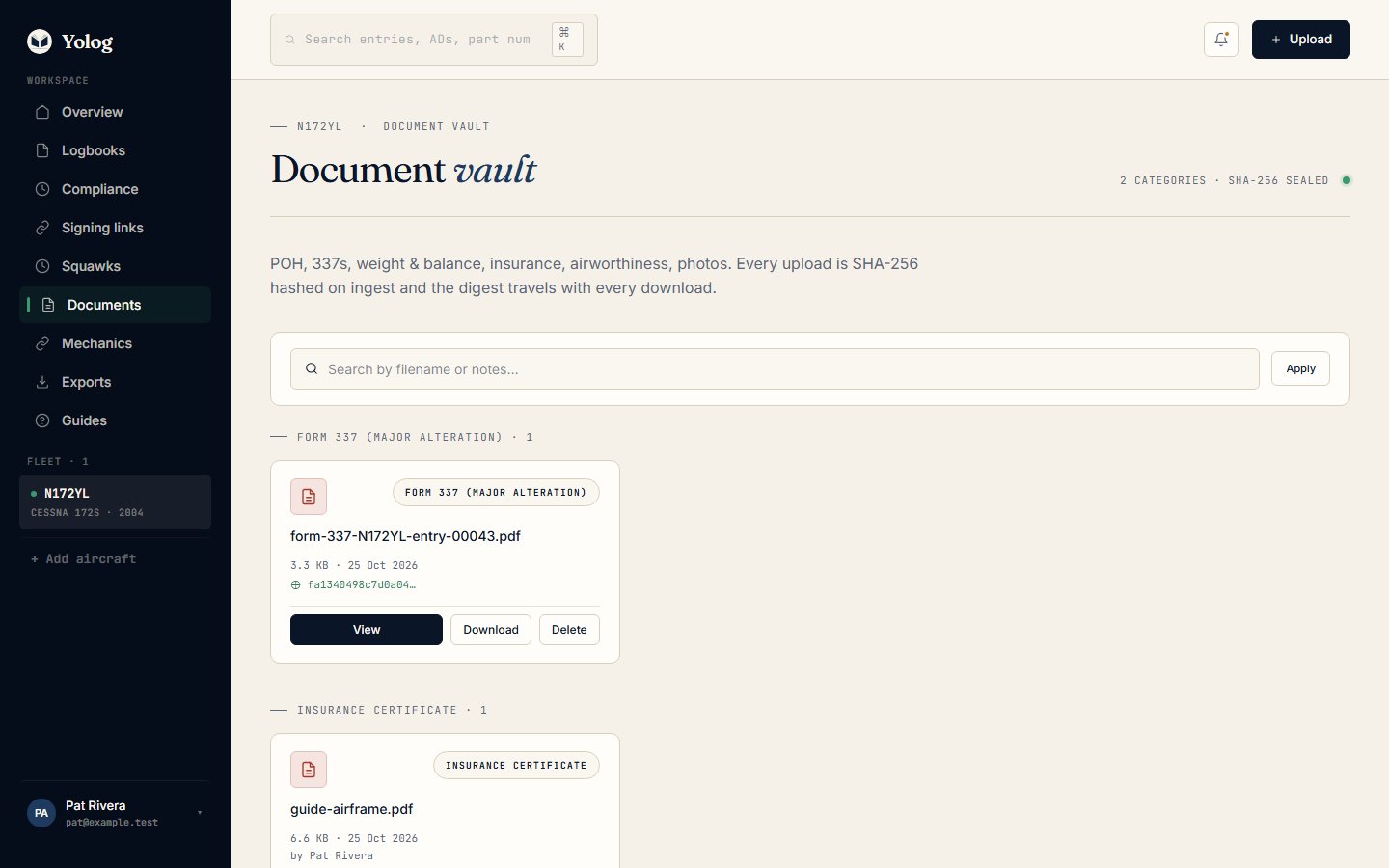
Documents are grouped by kind. Each card shows the file name, size, upload date, who uploaded it, and the start of its fingerprint. Documents with an expiry date show an amber EXPIRES chip, or a red EXPIRED chip once the date has passed.
Use Search by filename or notes… and click Apply to find something quickly, or CLEAR to go back to the full list.
- View opens PDFs and images in a preview right on the page, so you don’t have to download them.
- Download saves a copy.
- HEIC photos can’t be previewed in the browser, so they only offer Download.
Expiry reminders
When a document has an expiry date, Yolog reminds the owner and co-owners by email (and by text message, if you’ve turned that on):
- 30 days before it expires
- again 7 days before
- after it expires, once a week until you deal with it
Insurance that expires within 30 days also shows as a chip on the aircraft page.
When you renew, upload the new document with its new expiry date. Yolog stops reminding you about the old one as soon as a newer document of the same kind is in the vault. The old one stays in the vault for your records.
Reminders go to people who have compliance reminders turned on. See Notifications and reminders.
Delete a document
Only the owner sees Delete. You’ll be asked to confirm, and the file is removed permanently, so download a copy first if you might need it.
Note: Deleting from the vault never touches your logbooks. Signed entries and their attachments are locked and can’t be deleted by anyone.
Documents Yolog adds for you
Some documents appear on their own:
- Squawk photos. Every photo you attach to a squawk is saved in the vault as a Photograph. See Squawks.
- Form 337. When a mechanic signs an Alteration entry, Yolog files a Form 337-style PDF of it here. It’s a printable record in Yolog’s own layout, not the FAA’s official form, so keep the official Form 337 your mechanic completes as well.
- Your dashboard and aircraft page
- Logbooks and search
- Hours, trends and weight & balance
- Compliance and ADs
Still stuck? Contact us - a real person reads every message.