Scan your paper logbooks
Scan each paper logbook to a PDF and upload it so Yolog can read your aircraft's history.
Your paper logbooks hold your aircraft’s whole history, and Yolog needs that history to work out what’s due. You bring it in by scanning each book to a PDF and uploading it. Yolog reads every page and drafts the entries, then you check each draft against the scan. Nothing is filed until you approve it.
This guide covers scanning and uploading. The next one, Review and apply your scanned entries, covers checking the drafts.
Only the owner or a co-owner can import paper logbooks.
Where to start
You can start an import from either place:
- During setup: step 4, Bring the paper history along. Click Import my paper logbooks. If you’d rather do it later, click Skip - finish & go to dashboard.
- Any time after: open your aircraft’s page and click Import paper logbook.
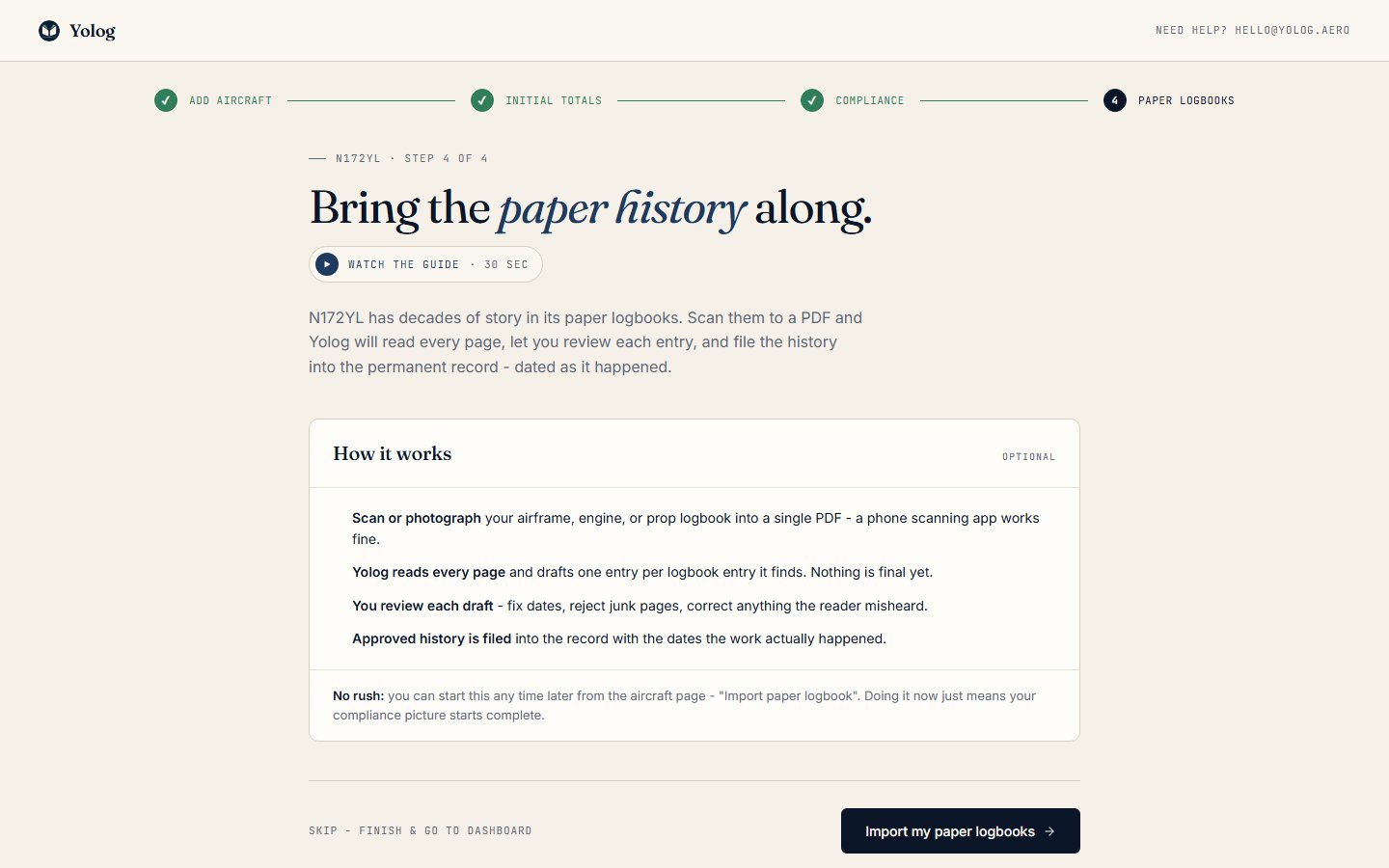
Note: Paper logbook import needs an active subscription, or beta access during the closed beta. Without it, step 4 only offers Finish & go to dashboard.
Scan your logbooks
You don’t need special equipment. A phone scanning app works fine. A few things make a big difference to how well Yolog reads the pages:
- Make one PDF per logbook. Scan the airframe book into one PDF, the engine book into another, and the propeller book into a third. Each import goes into a single logbook.
- Keep the pages in order, oldest to newest, as they are in the book.
- Use good, even light, without shadows across the page or glare on glossy paper.
- Get the whole page in, including the margins where dates, tach times and signatures often sit.
- Keep it sharp. If you can’t read a word on the scan, Yolog probably can’t either.
- Scan everything, including blank or odd pages. It’s easier to keep the book complete and skip a page during review than to rescan a missing one.
Don’t worry if a few pages come out sideways. You can rotate them after uploading.
Each PDF can be up to 50 MB. A very thick book may need splitting into more than one PDF; upload each part as its own import to the same logbook.
Upload the PDF
- On Import a scanned paper logbook., under Which logbook?, pick Airframe, Engine or Propeller.
- Under The PDF, choose your file in Scanned logbook (PDF).
- Click Upload. Big files can take a minute; the button shows “Uploading…” while it works.
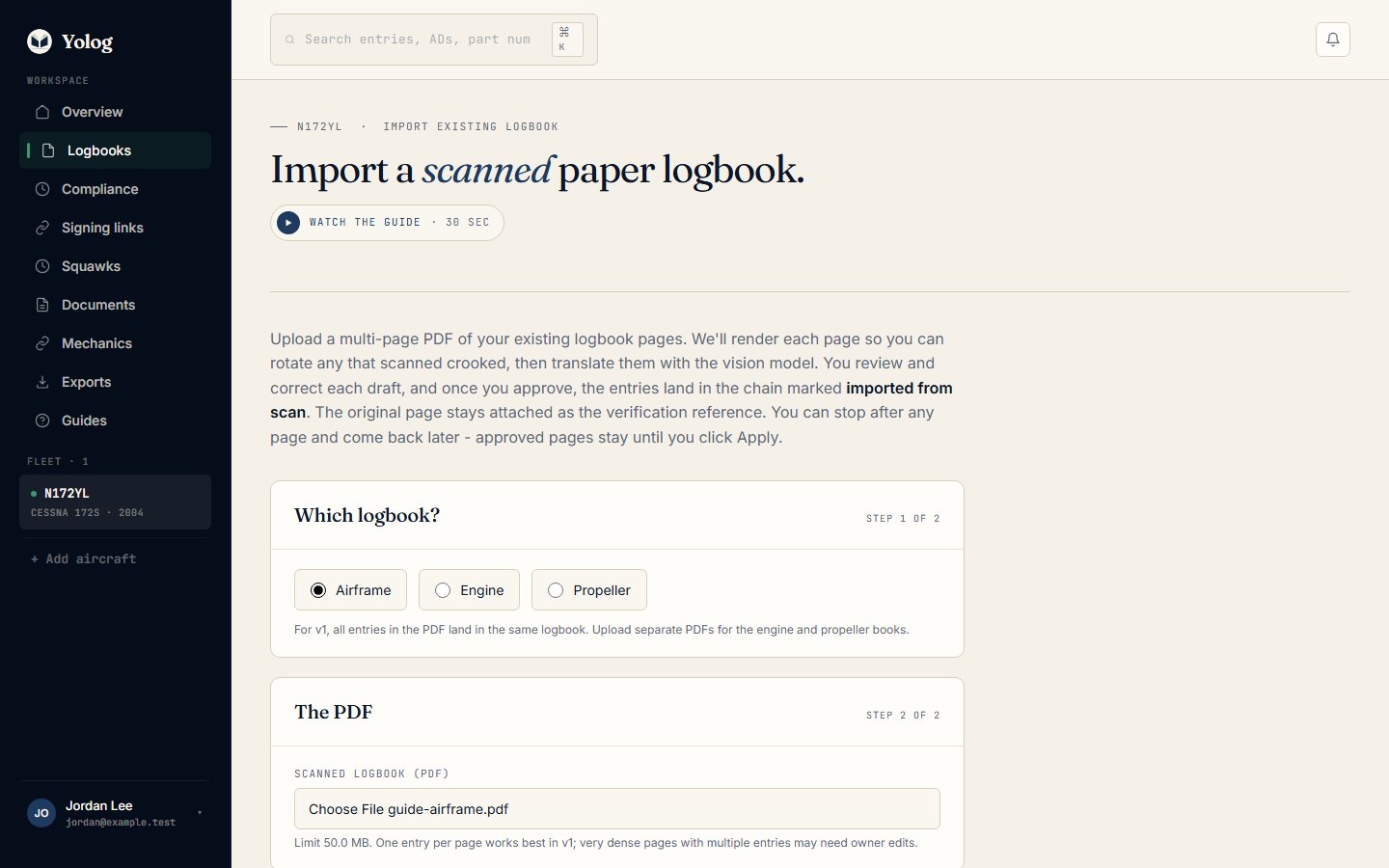
When the upload finishes, you’ll go to the import’s own page, where you prepare the pages and have Yolog read them. Carry on with Review and apply your scanned entries.
Note: On a twin, engine and propeller imports currently go into the books for engine 1.
You can upload up to 5 PDFs an hour. If you hit the limit, wait a little and try again.
Coming back to an import
You don’t have to finish in one sitting. Long logbooks can take a while to review, and your progress is saved as you go.
To pick up where you left off, go back to Import paper logbook on your aircraft’s page. Any import you haven’t finished is listed under Imports in progress, with where you got to, for example “12 pages need review”. Click Resume to carry on.
Once an import’s entries are applied, it’s locked into your logbook and no longer appears in that list.
Keep your paper originals
Importing makes your history searchable and lets Yolog track compliance from it, but keep the paper logbooks. Under 14 CFR 91.417, the owner is responsible for keeping the aircraft’s maintenance records, and some of them, like total time, time since overhaul and the status of ADs, stay with the aircraft for its whole life and go to the next owner when you sell. Your paper books are the originals of those records. During the beta, please also keep writing new work into your paper logbooks as the primary record.
Still stuck? Contact us - a real person reads every message.