Compliance and ADs
Track inspections and recurring items, read the annunciator, and record AD compliance.
The compliance page answers one question: is anything due? As the owner, you’re responsible for keeping the aircraft inspected (14 CFR 91.409) and for keeping records of inspection and AD status (14 CFR 91.417). Yolog keeps track of the dates and hours so you don’t have to, but it’s a tracker, not a substitute for your mechanic’s judgment.
Open it from Compliance in the sidebar, or Compliance & ADs on the dashboard. Everyone on the aircraft can view it. Only the owner and co-owners can add, edit or record items.
Tracking starts when your paper records are in
Due dates are worked out from your maintenance history. While you’re still importing paper logbooks, that history is incomplete, so Yolog pauses tracking: every item reads UNKNOWN and no reminders go out.
When every paper entry is in, click I’m done importing - start tracking on the aircraft page banner. Yolog then recomputes your due dates from the newest matching entries. If you confirmed too early, open Settings, go to Aircraft records, and click Pause tracking.
Reading the annunciator
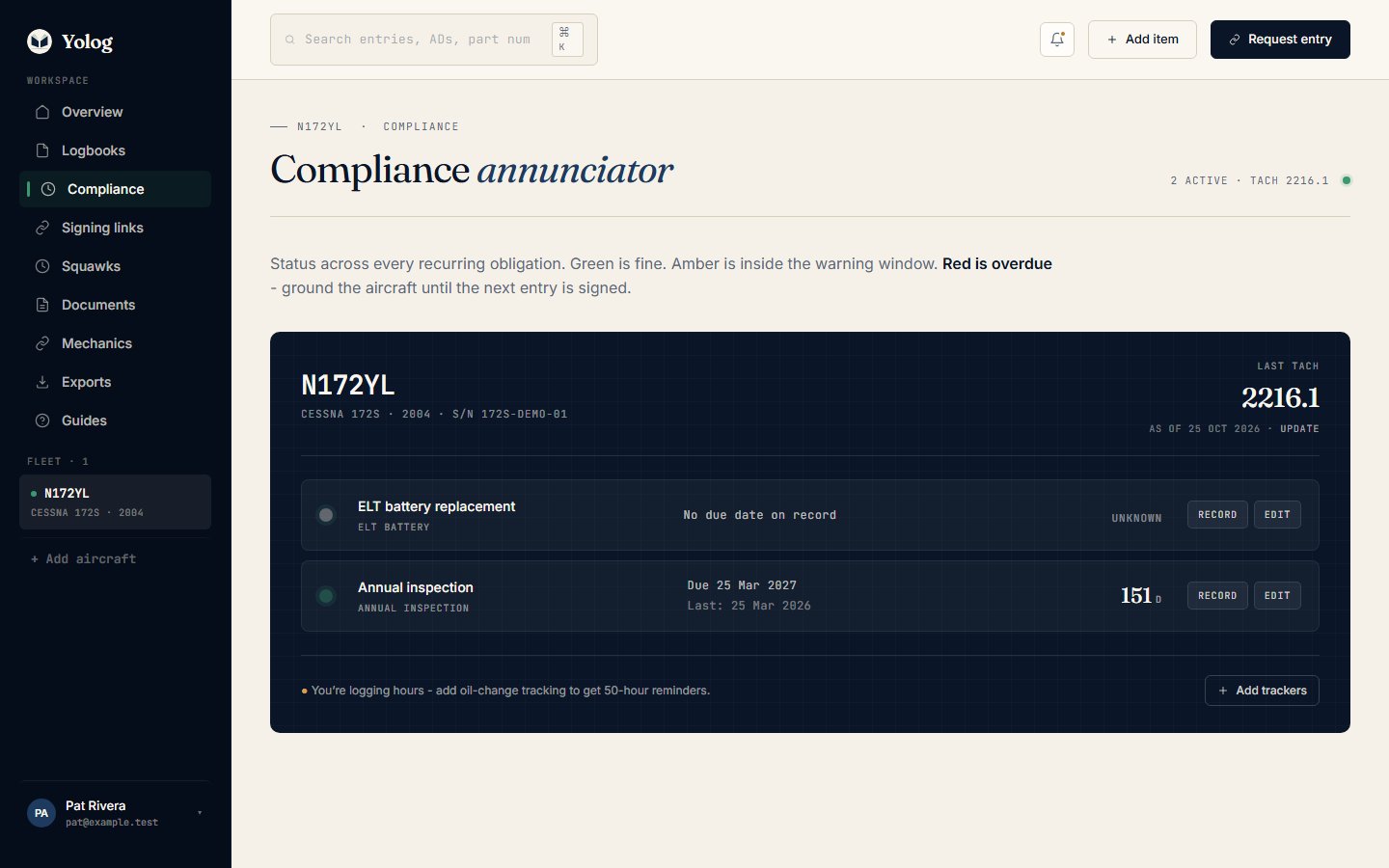
Each row is one tracked item, sorted with the most urgent first. Its light tells you where it stands:
- Green: current.
- Amber: inside its warning window, so plan for it.
- Red: overdue.
- Grey (UNKNOWN): Yolog has no due date for it yet, or tracking is paused.
Each row shows the due date or due tach, when it was last complied with, and how much time is left in days (D), hours (H) or cycles. An engine or propeller overhaul item also shows a projected date based on how much you’ve been flying.
If an item has more than one limit, such as 12 months or 100 hours, whichever comes first wins. Any limit that’s passed turns the item red.
Hour-based items depend on your current tach, so keep your hours up to date. See Hours, trends and weight & balance.
Add and edit items
Click Add trackers at the bottom of the annunciator to switch on any default items you aren’t tracking yet, such as Transponder / IFR (§ 91.413), Pitot-static (§ 91.411), ELT battery or Oil & filter change. Click Add on each one you want, then Done. For anything else, click Add a custom item (or Add item at the top of the page).
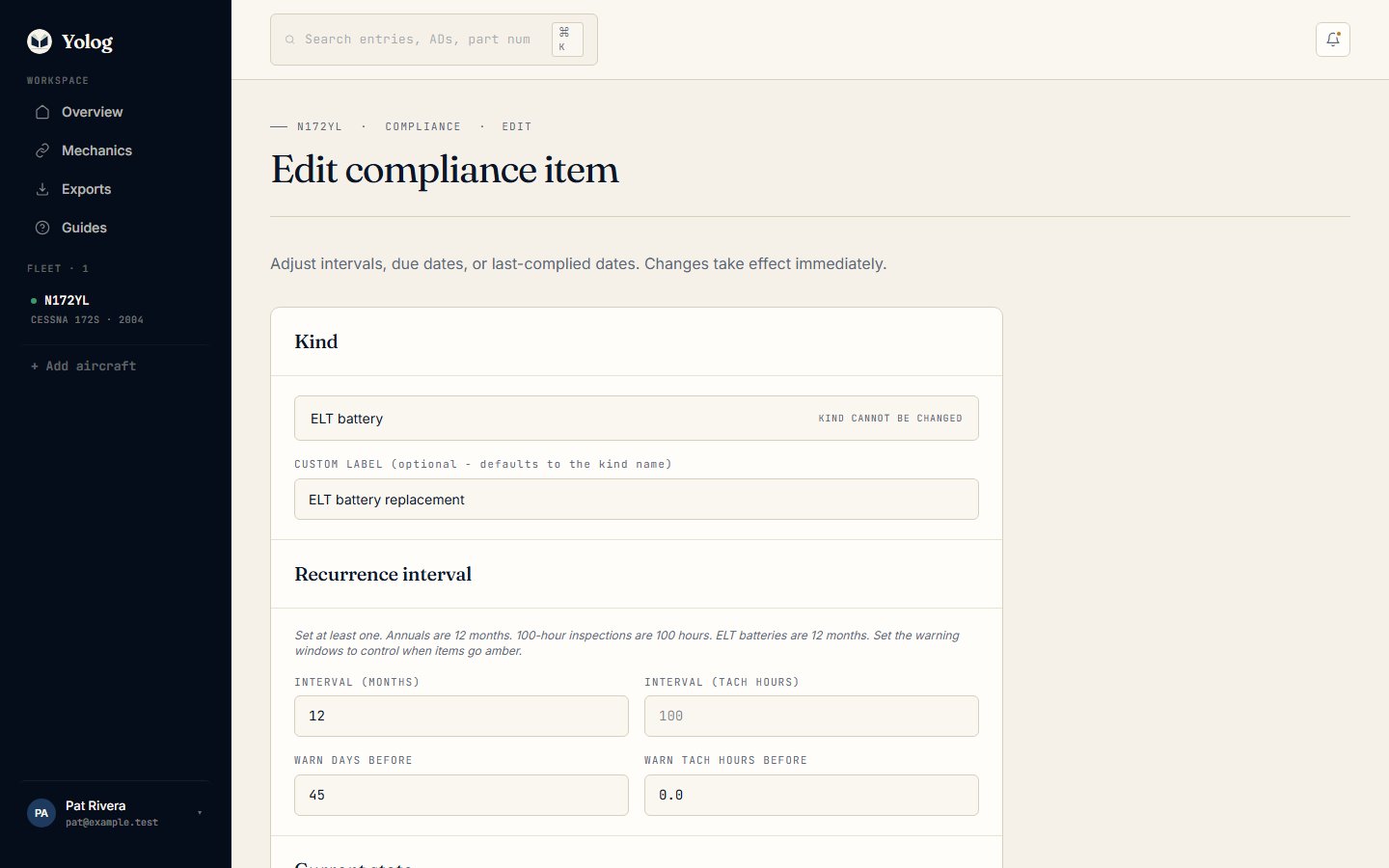
Click Edit on a row to change it:
- Recurrence interval: set at least one of Interval (months) or Interval (tach hours). Aircraft that track engine cycles also get Interval (engine cycles).
- Warning windows: Warn days before and Warn tach hours before control when the item turns amber. New items start at 30 days and 10 hours.
- Current state: enter Last complied on (and Last complied tach) and Yolog computes the next due date from the interval, or set Due on or Due tach directly.
- Active: untick it for items that don’t apply to this aircraft. Inactive items leave the annunciator and send no reminders.
Click Save changes when you’re done.
Recording compliance
Most of the time you don’t need to do anything. When a mechanic signs the matching entry through Yolog, the item updates itself.
If the work happened outside Yolog, for example in a previous owner’s paper logbook, click Record on the row. Enter the Date complied and, for hour-based items, the Tach reading at compliance, then click Record compliance. The next due date is recomputed from the interval.
Airworthiness directives
Under 14 CFR Part 39, an aircraft may only be operated in compliance with every AD that applies to it. Yolog syncs the FAA’s AD catalog and suggests the ones that seem to match your aircraft’s make and model.
Important: Applicability is suggested, not authoritative. Verify each AD against its text, with your mechanic, before acting. Deciding which ADs apply is your responsibility, not Yolog’s.
Applicable ADs appear under Airworthiness directives on the compliance page. Click Full AD library to see them all.
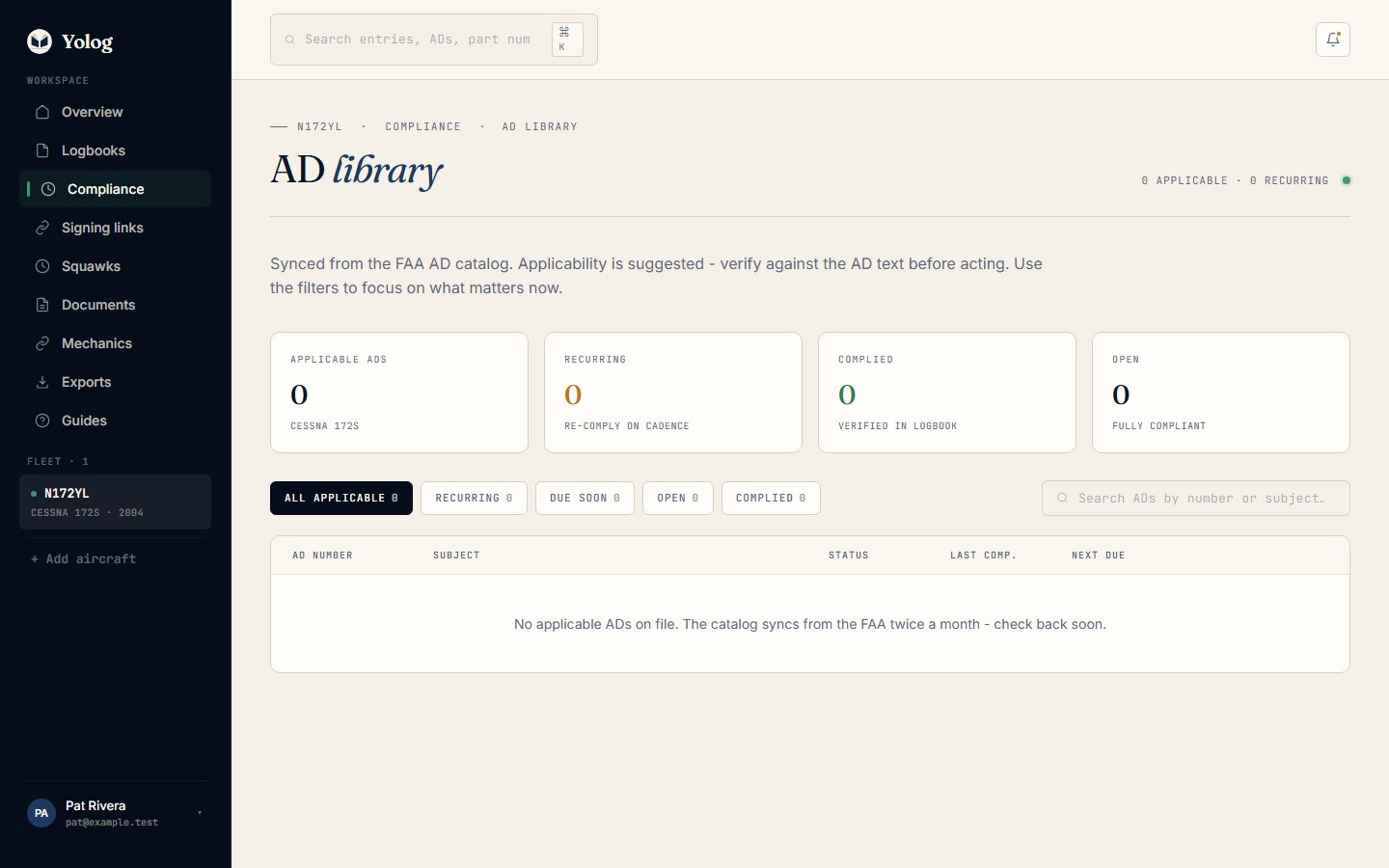
The library shows totals for applicable, recurring, complied and open ADs. Use the filter tabs (All applicable, Recurring, Due soon, Open, Complied) or Search ADs by number or subject…. A REC flag marks a recurring AD and NEW marks one matched in the last 30 days. ↗ opens the FAA source.
Each AD carries a status:
- Open: applicable, and no compliance recorded yet.
- Complied: compliance recorded.
- N/A: marked not applicable to this aircraft.
- Exempt: marked exempt.
Mark an AD complied
- Click Mark complied on the AD.
- If any signed entries mention the AD number, they’re listed under Logbook evidence. Pick the one that documents the work, or choose No entry - record compliance without attaching evidence. Yolog only suggests; you confirm.
- Enter the Date complied. For a recurring AD, also set Next due on or Next due tach.
- If there’s no Yolog entry, you can fill in Reviewed by with the Mechanic name, Certificate number and Date reviewed. This is your record of what the mechanic did, not their signature, and Yolog labels it Owner-recorded · not a signature.
- Click Mark complied.
When a signed entry is attached, the reviewer comes from its signature and shows as Signed, with a link to the entry.
Still stuck? Contact us - a real person reads every message.