Your mechanic shop account
Set up a free shop account to see waiting requests, your signature history and your directory listing.
You never need an account to sign an entry. Owners send you a link and you sign. But if you work on more than one Yolog aircraft, a free shop account puts everything in one place:
- Work queue: signing links owners send to your email, with their expiry dates.
- Signature history: every Yolog entry signed under your certificate number, grouped by aircraft.
- Directory listing: if you opt in, owners on Yolog can find you and request work.
Two ways to get one
After signing an entry. On the Signed & sealed. receipt, choose Get my shop link. Enter your email and choose Send me the link. Yolog emails you a sign-in link (it works once and expires in 15 minutes) that opens your shop dashboard. For a new account, your name and certificate details come from the entry you just signed. If you already had a Yolog account under that email (say, as an owner), the dashboard shows No cert on file yet. Choose Add my certificate to enter it.
By signing up. Sign in at Yolog with your email, and when asked which one are you?, choose A&P mechanic. You’ll land on Your shop, on Yolog. Enter your Full name (as on your certificate), Certificate number and Certificate type, then choose Open my shop dashboard.
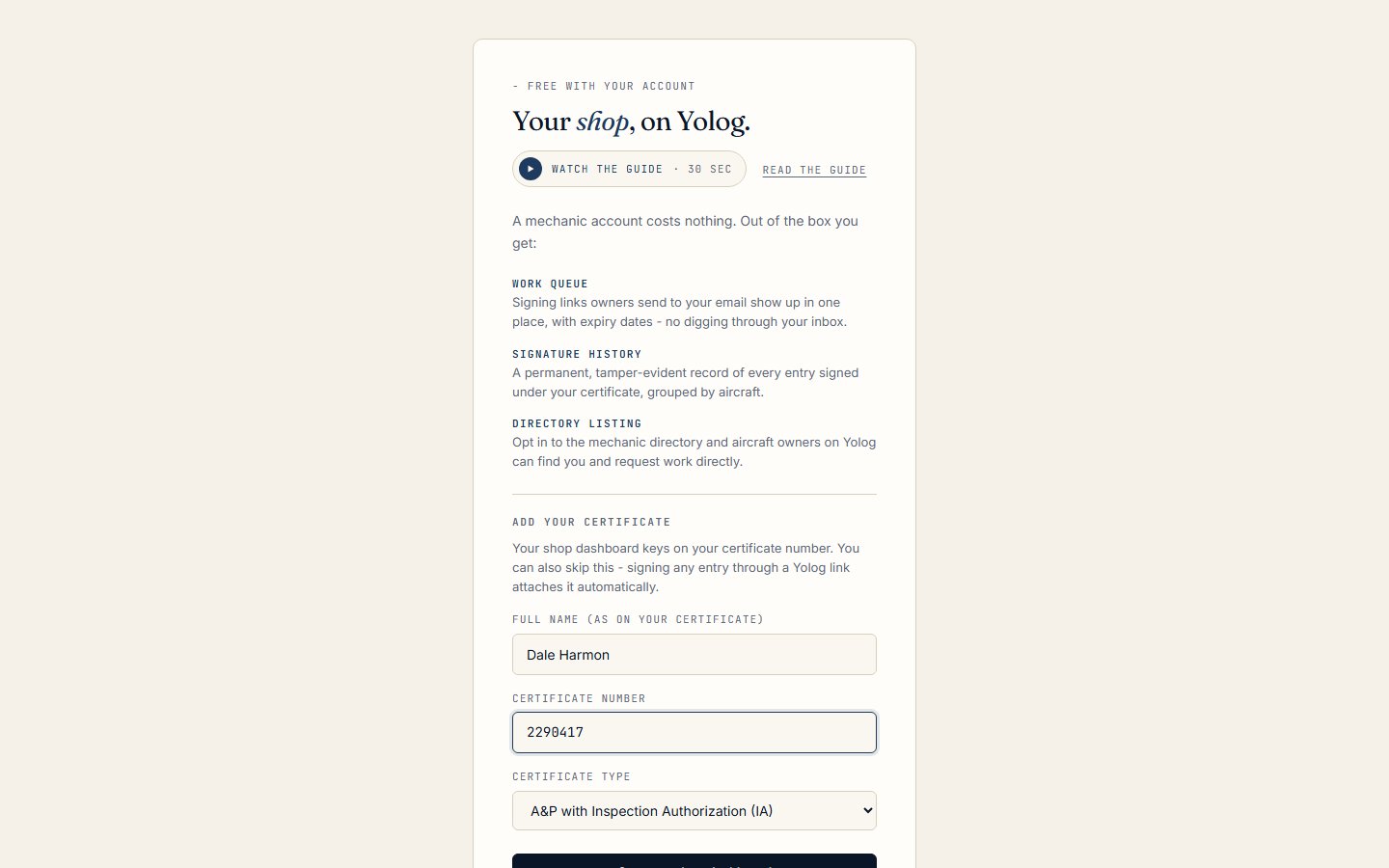
Yolog checks your name and certificate against FAA Airmen Registry data. If it can’t find a match, you’ll be asked to check the spelling and number. You can also choose Skip for now and attach your certificate later by signing an entry.
Tip: Use the same email owners send your signing links to. That’s how links show up in your work queue.
Your shop dashboard
Your dashboard, Entries you’ve signed., is keyed on your certificate number. Once your certificate is on file you’ll also find it as My shop in the sidebar.
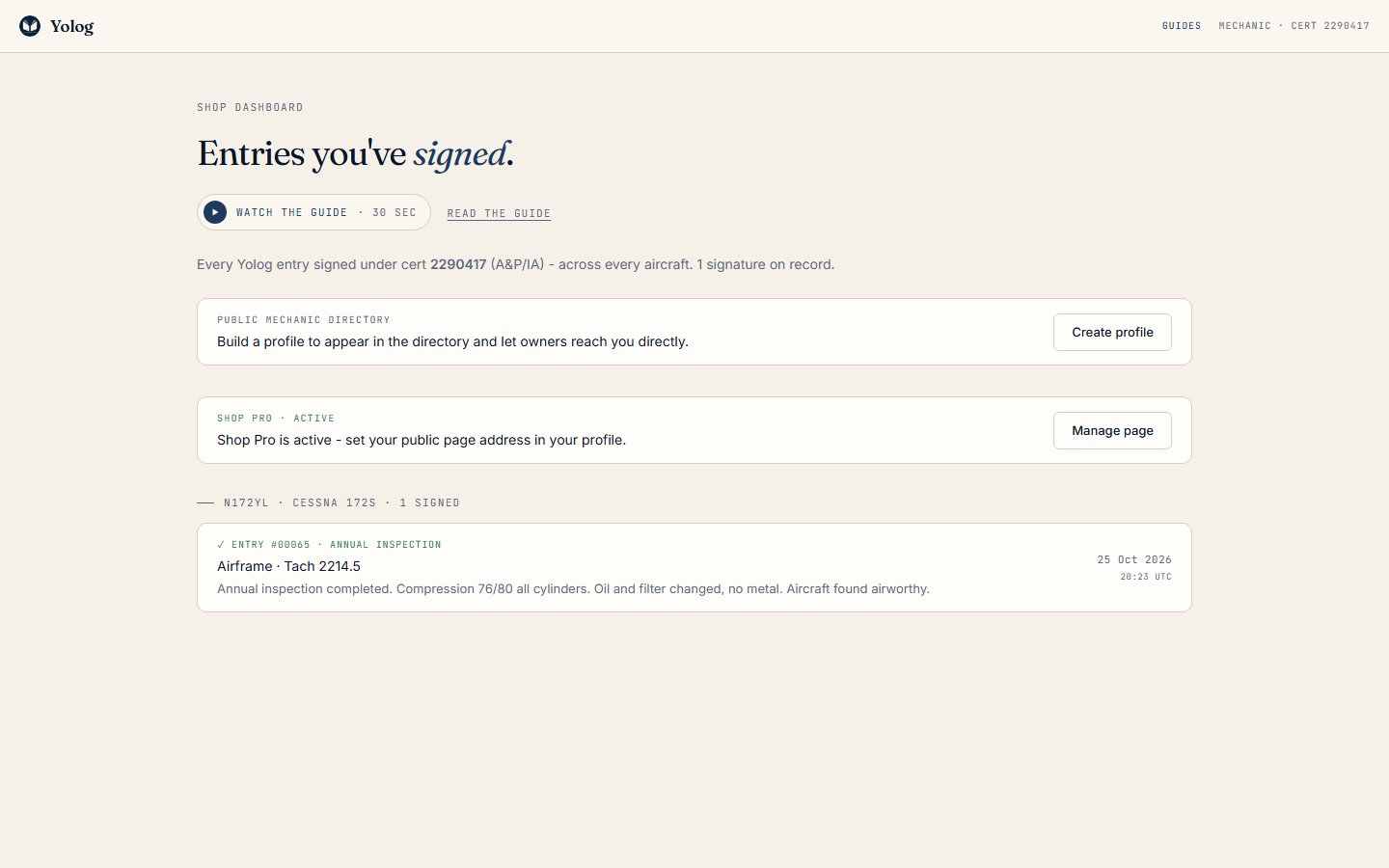
Waiting on you lists open signing links that owners sent to your account’s email: the aircraft, who asked, the suggested entry type and logbook, and when the link expires. A link you’ve started shows DRAFT SAVED - FINISH & SIGN. To sign, open the link from the owner’s email. For security, Yolog only stores a fingerprint of each link, so it can’t open them from the dashboard. If links sent to you expired unsigned in the last 30 days, you’ll see a count here too.
Below that, every entry signed under your certificate is grouped by tail number, with its entry number, type, logbook, a short description and when you signed it. These are the same locked entries that live in each owner’s logbook. You can’t edit them here either.
Your public profile
Choose Create profile (or Edit profile) on the dashboard to open Public mechanic profile. Fill in what you’d like owners to see:
- Business name, City, State and Postal code
- Description and Specialties
- Min rate ($/hr), Max rate ($/hr), Service radius (mi) and Response (hr)
- Accepting new clients
Choose Save profile. Your certificate number and type are shown but locked, because they tie to every signature in the chain.
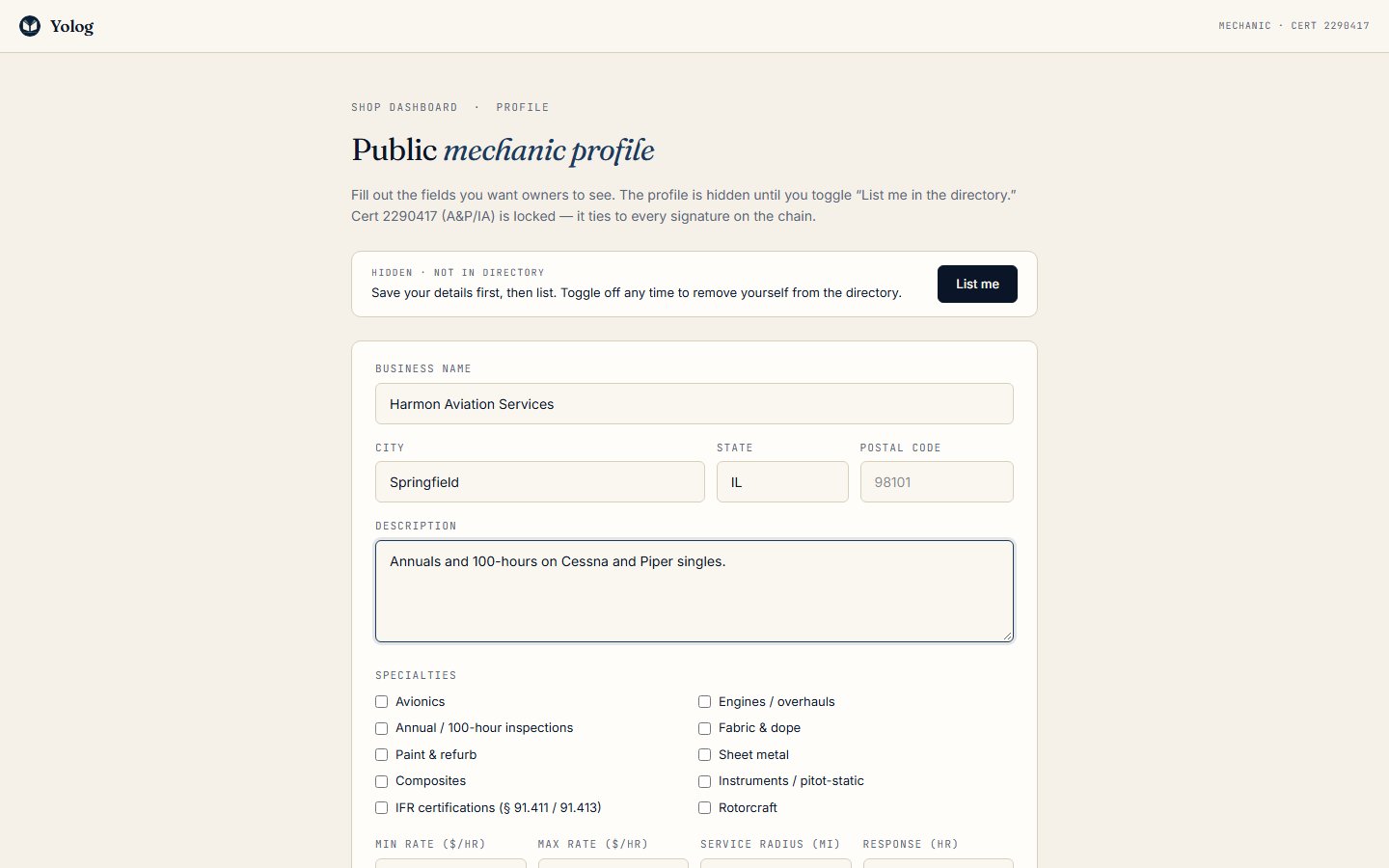
Your profile stays hidden until you list it. Choose List me to appear in the directory, or Unlist to hide it again without losing anything you’ve entered.
The mechanic directory
Signed-in owners see listed mechanics under Mechanics in the sidebar. They can filter by ZIP starts with, Cert type, Specialty and Accepting new clients. Each card shows your business name, certificate type and number, location, specialties, rates, response time and how many entries you’ve signed on Yolog. That signature count comes from the chain; the rest is what you entered, and Yolog doesn’t verify it.
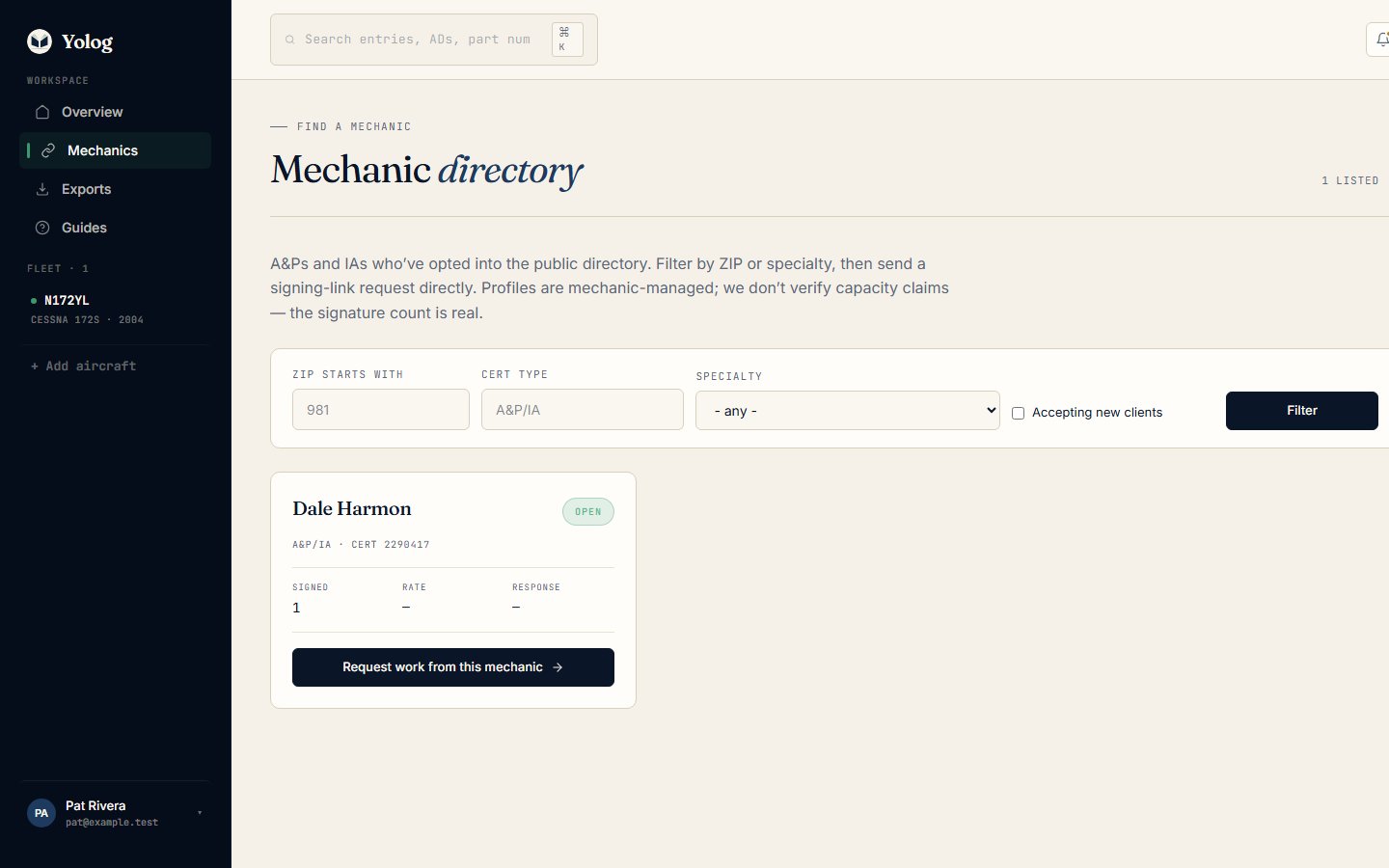
When an owner chooses Request work from this mechanic, Yolog opens their signing-link form with your name and email filled in, so the link lands in your work queue.
Shop Pro
Shop Pro is an optional paid add-on. It gives your business a public page at an address you choose (yolog.aero/shops/your-shop) with your specialties, rates, service area, accepting-clients status and verified signature count. Your full certificate number isn’t shown on that page. It starts with a free trial. Choose Get Shop Pro on your dashboard to see the current plans, and once it’s active, set your Public page address in your profile.
The free account is all you need to sign entries and keep your history.
Still stuck? Contact us - a real person reads every message.