Settings and security
Update your profile, secure your sign-in with two-factor, and manage your data and account.
Open Settings from the account menu at the bottom of the sidebar (tap your name or initials). The page is split into sections, with links down the side so you can jump straight to one.
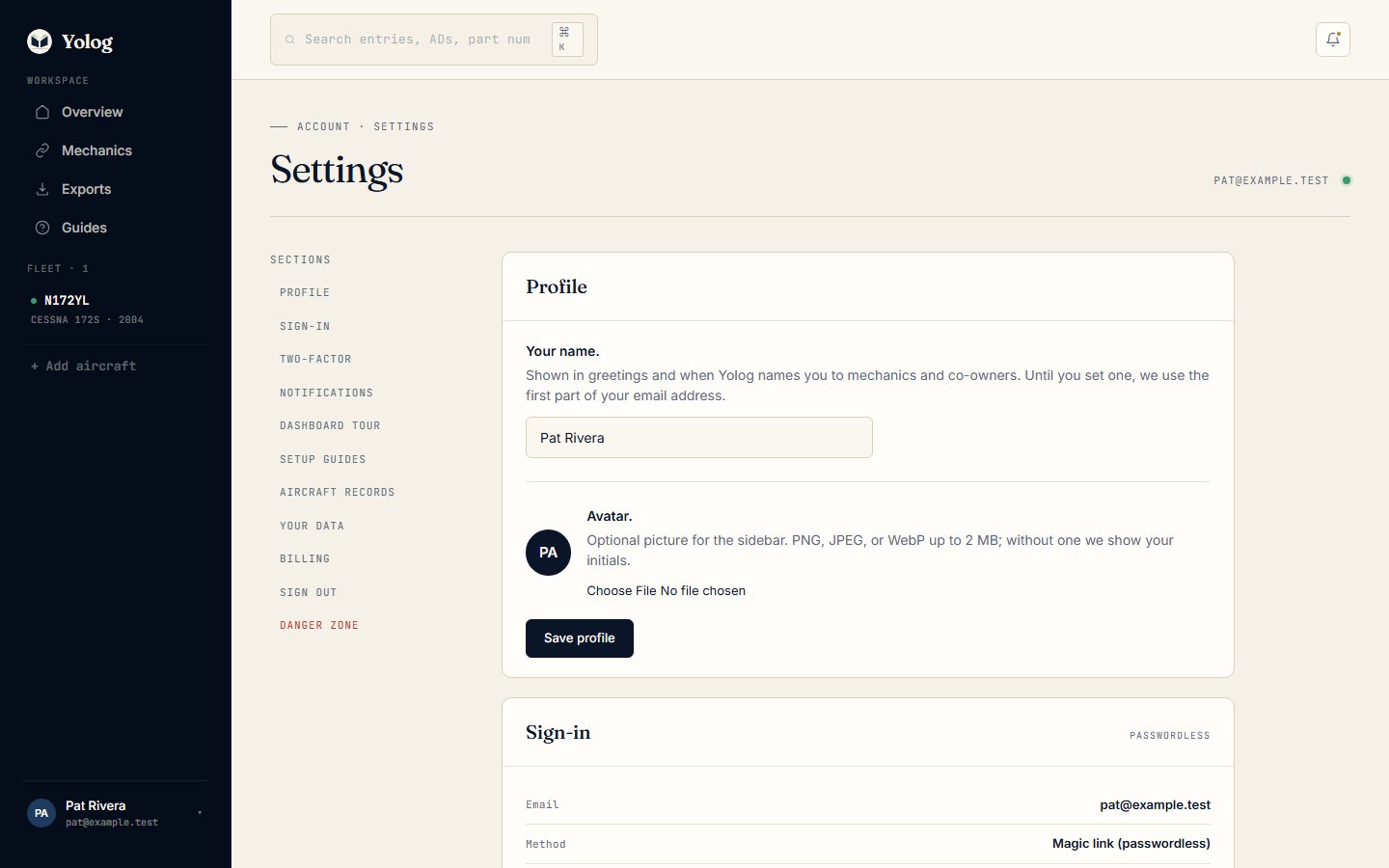
Profile
Your name is shown in greetings and when Yolog names you to mechanics and co-owners. Until you set one, Yolog uses the first part of your email address. You can also add an Avatar (PNG, JPEG or WebP, up to 2 MB) or tick Remove current avatar. Choose Save profile.
Sign-in
Yolog signs you in with a magic link: you enter your email and click the link it sends. You can also add a password as a second way in. Magic links keep working either way.
- Set a password (or Change password) adds or updates it.
- Remove password puts you back on magic links only.
Note: Security changes like these, and the two-factor changes below, may first show Confirm your identity to continue. Choose Send me a confirmation link and click the link in your email to carry on. This happens when you haven’t signed in within the last hour.
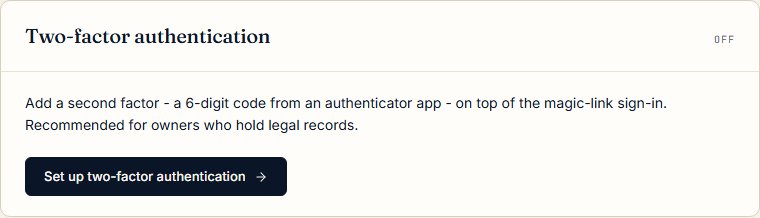
Two-factor authentication
Two-factor adds a 6-digit code from an authenticator app on top of your magic link or password. It’s recommended if you hold your aircraft’s legal records here, because it means a stolen email account alone isn’t enough to get in.
To turn it on:
- In Two-factor authentication, choose Set up two-factor authentication.
- Scan the QR code with an authenticator app (for example Google Authenticator, 1Password, Authy or Bitwarden), or type the secret shown beside it.
- Enter the 6-digit code under Code from your authenticator and choose Confirm and turn on 2FA.
- Save your recovery codes. They’re shown once. Print them or put them in a password manager, then choose I’ve saved them - back to settings.
From then on, after you click your magic link (or enter your password), you’ll see Enter your two-factor code. If you lose your authenticator, type one of your recovery codes in the same box. Each recovery code works once.
Once two-factor is on, the card offers Regenerate recovery codes (this cancels all your old codes) and Turn off two-factor (this also deletes your recovery codes).
Notifications
Choose which emails you get and how often. See Notifications and reminders.
Dashboard tour and setup guides
Replay the tour runs the short dashboard walkthrough again.
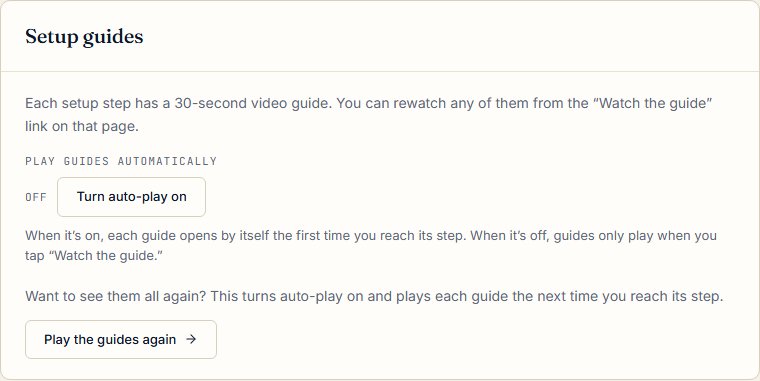
Each setup step has a 30-second video guide, and you can always rewatch one with Watch the guide on that page. Under Setup guides:
- Turn auto-play off or Turn auto-play on controls whether each guide opens by itself the first time you reach its step.
- Play the guides again turns auto-play on and plays each guide the next time you reach its step.
Aircraft records
For each aircraft you own or co-own, this shows whether its paper logbook import is complete. Compliance tracking stays paused until you confirm the paper records are all in, because due dates from a half-imported logbook would be wrong. Choose Mark import complete to start tracking, or Pause tracking if you confirmed by mistake or found another binder. See Compliance and ADs.
Your data and billing
Export logbook data lets you download your full logbook history as a signed PDF or as CSV, at any time, including after canceling. See Exports and sharing. Billing & subscriptions is where you manage plans, invoices, payment methods and cancellation.
Sign out
Sign out of Yolog ends your session on this device.
Danger zone: delete your account
Delete my account opens a page that shows what happens to each of your aircraft before anything is deleted.
- Your account is deactivated right away and you’re signed out.
- Yolog emails you a restoration link that works for 90 days. Click it to bring everything back.
- After 90 days, your data is permanently deleted.
- If you’re the sole owner of an aircraft, its records become inaccessible. The page offers links to transfer the aircraft or export a PDF first. Please do one of those. See Transfer ownership.
- Co-owners of shared aircraft keep their access.
- Entries you signed as a mechanic aren’t affected. They belong to the aircraft’s logbook, not to your account.
Tick the confirmation box and choose Schedule permanent deletion, or Never mind to go back.
Before you delete: the owner is responsible for keeping the aircraft’s maintenance records under 14 CFR 91.417. Export or transfer anything you need before scheduling deletion.
Still stuck? Contact us - a real person reads every message.