Notifications and reminders
Choose which reminders you get, when they arrive, and put due dates on your phone's calendar.
Yolog keeps you posted in three ways: the notification center inside the app, reminder emails, and an optional calendar feed for your phone. This guide covers all three.
The notification center
The bell at the top right of every page opens the Notification center. A dot on the bell means you have something unread. It lists activity on aircraft you have access to, such as entries signed, signing links requested or canceled, squawks opened, documents uploaded, ADs that may apply, transfers, and compliance and document reminders.
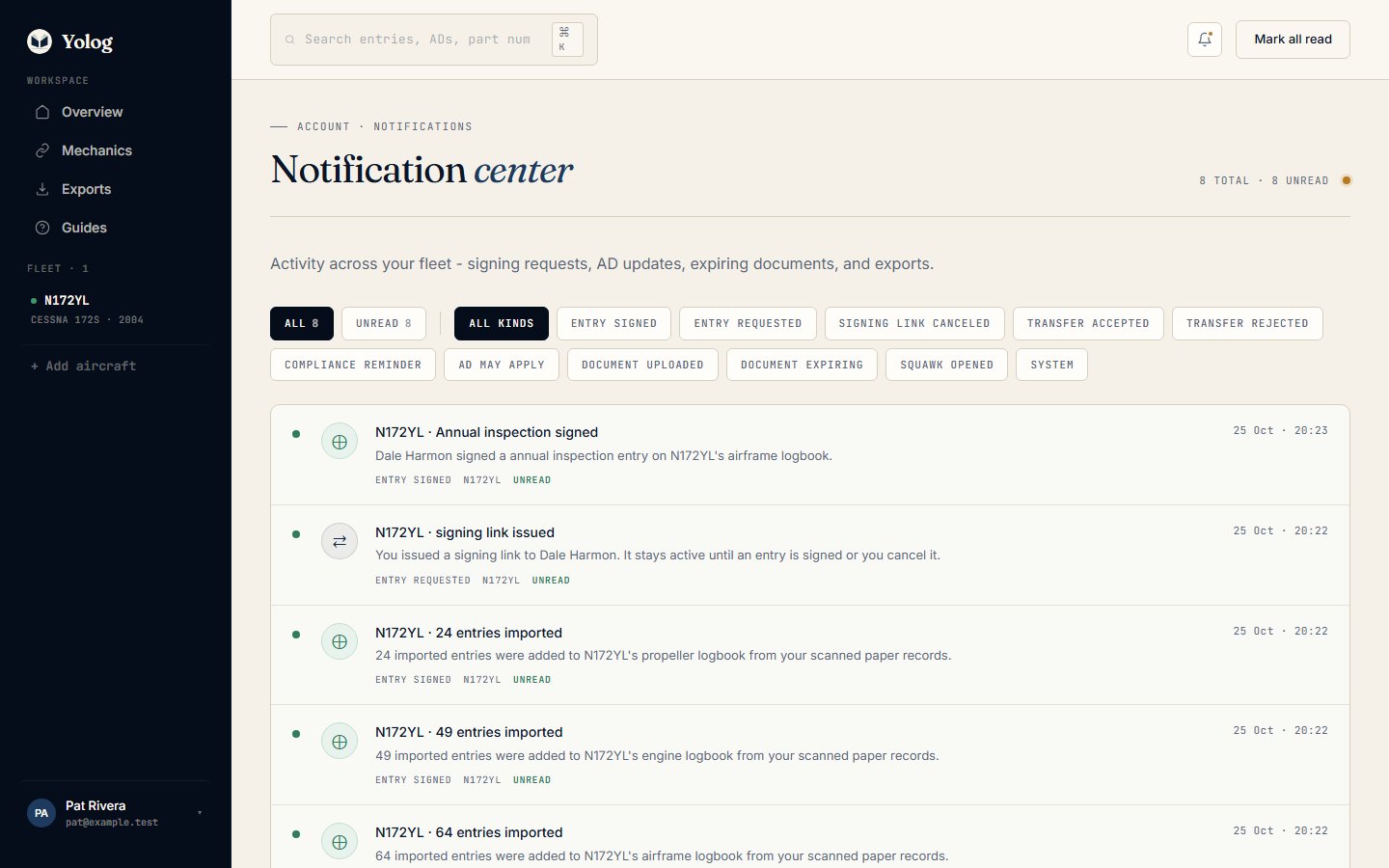
Use All or Unread to filter, or pick a kind such as Entry signed or Compliance reminder (All kinds clears it). Clicking a notification marks it read and takes you to the right page. Mark all read clears the unread dot.
Choose your emails
In Settings, under Notifications, there are two switches. Choose Save preferences after changing either one.
- Compliance reminders emails you when an annual, AD or other compliance item enters its warning window or goes overdue. It’s off until you turn it on.
- Signing receipts emails you whenever a mechanic signs an entry on one of your aircraft. It’s on unless you turn it off.
These emails go to owners and co-owners. Members don’t get compliance reminders or signing receipts.
You can also turn compliance reminders on when you finish importing your paper logbooks. The Done importing your paper logbooks? banner on the aircraft page has a checkbox, Also email me compliance reminders when something comes due. It’s unchecked unless you tick it, and leaving it unchecked never turns off reminders you already have.
How compliance reminders work
Each item has a warning window. For each item Yolog sends at most one email when it enters the window, a final reminder when it’s 7 days out, and an overdue notice, repeated weekly while it stays overdue. Items tracked by hours remind you when the tach gets close, using your latest hours reading. When you have reminders on, each one also shows up in the notification center.
Note: Compliance tracking, and with it these reminders, stays paused for an aircraft until you confirm its paper records are complete (“I’m done importing - start tracking”). See Compliance and ADs.
Reminders help, but they don’t replace your own checks. The owner is responsible for making sure required inspections are done on time (14 CFR 91.405 and 91.409).
Document expiry reminders
If a document in the vault has an expiry date, such as an insurance certificate, Yolog reminds you 30 days before it expires, again within 7 days, and weekly once it has expired. These use the same Compliance reminders switch. When you upload a renewed document of the same kind with a later expiry date, reminders for the old one stop. See Documents.
Notification preferences
From Settings, choose Notification preferences for finer control.
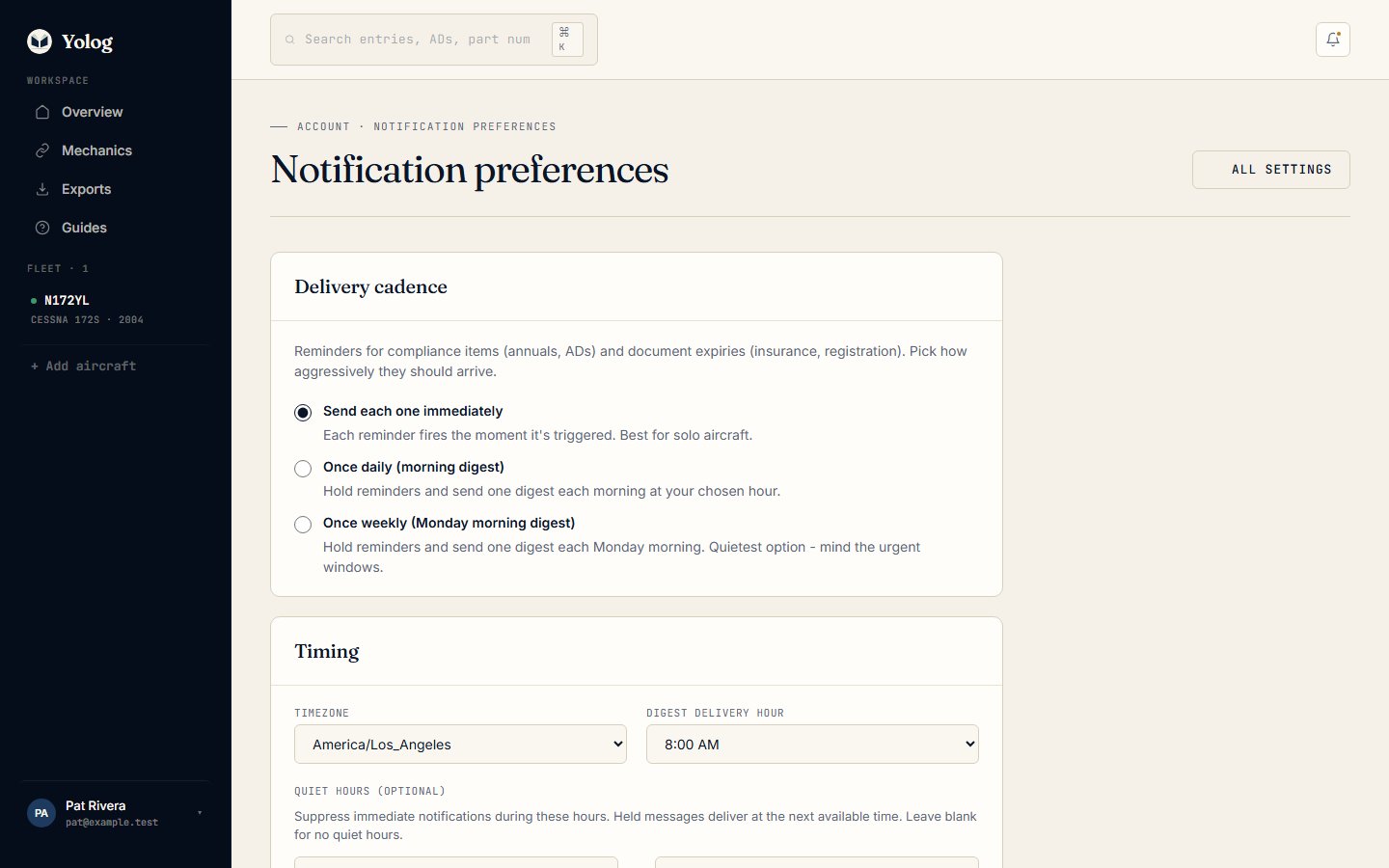
- Delivery cadence: Send each one immediately, Once daily (morning digest), or Once weekly (Monday morning digest). Weekly is the quietest, so keep an eye on anything urgent.
- Timing: set your Timezone and the Digest delivery hour.
- Quiet hours (optional): set a start and end time. Immediate reminders that fall inside it are held until the window ends. Leave both blank for no quiet hours.
Choose Save preferences.
Per-aircraft mutes lets you silence one aircraft without affecting the others. Choose Mute next to it, and Un-mute to turn its reminders back on. Handy if you’re a co-owner who doesn’t need every email for a shared plane.
Calendar feed
The calendar feed puts every active compliance due date and every document expiry across your aircraft into your phone’s calendar app. It’s private and read-only.
- In Settings, choose Manage calendar feed.
- Choose Generate calendar feed.
- Choose Copy URL and subscribe to it in your calendar app. On iPhone: Settings, Calendar, Accounts, Add Account, Other, Add Subscribed Calendar. In Google Calendar: Settings, Add calendar, From URL.
The URL is shown only once. Yolog stores only a fingerprint of it, so it can’t show it again. If you lose it, choose Regenerate URL (the old one stops working). Revoke turns the feed off.
Due dates appear as all-day events. Whether your phone alerts you depends on your calendar app’s settings for subscribed calendars, so check those if you want a nudge.
Setup guide videos
Whether the short setup videos play by themselves is set in Settings under Setup guides. See Settings and security.
Still stuck? Contact us - a real person reads every message.