Your dashboard and aircraft page
Read the dashboard at a glance and find every tool on your aircraft page.
Yolog has two home screens. The dashboard (Overview in the sidebar) is a quick status check. The aircraft page is where every tool for that aircraft lives.
The dashboard
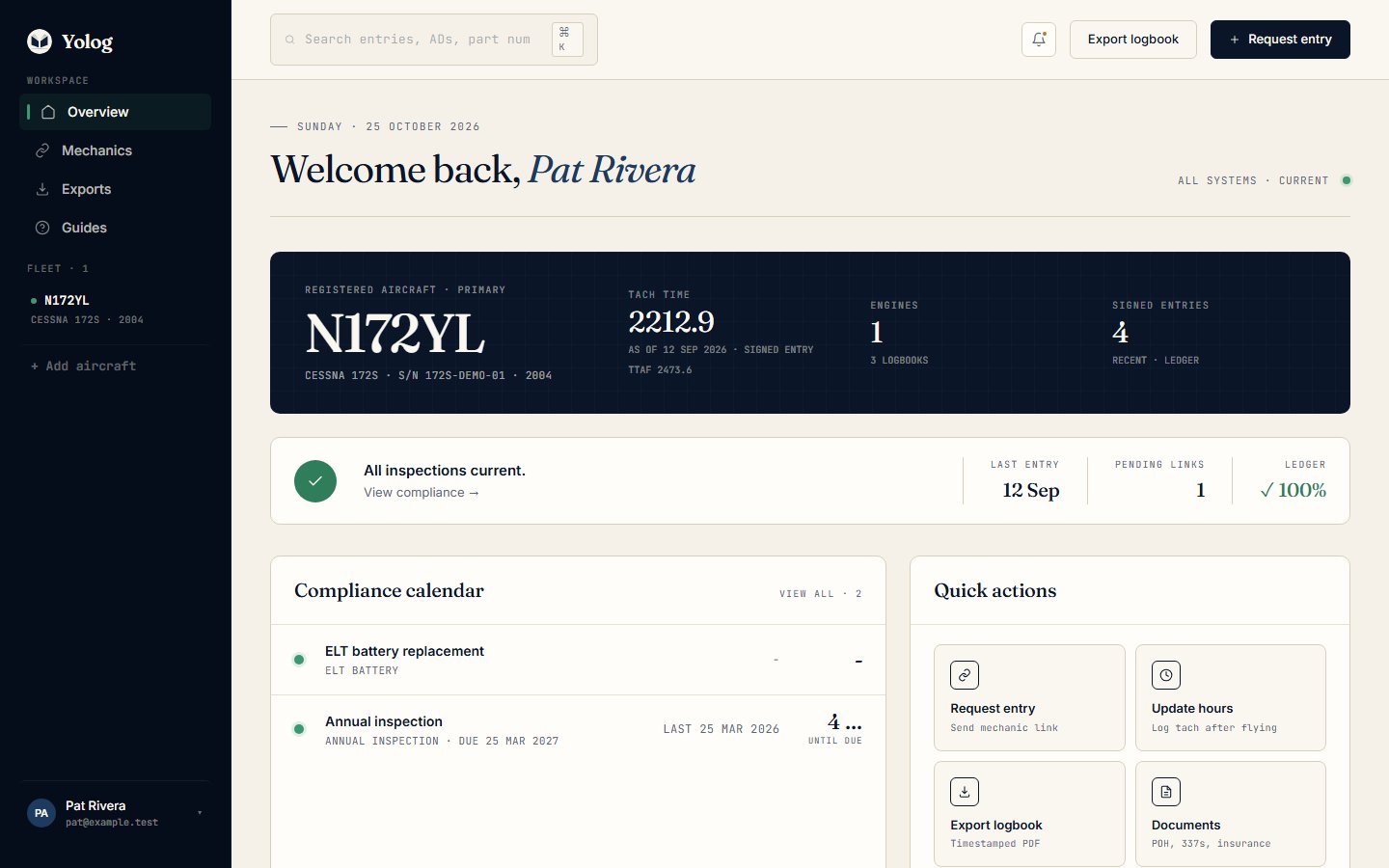
The dashboard shows one aircraft. If you have more than one, it shows the first by registration, and you can open any other from the sidebar.
From top to bottom:
- Aircraft hero. The dark card with your registration, make and model, current tach time and TTAF, number of engines and logbooks. Under the tach it says where the number came from: OWNER (an hours reading you logged) or SIGNED ENTRY. Click the card to open the aircraft page.
- Status strip. One line that tells you whether anything is overdue or due soon. While you’re still importing paper logbooks it reads Compliance tracking paused. with a link to confirm your records are complete. If your hours haven’t been updated in a while, it says so and links to the hours page. It also shows the date of the last signed entry and how many signing links are still open.
- Compliance calendar. Your most urgent compliance items, overdue first, each with its due date and time remaining. View all opens the full compliance page.
- Quick actions. Request entry (owners and co-owners), Update hours, Export logbook, Documents and Compliance & ADs.
- Pending links. Signing links you’ve sent that a mechanic hasn’t signed yet. Each shows UNTIL SIGNED, or its expiry if you set a cutoff date. Owners and co-owners can Cancel a link here; the URL stops working immediately.
- Recent signed entries. The latest few signed entries, each marked LOCKED. Click one to read it, or use Open logbook.
Tip: Compliance stays paused until you tell Yolog your paper history is complete. See Compliance and ADs.
The aircraft page
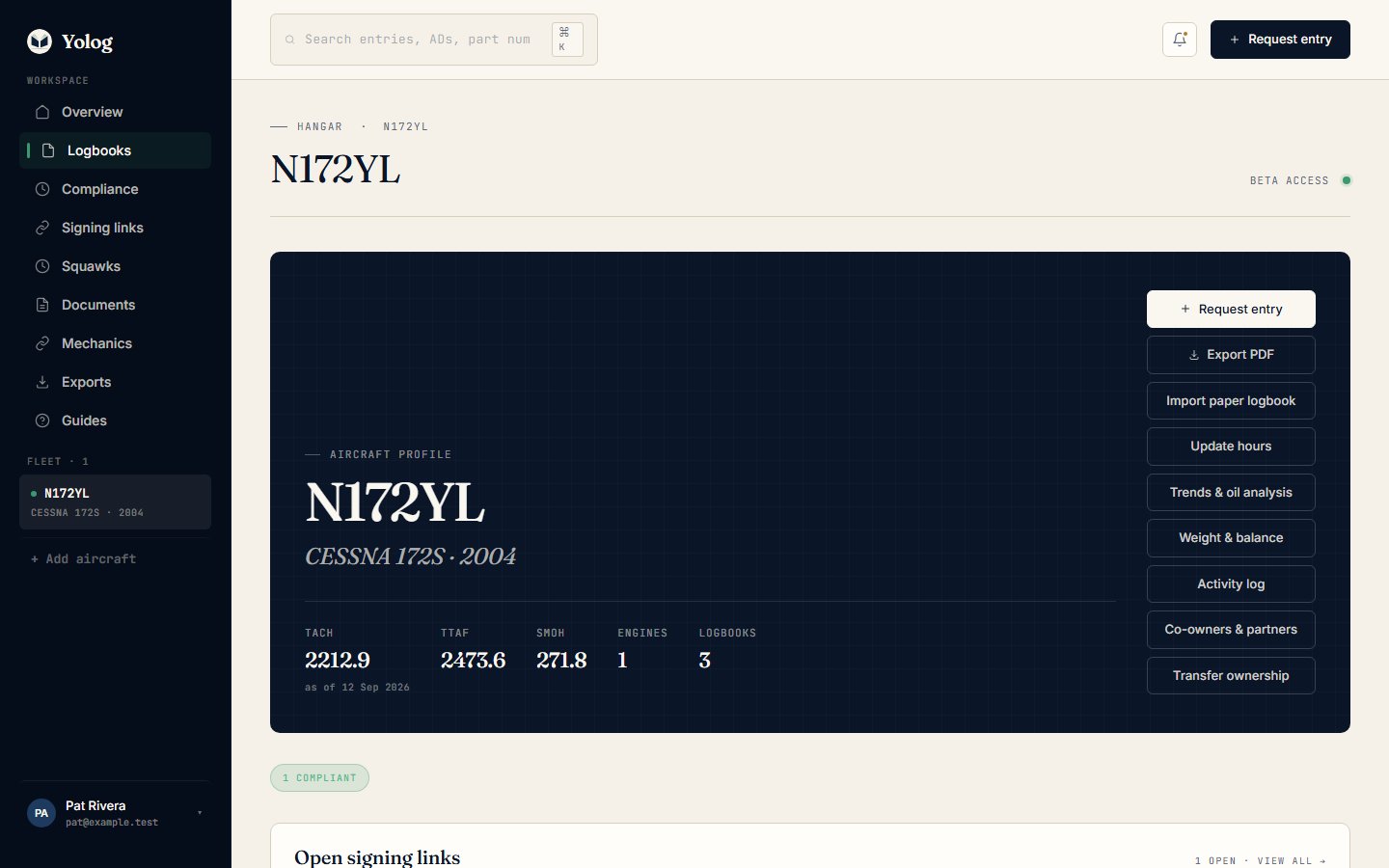
Open it by clicking the aircraft hero on the dashboard or the registration in the sidebar’s Fleet list.
The buttons
The buttons on the right of the dark card depend on your role:
| Button | Who sees it |
|---|---|
| Request entry | Owner, co-owner |
| Export PDF | Everyone |
| Import paper logbook | Owner, co-owner |
| Update hours | Everyone (members can save readings only if allowed) |
| Trends & oil analysis | Everyone, but only the owner and co-owners can open it |
| Weight & balance | Everyone, but only the owner and co-owners can open it |
| Activity log | Owner only |
| Co-owners & partners | Owner, co-owner |
| Transfer ownership | Owner only |
Members only get the extra permissions the owner ticks for them: Log hours readings, Add & manage squawks and Upload documents. See Co-owners and members.
Status chips
Below the card, small chips flag anything that needs attention: COMPLIANCE PAUSED · PAPER IMPORT, imports in progress, counts of Overdue, Due soon and Compliant items, insurance that expires within 30 days (or has expired), and hours that haven’t been updated in over 90 days. Click a chip to go straight to the right page.
Logbooks and engines
The Logbooks card lists each book (airframe, engine, propeller) with its entry count. Click one to open it, or use SEARCH ALL ENTRIES to search every book at once. See Logbooks and search.
Each engine gets a card with its make, model and serial number, time since major overhaul (SMOH), and a bar showing how much of the manufacturer’s TBO has been used. If TBO isn’t set, the owner sees an Add link. A paired propeller shows on the same card.
The Fleet page
If you have access to two or more aircraft, Fleet appears in the sidebar. It lists every aircraft with its compliance status, most urgent item, document expirations and chain head, with the aircraft that need attention at the top.
The sidebar
Overview, Mechanics, Exports and Guides are always there. Once you open an aircraft, the sidebar adds links for it: Logbooks (the aircraft page), Compliance, Signing links (owners and co-owners), Squawks and Documents. The Fleet list below lists every aircraft you can see, plus + Add aircraft. Your account menu at the bottom holds Settings and Sign out.
Replay the dashboard tour
The first time you open the dashboard, a short tour walks you through it. To see it again, open Settings, find the Dashboard tour card and click Replay the tour. Yolog takes you back to the dashboard and the tour starts again.
Still stuck? Contact us - a real person reads every message.