Hours, trends and weight & balance
Log tach after you fly, see engine trends and oil analysis, and keep your W&B current.
Hour-based reminders like the 100-hour inspection and oil changes are only as good as the tach number Yolog knows about. Between mechanic visits, you keep that number fresh by logging an hours reading after you fly.
Log an hours reading
Click Update hours on the dashboard or the aircraft page.
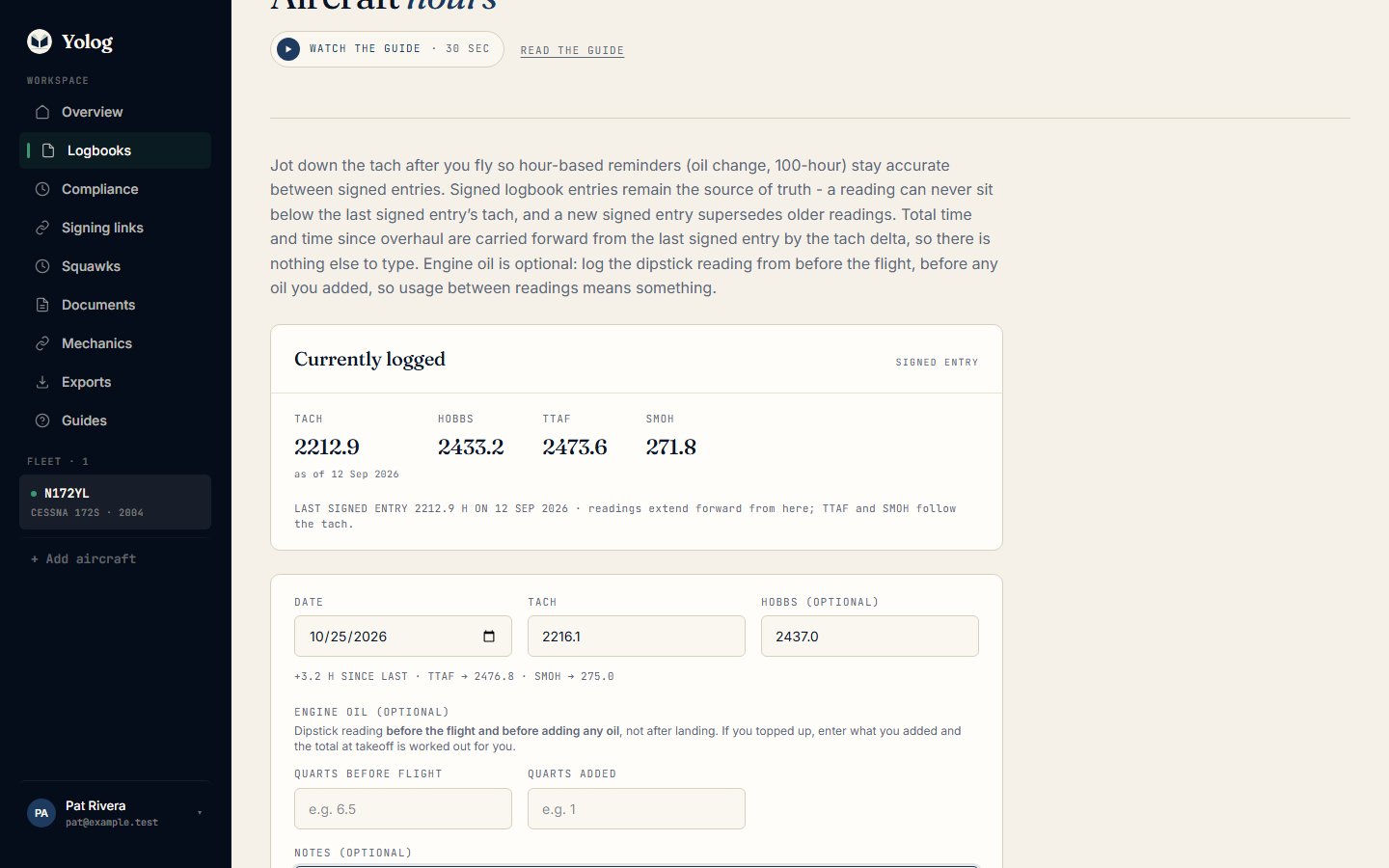
- Check the Date (it defaults to today).
- Type the Tach off the panel.
- Add Hobbs (optional) if you track it.
- Optionally fill in Engine oil (optional): Quarts before flight is the dipstick reading before you flew and before adding any oil, and Quarts added is what you topped up. Yolog works out the total at takeoff and, over time, your oil use per hour.
- Add Notes (optional) if you like.
- Click Save reading.
As you type the tach, a preview under the field shows how many hours you’ve added since the last reading and what TTAF and SMOH will become. You don’t need to type those yourself.
Your readings are listed under Reading history. The owner and co-owners can Edit or Delete a reading.
Who can log hours: the owner, co-owners, and any member the owner has given Log hours readings. Members can’t edit or delete readings, even their own.
How Yolog works out your hours
Signed logbook entries are the source of truth. Your readings fill the gaps between them. The Currently logged card at the top of the hours page shows which one Yolog is using right now: OWNER READING, SIGNED ENTRY or ONBOARDING BASELINE.
The rules:
- The latest signed entry sets the floor. “Latest” means the most recent date of work, not the highest tach. A tach can legitimately go back to zero after an instrument swap or an engine overhaul, and the latest entry reflects that.
- A reading can’t go below that floor. If you type a tach lower than the last signed entry’s, the preview warns you and the reading won’t save.
- A new signed entry overtakes older readings. Readings below the new entry’s tach, or dated before its work date, stay in your history but are greyed out and marked SUPERSEDED BY SIGNED ENTRY.
- TTAF and SMOH follow the tach. Yolog carries them forward from the last signed entry by however much the tach has moved.
If Yolog hasn’t seen a new reading or entry in more than 90 days, the dashboard and aircraft page remind you to update your hours.
Trends and oil analysis
Click Trends & oil analysis on the aircraft page. Only the owner and co-owners can open it.
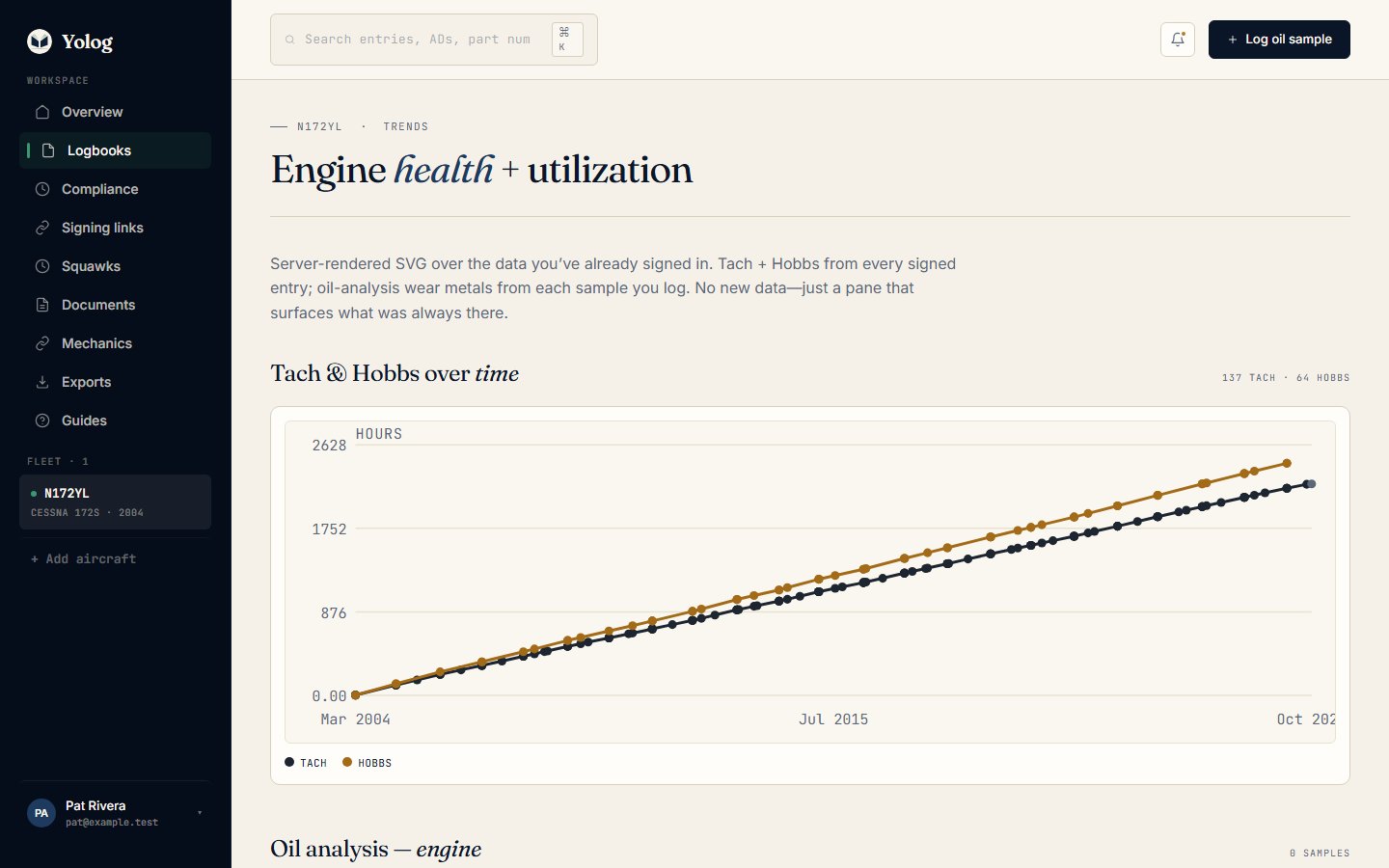
The first chart plots tach and Hobbs over time from your signed entries, along with your own hours readings. Below it, each engine has its own oil analysis section.
To add a lab result:
- Click Log oil sample.
- Pick the Engine and the Sample date.
- Optionally add Engine SMOH at sample (optional) and Lab (optional).
- Type each wear-metal reading in ppm under Wear metals (ppm). Leave blank anything the lab didn’t test.
- List any Flagged metals (optional) from the report, separated by spaces or commas. These show in red.
- Add Notes (optional), such as the lab’s comments, and click Save sample.
Each engine’s chart then shows how its wear metals trend from sample to sample. You can delete a sample if you entered it by mistake. To keep the lab’s PDF, upload it to your document vault.
Weight and balance
Click Weight & balance on the aircraft page. Only the owner and co-owners can open it.
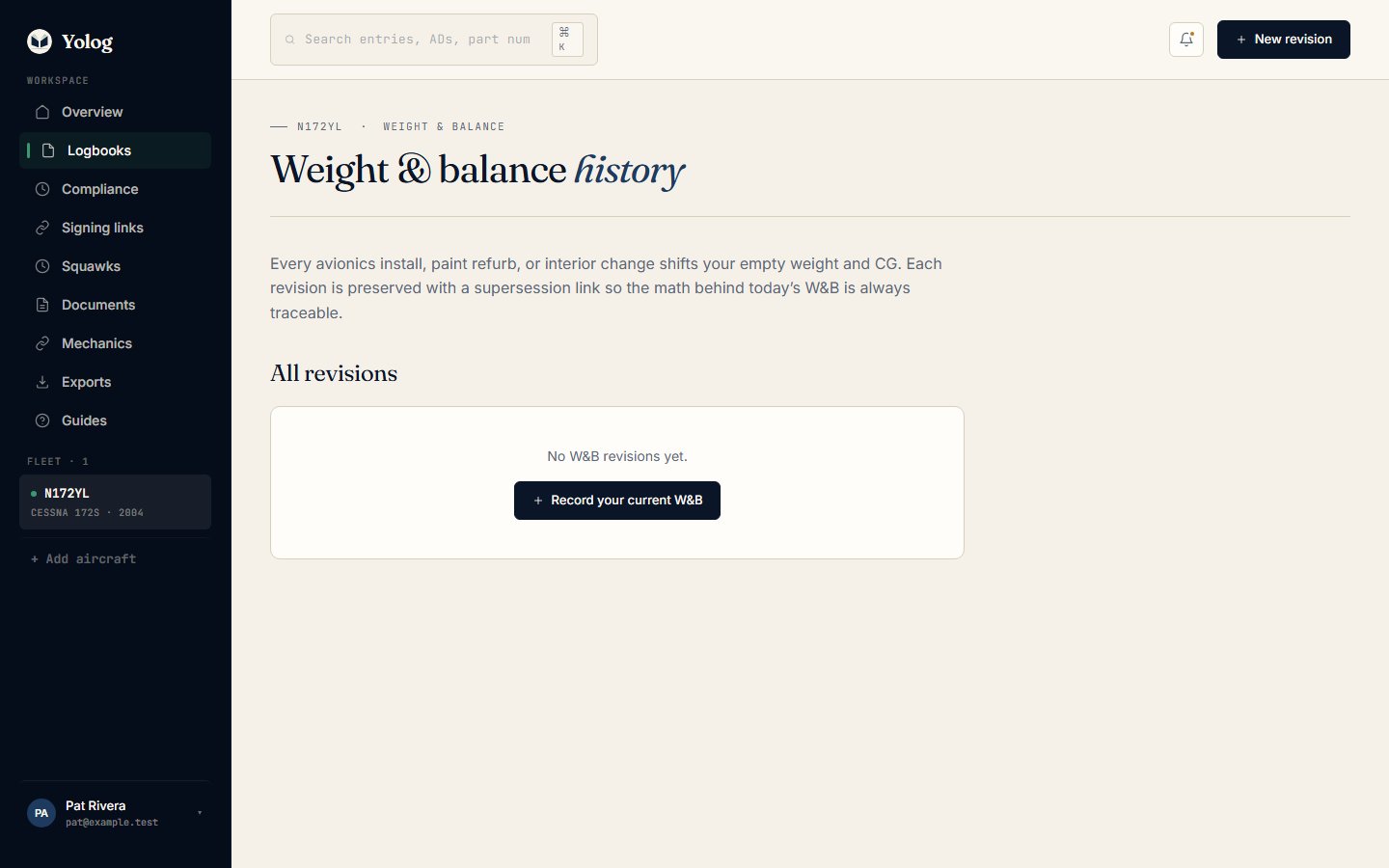
The first time, click Record your current W&B and copy the numbers from your latest weighing or POH supplement. After that, use New revision whenever equipment changes.
- Set the Effective date.
- Enter Empty weight (lb) and Empty CG arm (in), plus Empty moment (lb-in, optional) and Max gross weight (lb, optional) if you have them.
- Describe the Reason, for example the avionics swap that changed it.
- Optionally add Performed by (optional).
- Click Save revision.
A new revision becomes CURRENT and the previous one is marked SUPERSEDED. Old revisions are never deleted, so you can always trace how today’s numbers came about.
When a mechanic signs an Alteration entry, Yolog sends you a notification asking whether it changed your W&B. Following it opens a new revision already linked to that entry, with the date and reason filled in.
Note: Yolog keeps a history of your W&B numbers. It doesn’t replace the weight and balance report your mechanic prepares, so keep that report with your aircraft records too (you can upload a copy to your document vault).
Still stuck? Contact us - a real person reads every message.