Logbooks and search
Browse each logbook, find any entry fast, and read a signed entry with its seal and scan.
Every aircraft in Yolog has its own logbooks: one for the airframe, one per engine, and one per propeller. Anyone with access to the aircraft can read them. Nobody can edit or delete a signed entry, including you.
Open a logbook
On the aircraft page, the Logbooks card lists each book with its entry count. Click one to open it.
At the top you’ll see a stats strip: total entries, annuals, 100-hour inspections, ADs complied, and the Head hash, a short fingerprint of the latest entry in the chain. Below that, entries are grouped by year, newest first. Each row shows the entry number, the date, a short description, the tach time and the signer.
Badges
Each entry carries a small badge for its type: Annual, 100-hour, AD, Correction, or the type name for everything else (such as Maintenance / repair, Alteration or Other).
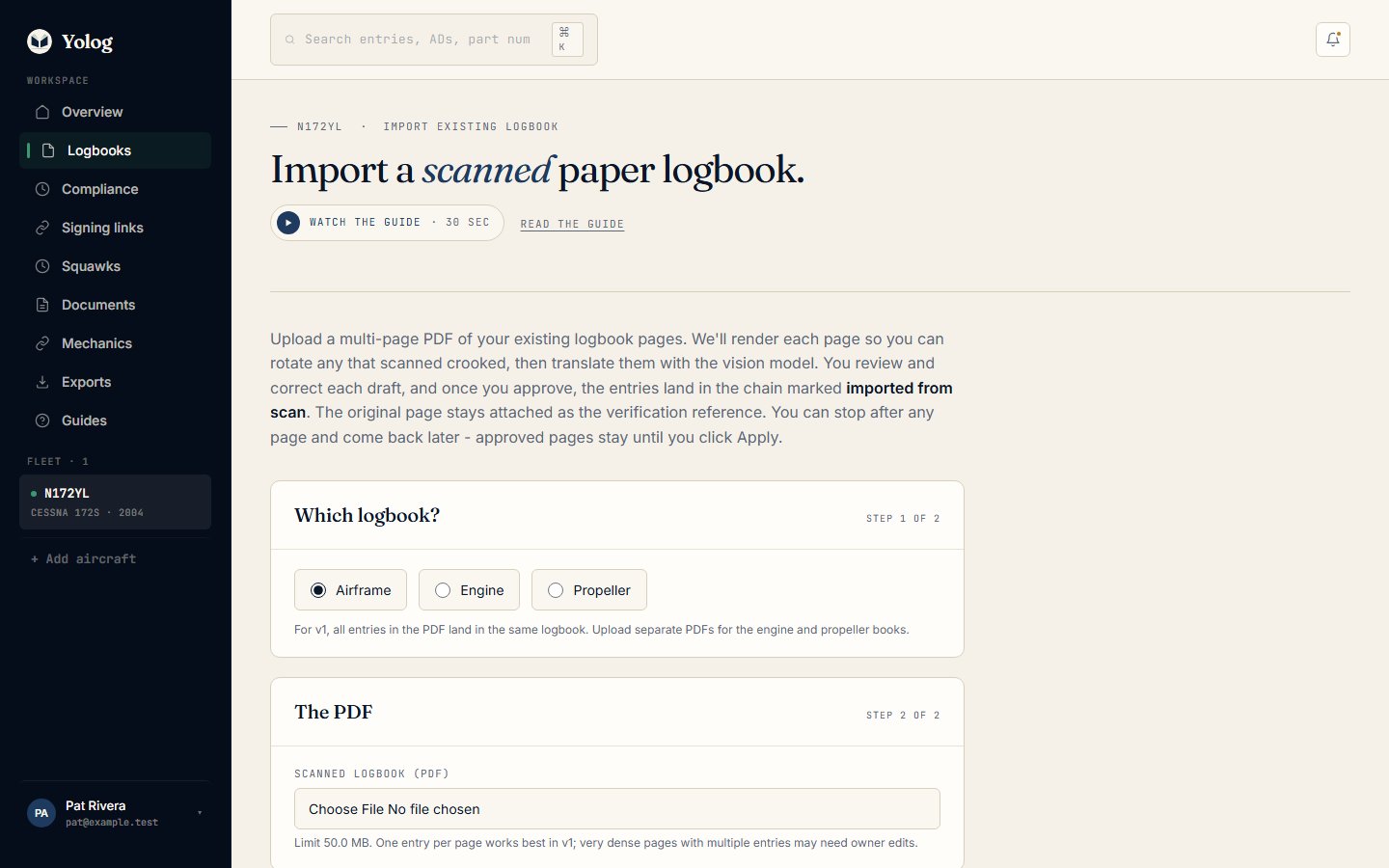
A Scan badge means the entry came from a scanned paper logbook. The original mechanic didn’t sign it in Yolog; the values were read from the scan and reviewed by the owner. See Scan paper logbooks.
A Correction entry is a new signed entry that fixes a mistake in an earlier one. It doesn’t replace or edit the original, which stays exactly as it was signed. See Fixing mistakes.
Search and filter
The search box on a logbook page searches that book. Results update as you type. Search looks at:
- the entry’s description
- the signer’s name
- the signer’s certificate number
You can narrow results further:
- Type chips under the search box, such as Annual or AD. All clears the type.
- All years drop-down to pick one year.
- Advanced filters: Signed on or after, Signed on or before, and Signer cert # (exact).
Click Apply to run the year and date filters, and CLEAR to reset everything. For imported paper entries, the date used is the date of the work written on the page.
Search every book at once
To search the airframe, engine and propeller books together, click SEARCH ALL ENTRIES on the aircraft’s Logbooks card. This opens Search every entry, every book. It has the same search and filters, plus an All books drop-down to pick one logbook.
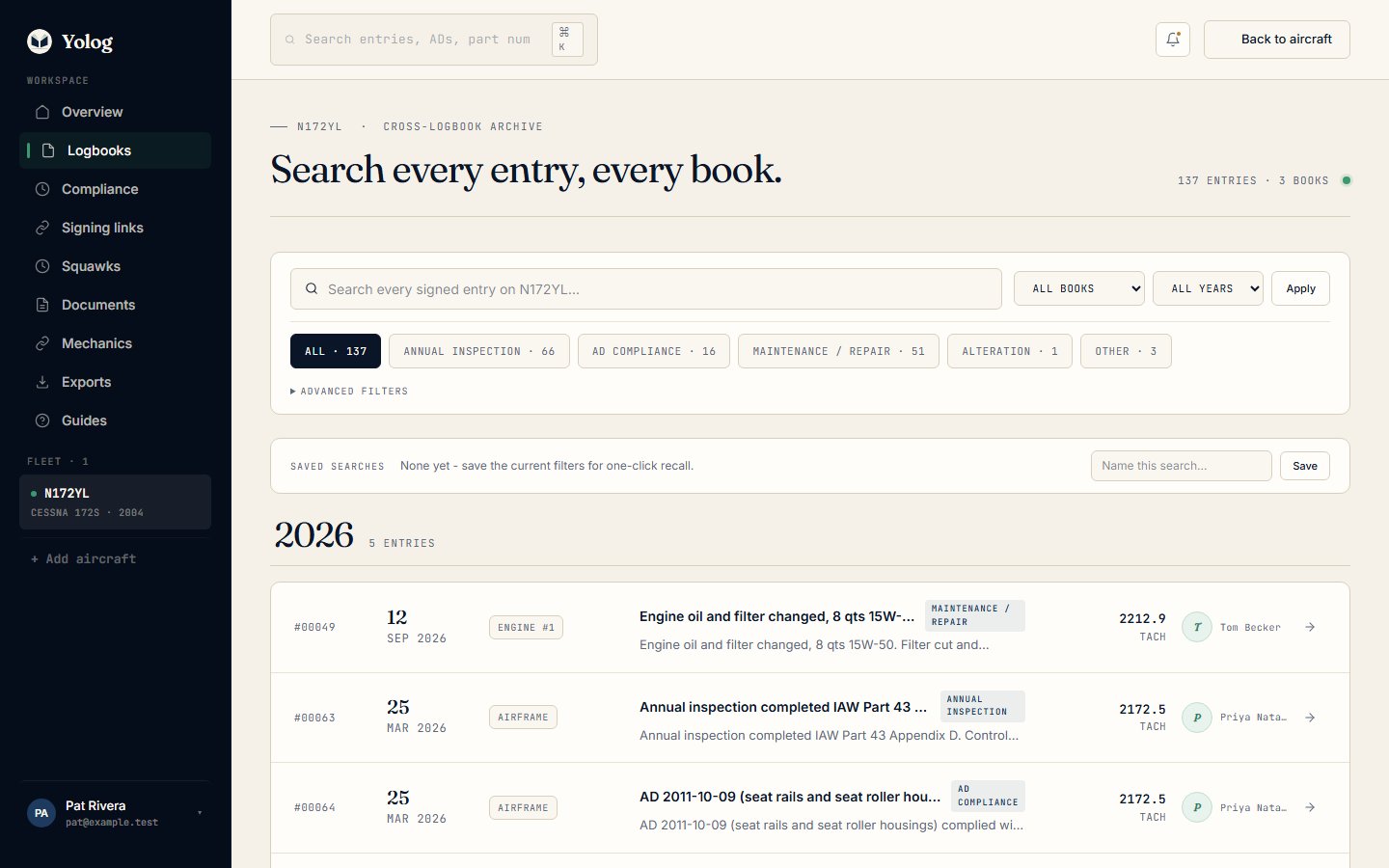
Saved searches
Once you’ve set up a search or filter, type a name into Name this search… and click Save. It appears under Saved searches for one-click recall. Saved searches belong to you and to that aircraft, so other people on the aircraft won’t see yours. To remove one, click the × beside it on the Search every entry, every book. page.
Read an entry
Click any row to open the entry.
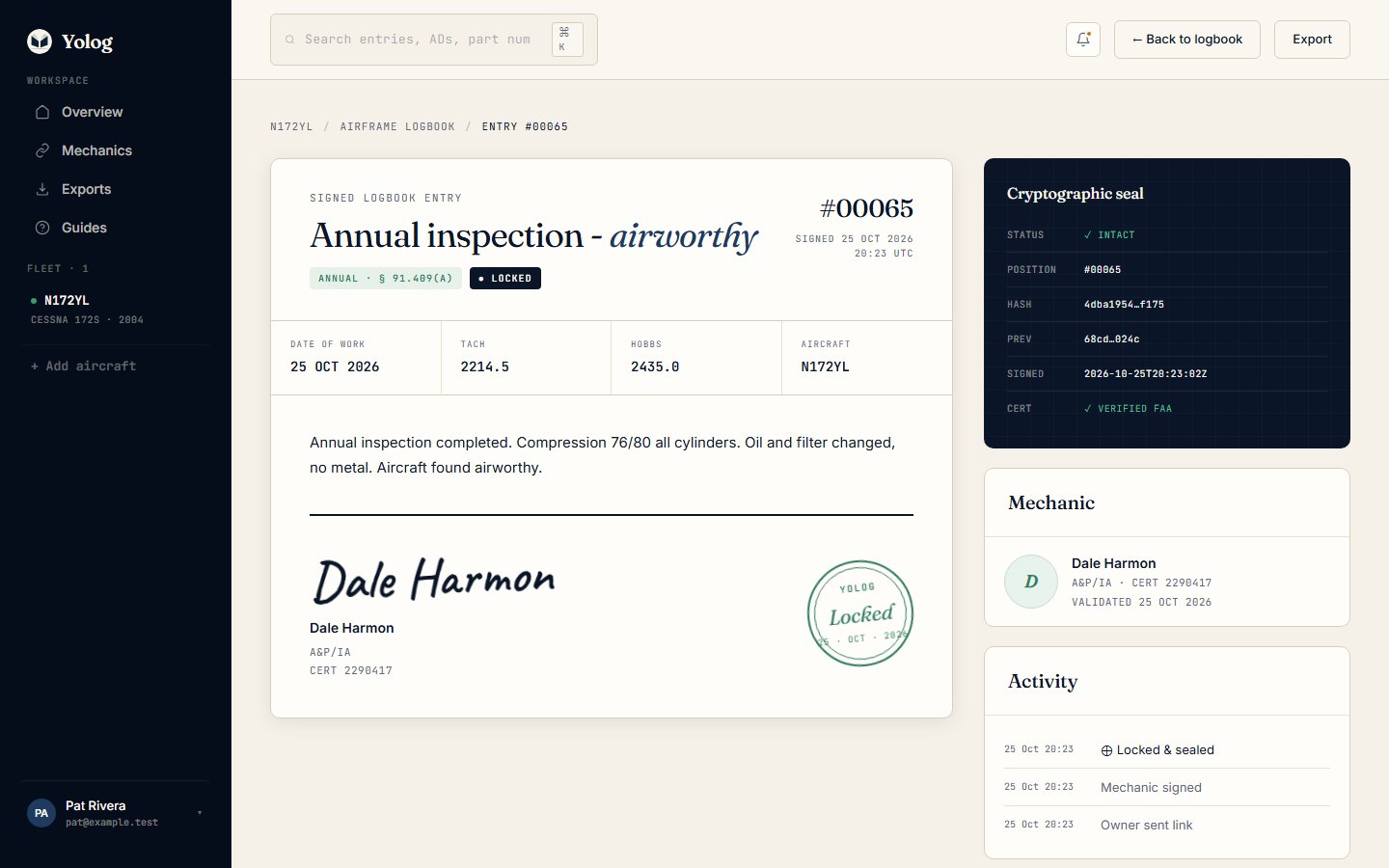
The main panel reads like a logbook page: the entry type, the Date of work, tach and Hobbs (plus total time, time since overhaul, prop time or cycles when they were recorded), the full description, and the mechanic’s signature with certificate type and number. These are the details a maintenance record needs under 14 CFR 43.9, and inspections under 43.11.
On the right:
- Cryptographic seal shows the entry’s place in the chain, its hash, the previous entry’s hash, when it was signed, and whether the mechanic’s certificate was checked against the FAA Airmen Registry (✓ VERIFIED FAA when it matched). If the check wasn’t a clean match, a Validation note card explains why.
- Mechanic shows who signed.
- Activity shows when the link was sent, when the mechanic signed, and when the entry was locked.
To learn how anyone can check that the chain hasn’t been tampered with, see Verifying records.
Compare with the original scan
Imported entries show a banner that says This entry was imported from a scanned paper logbook. Click Compare with scan · page N to open the scanned page beside the entry. You can zoom with + and −, click Fit, rotate the page, or open the Original PDF. Click Hide scan to close it.
Form 337
When the entry is a signed Alteration, Yolog files a Form 337-style PDF in your document vault, and a View Form 337 button appears at the top of the entry. It’s a printable record of the alteration in Yolog’s own layout, not the FAA’s official form.
Export a logbook
Click Export PDF at the top of a logbook page (or Export on an entry page) to download that whole logbook as a PDF. For whole-aircraft exports and CSV files, see Exports and sharing.
Still stuck? Contact us - a real person reads every message.