Add your aircraft
Look up your N-number in the FAA registry, check the details, and create your aircraft's logbooks.
Adding your aircraft is the first of four setup steps. You type the N-number, Yolog fills in the details from the FAA registry, and you check them before saving. It takes a couple of minutes.
You get here automatically after choosing I own or fly an aircraft. on your first sign-in. Later, you can add another aircraft from + Add aircraft at the bottom of the fleet list in the sidebar.
Note: During the closed beta, you may first see You’re in the beta. Click Begin beta testing to turn on full access for your account, then you’ll continue to the aircraft form. Please keep your paper logbooks up to date as the primary record during the beta.
Look up your N-number
- Under FAA registry lookup, type your registration, for example N1234A.
- Click Look up (or press Enter).
- If the FAA has a record, you’ll see “Auto-filled from FAA registry. Review each field before saving.” and the Aircraft details fill in.
If there’s no FAA record, or the lookup fails, you can type the details in yourself.
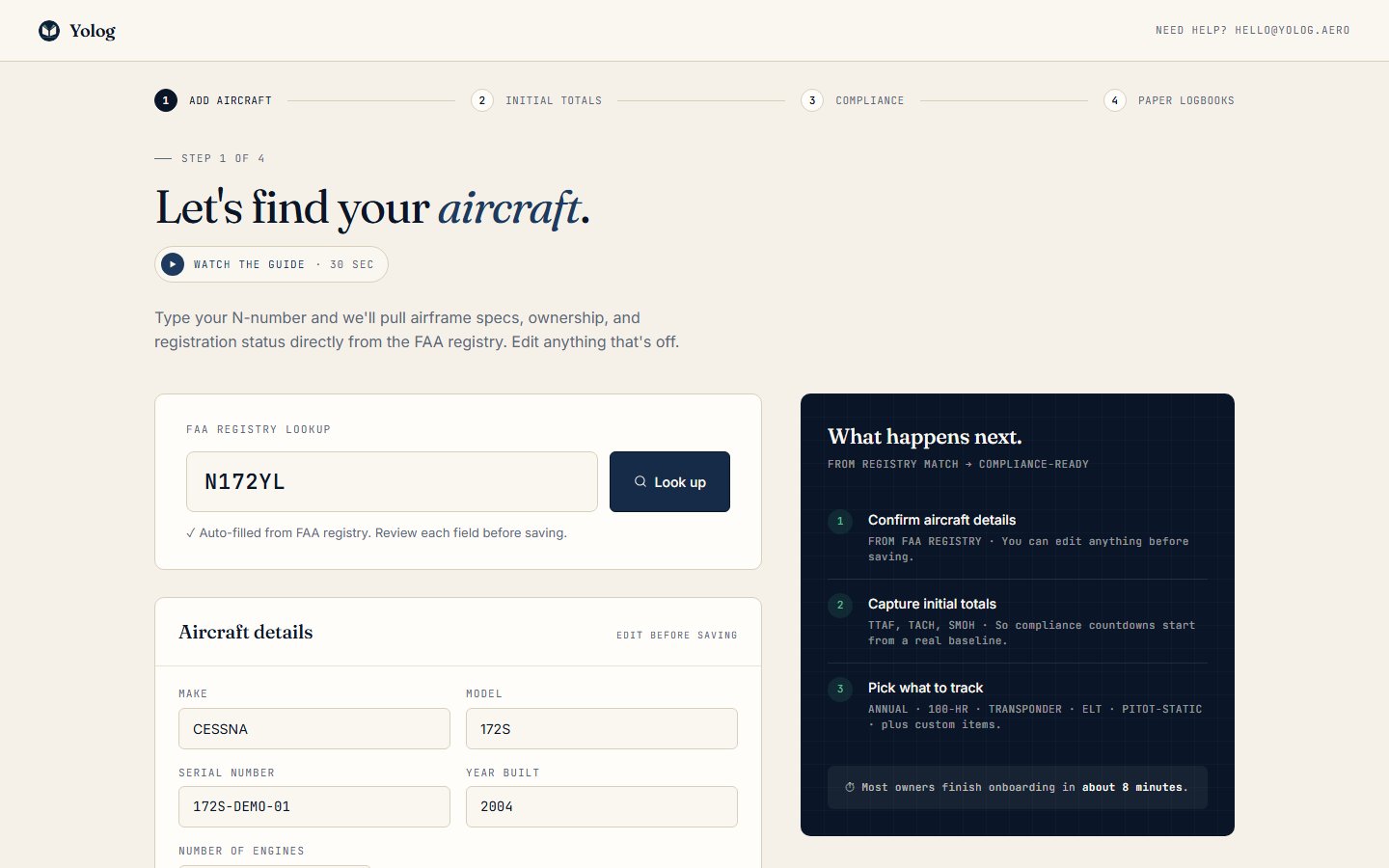
Check the details
Read over each field under Aircraft details before you save. The registry is a good starting point, but you know your airplane best, and the registry is sometimes out of date or formatted differently from your data plate.
- Make and Model, for example Cessna and 172M.
- Serial number, as it appears on the data plate.
- Year built (optional).
- Number of engines. Leave it at 1 for a single. Set it to 2 for a twin, like a Cessna 310 or a Baron.
Make, model and serial number are required.
Your logbooks
At the bottom of the form, Yolog shows how many logbooks it will create. A single-engine airplane gets three: Airframe, Engine and Propeller. A twin gets an airframe book plus an engine and a propeller book for each engine. These match the paper books you already keep, and every entry, signed or imported, goes into one of them.
Check the number of engines is right before you continue, since it decides which books are created.
Save and continue
Click Add aircraft & continue. Your aircraft is created, you become its owner, and Yolog moves you on to step 2, where you enter your starting hours. See Starting hours.
Yolog also starts matching Airworthiness Directives to your make and model right away, so you’ll see candidates on the compliance page. See Compliance and ADs.
If you’d rather stop, click Cancel to go back to the dashboard without saving.
If your aircraft is already on Yolog
Each N-number can only be added once. If you see a message that your registration is already registered, someone else has added it, perhaps a partner or a previous owner. Ask them to invite you as a co-owner, or to transfer ownership to you. See Co-owners and members and Transfer ownership.
What comes next
The setup has four steps, shown across the top of the page:
- Add aircraft (this step)
- Initial totals: your current hours. See Starting hours.
- Compliance: which recurring items to track. See What to track.
- Paper logbooks: bring your paper history in. See Scan your paper logbooks.
Most owners finish in about 8 minutes. If you don’t have your numbers handy, you can skip for now and fill them in later. Starting hours explains how.
Still stuck? Contact us - a real person reads every message.