Signing in
Sign in with an emailed link or a password, and know what to expect the first time.
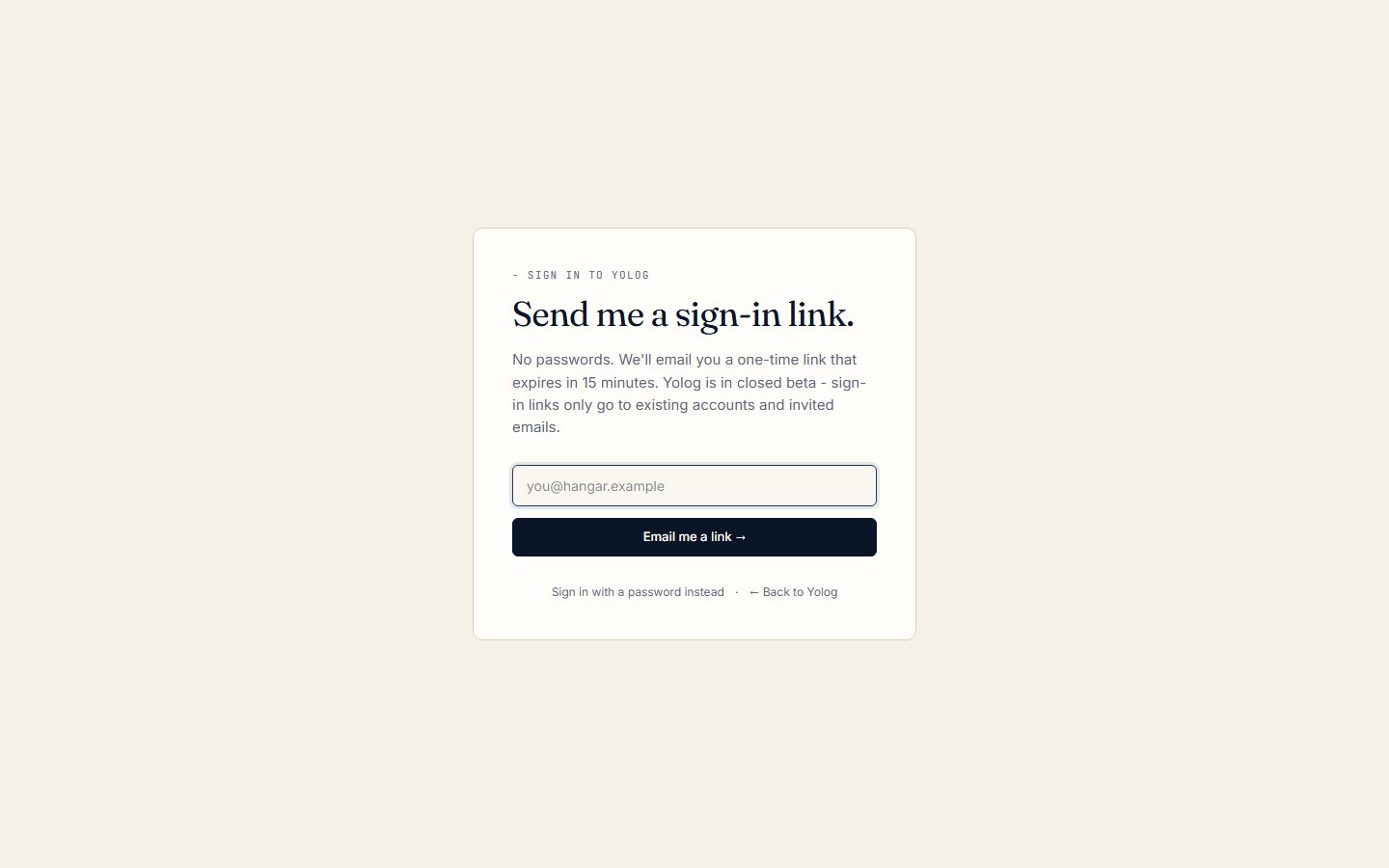
Yolog doesn’t need a password. By default you sign in with a one-time link sent to your email. If you’d rather use a password, you can add one later in Settings.
Note: Yolog is in closed beta. Sign-in links only go to existing accounts and invited email addresses. If you’d like an invite, email hello@yolog.aero.
Sign in with an emailed link
- Go to the sign-in page, Send me a sign-in link.
- Type your email address and click Email me a link.
- Open the email from Yolog and click the link inside.
The link works once and expires after 15 minutes. If it doesn’t arrive, check your spam folder, or go back to the sign-in page and try again.
Tip: Open the link on the same device you want to use Yolog on. You’ll be signed in wherever you click it.
Sign in with a password
A password is an optional second way in. It only works after you’ve set one up.
- While signed in, click your name at the bottom of the sidebar and choose Settings.
- On the Sign-in card, click Set a password.
- If you haven’t signed in recently, Yolog first asks you to confirm it’s you. Click Send me a confirmation link and open the link from your email.
- Choose your password and click Set password.
Next time, on the sign-in page, click Sign in with a password instead, enter your email and password, and click Sign in. Emailed links keep working too, so you can use whichever is handy. You can change or remove your password from the same Sign-in card. If you remove it, you go back to emailed links only.
Two-factor authentication
If you’ve turned on two-factor authentication, Yolog asks for a 6-digit code from your authenticator app after you click your sign-in link or enter your password. Type the code and click Verify and sign in.
Lost your phone? Paste one of your recovery codes into the same box instead. Each recovery code works once.
Two-factor protects both ways of signing in. To set it up, see Settings and security.
Your first sign-in
The very first time you sign in, Yolog asks First things first - which one are you? Pick the one that fits:
- I own or fly an aircraft. Takes you straight to adding your aircraft. See Add your aircraft.
- I sign maintenance entries. For A&P mechanics. Takes you to setting up a free shop account. See Your mechanic shop account.
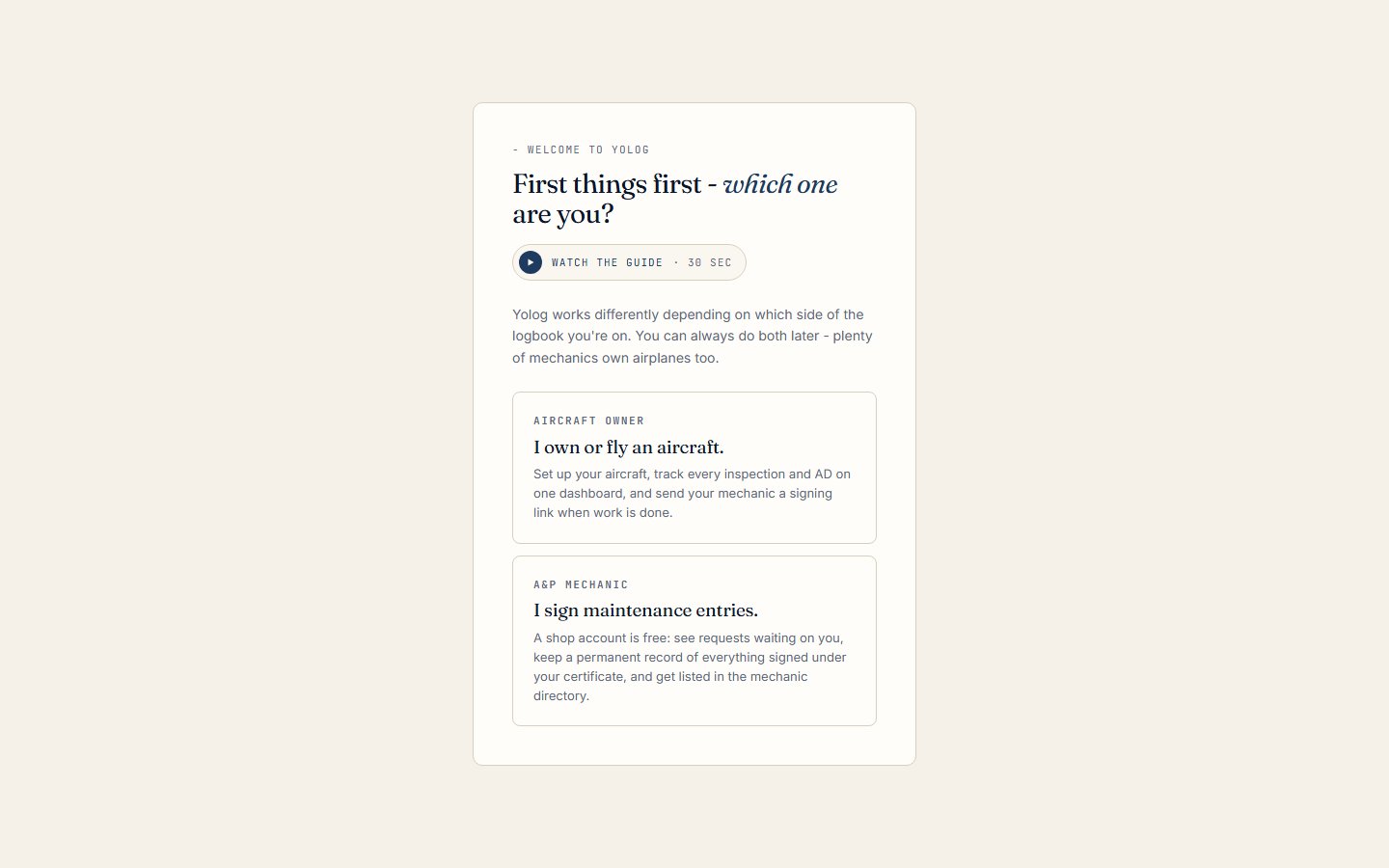
This choice only decides where Yolog sends you first. You can do both later; plenty of mechanics own airplanes too.
If someone invited you to share an aircraft as a co-owner or member, you’ll see You’ve been invited. instead. Click Accept to get access right away, or Decline if it isn’t for you. See Co-owners and members.
Setup guides and auto-play
Each setup step has a short video guide. You’ll see a Watch the guide button near the top of the page, and a Read the guide link that opens the written version.
Before the first video plays, Yolog asks Want a short video at each step?
- Yes, play them automatically opens each guide by itself the first time you reach its step.
- No thanks means guides only play when you tap Watch the guide.
While auto-play is on, a Turn off auto-play button sits under each video. You can also change it any time in Settings, on the Setup guides card: use Turn auto-play on or Turn auto-play off, or Play the guides again to see them all from the start.
Signing out
Click your name at the bottom of the sidebar and choose Sign out. You’ll find a Sign out of Yolog button on the Settings page too.
Still stuck? Contact us - a real person reads every message.