Squawks
Log problems you notice, share them with your mechanic, and close them out when fixed.
A squawk is anything you notice that needs a mechanic’s attention: a spongy brake, a flickering gauge, a loose fairing. Logging it in Yolog means it doesn’t get forgotten, and your mechanic sees it the next time you send a signing link.
Who can manage squawks
Everyone on the aircraft can see the squawk list. The owner, co-owners, and members the owner has given Add & manage squawks can log, resolve, reopen and add photos. See Co-owners and members.
Log a squawk
- Click Squawks in the sidebar, then New squawk (or Log a squawk if the list is empty).
- Give it a short Title, such as “Left brake spongy”.
- Add a Description if it helps: what you noticed, when it started, and under what conditions.
- Pick a Severity: Low (advisory), Medium (standard) or High (urgent / grounding). Medium is the default.
- On a twin, you can tie it to one engine under Engine (optional), or leave it as Aircraft-wide (no specific engine).
- Add Photos (optional). JPEG, PNG, HEIC, WebP and PDF are accepted, up to 50 MB each.
- Click Log squawk.
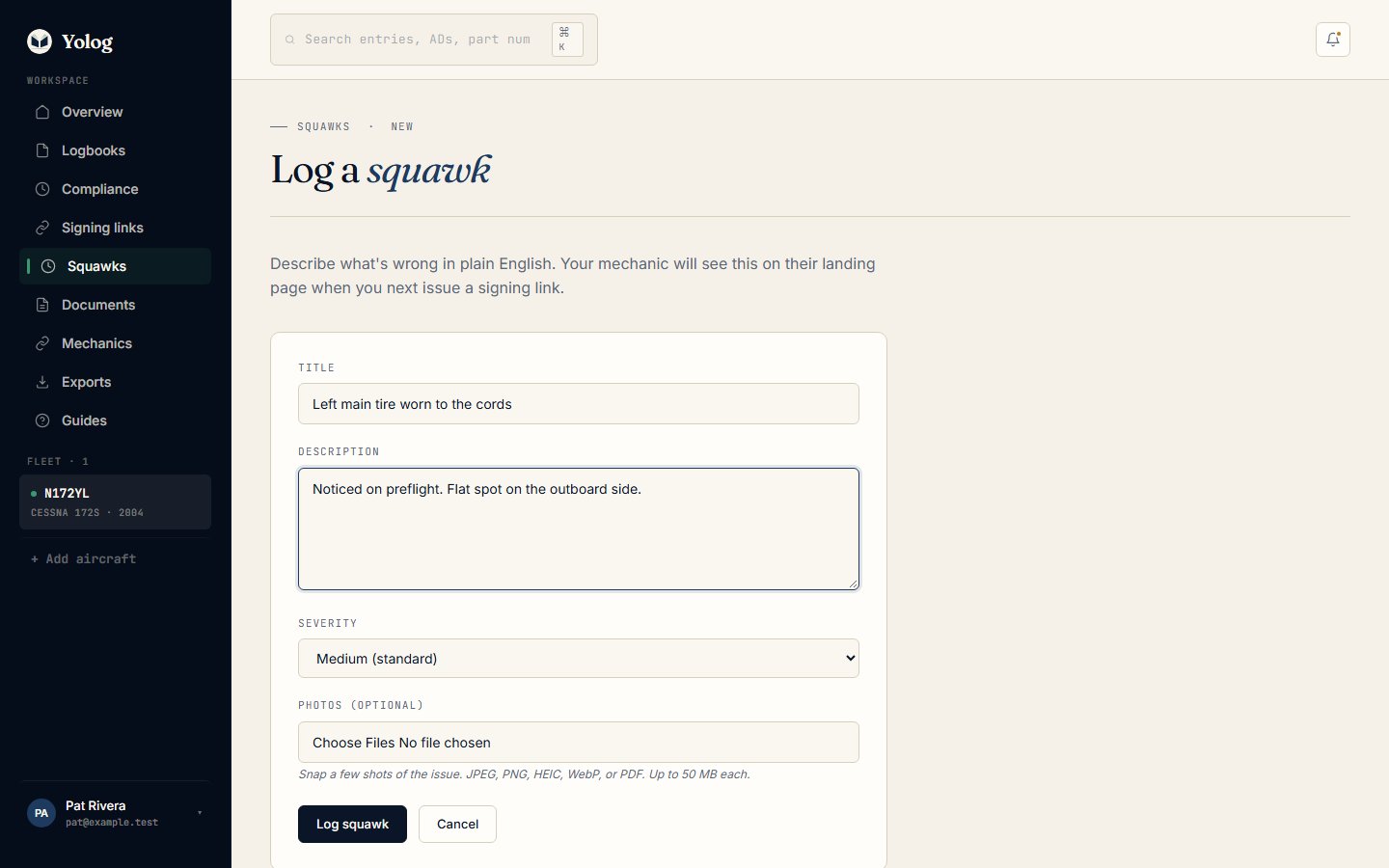
Severity is there to help you and your mechanic prioritise. Whether the aircraft is airworthy is a call for you and your mechanic to make, not Yolog.
The squawk list
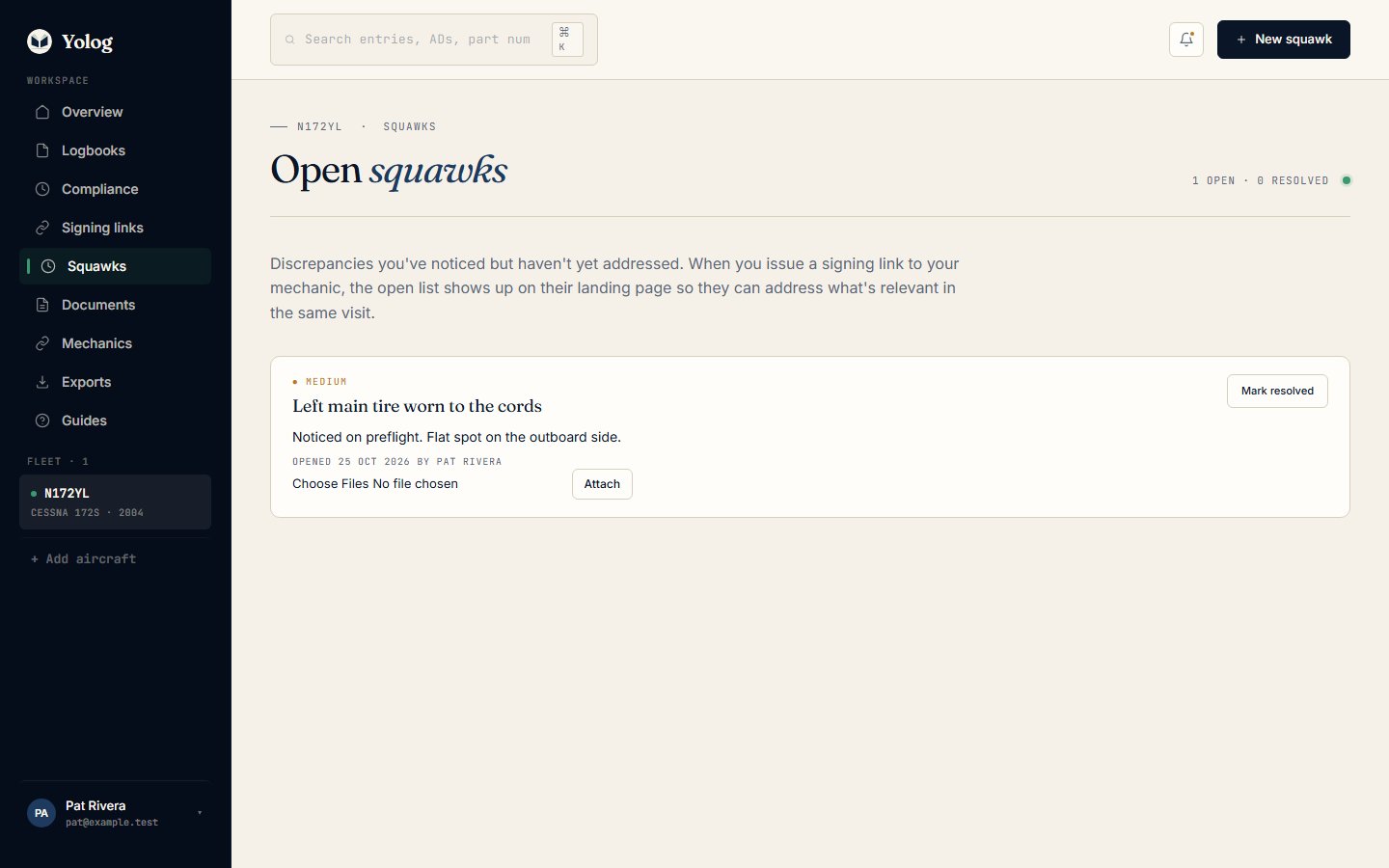
Open squawks shows each open item with its severity, title, description, who opened it and when, and any photos. Click a photo to view it full size.
To add more photos to an existing squawk, choose the files under it and click Attach. The × on a photo detaches it from the squawk. The photo itself stays in your document vault, because every squawk photo is saved there as a Photograph. See Documents.
Below the open list, Recently resolved shows the last squawks that were closed and when.
How your mechanic sees squawks
When you send a signing link, your mechanic’s sign page lists your open squawks, photos included. If the work they’re signing for fixes one, they tap it to select it. If they haven’t written a description yet, that fills it with “Resolves squawk:” and your squawk’s title, which they can then edit. When they sign, the squawk is marked resolved automatically and linked to that signed entry.
To send a link, see Request a signed entry.
Resolve and reopen
If a squawk is closed some other way, for example it turned out to be nothing or the fix was recorded outside Yolog, click Mark resolved on it.
If a squawk was resolved by mistake, or the problem came back, click Reopen in the Recently resolved list. Squawks that were resolved by a mechanic’s signed entry can’t be reopened, because that entry is a permanent record that the work was done. If the problem returns, log a new squawk.
Tip: Resolving a squawk in Yolog doesn’t create a logbook entry. Any maintenance a mechanic performs should still be recorded in a signed entry, as 14 CFR 43.9 requires.
- Your dashboard and aircraft page
- Logbooks and search
- Hours, trends and weight & balance
- Compliance and ADs
Still stuck? Contact us - a real person reads every message.