Exports and sharing
Download your records as PDF or CSV, and share read-only links with buyers, inspectors and insurers.
Your records are yours. You can download a complete copy at any time, and you can let someone look at the logbooks without giving them an account. You’re responsible for keeping your aircraft’s records under 14 CFR 91.417, so keeping your own downloaded copy somewhere safe is a good habit.
Download a copy
Choose Exports in the sidebar. Each aircraft has:
- Pedigree PDF: one PDF with every signed entry across all of the aircraft’s logbooks.
- Full CSV: every signed entry as a spreadsheet, one row per entry.
- A PDF and a CSV button for each logbook on its own, under Per-logbook.
- Open export hub, which leads to the sharing options below.
You can also choose Export PDF on the aircraft page, or Export on any entry to download that entry’s logbook.
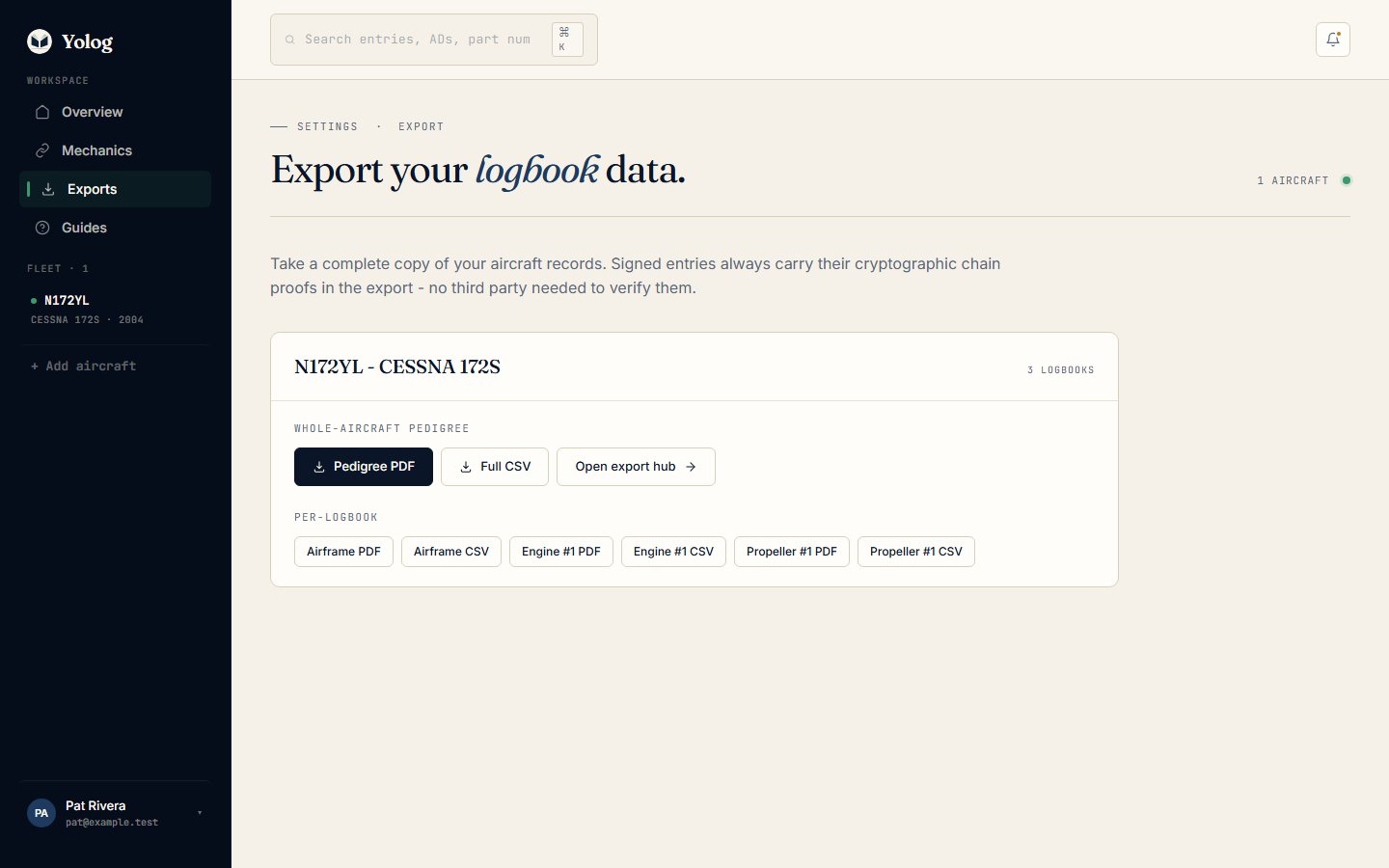
Owners, co-owners and members can all download exports. Each download is recorded in the owner’s Activity log.
Tip: Only signed entries are exported. Drafts and unsigned work aren’t part of the permanent record, so they don’t appear.
What’s in an export
The PDF reads like a printed logbook. For each signed entry it shows the entry number, type, work date, when it was signed, the times recorded (tach, Hobbs and totals where entered), the work description, and the mechanic’s name, certificate type and number. Entries brought in from your paper logbooks are marked Imported from scan.
Each entry also carries two fingerprints: its own hash and the hash of the entry before it. At the end of each logbook is a Chain proof page with the logbook’s head position (how many signed entries it has), the head hash (the fingerprint of the newest entry), and a table of each entry’s hash, the signing key it was sealed with, and the mechanic’s cert number.
The CSV has the same entries in columns, including entry_hash, previous_hash, signing_key_id and chain_hmac (Yolog’s server seal) for every row. To learn what these mean and how someone can check them, see Verifying records.
Share the logbooks without an account
Open the export hub for your aircraft to find three kinds of link. Each new link is shown once, with a copy button. Yolog only keeps a fingerprint of it, so if you lose the link, issue a new one. Only the owner and co-owners can create or revoke these links.
Read-only share links
For a pre-buy inspector, a new mechanic or a partner who needs to read the full books. They see every signed entry, signature and attachment across all logbooks. They don’t see compliance items and can’t download exports.
- Choose Manage share links.
- Under Link expires after, pick 24 hours, 7 days or 30 days.
- Fill in Label (optional) so you remember who it was for. The viewer never sees it.
- Choose Issue link, then Copy link.
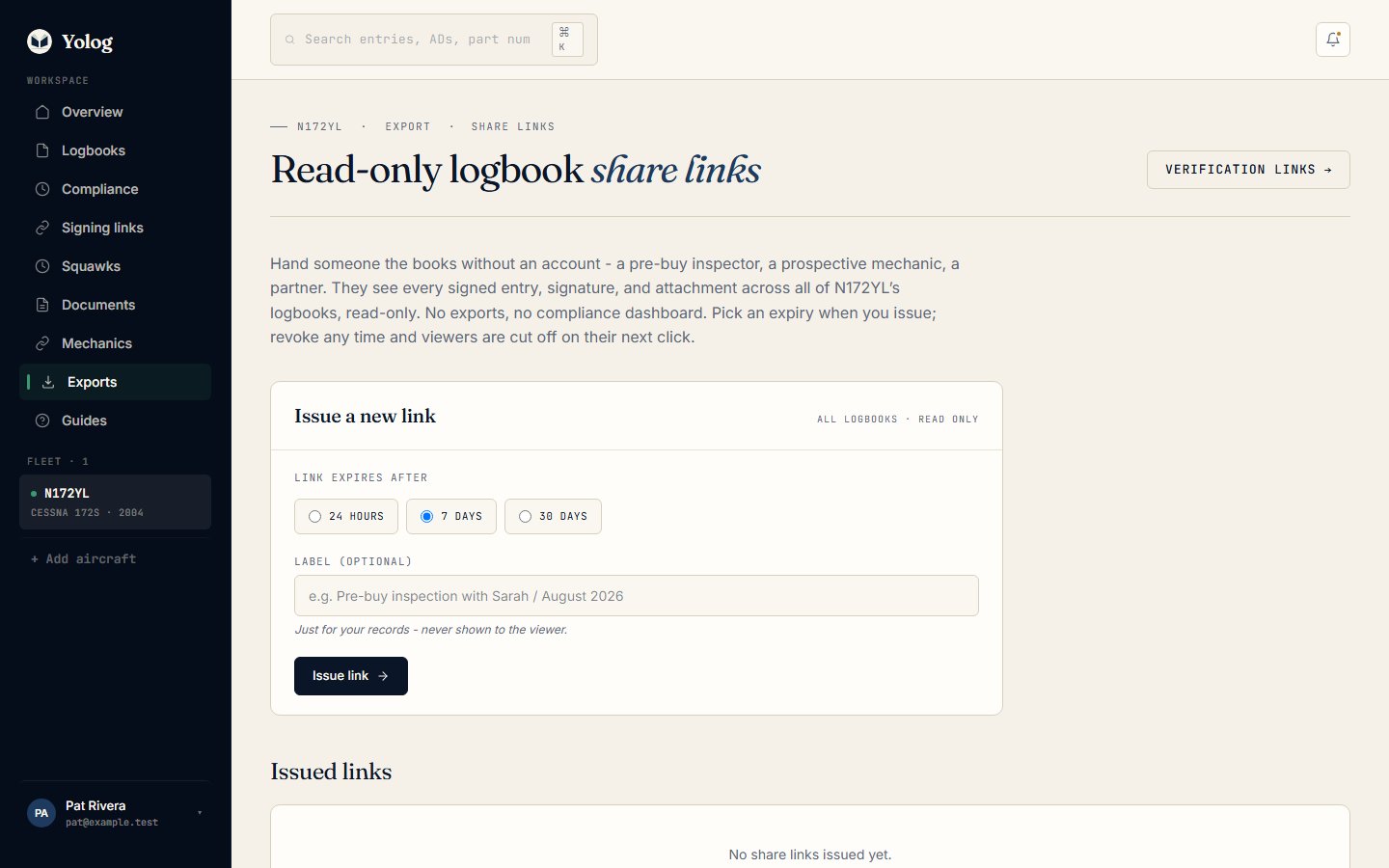
The list under Issued links shows how many times each link has been opened. Choose Revoke to cut someone off; they lose access on their next click.
Public verification links
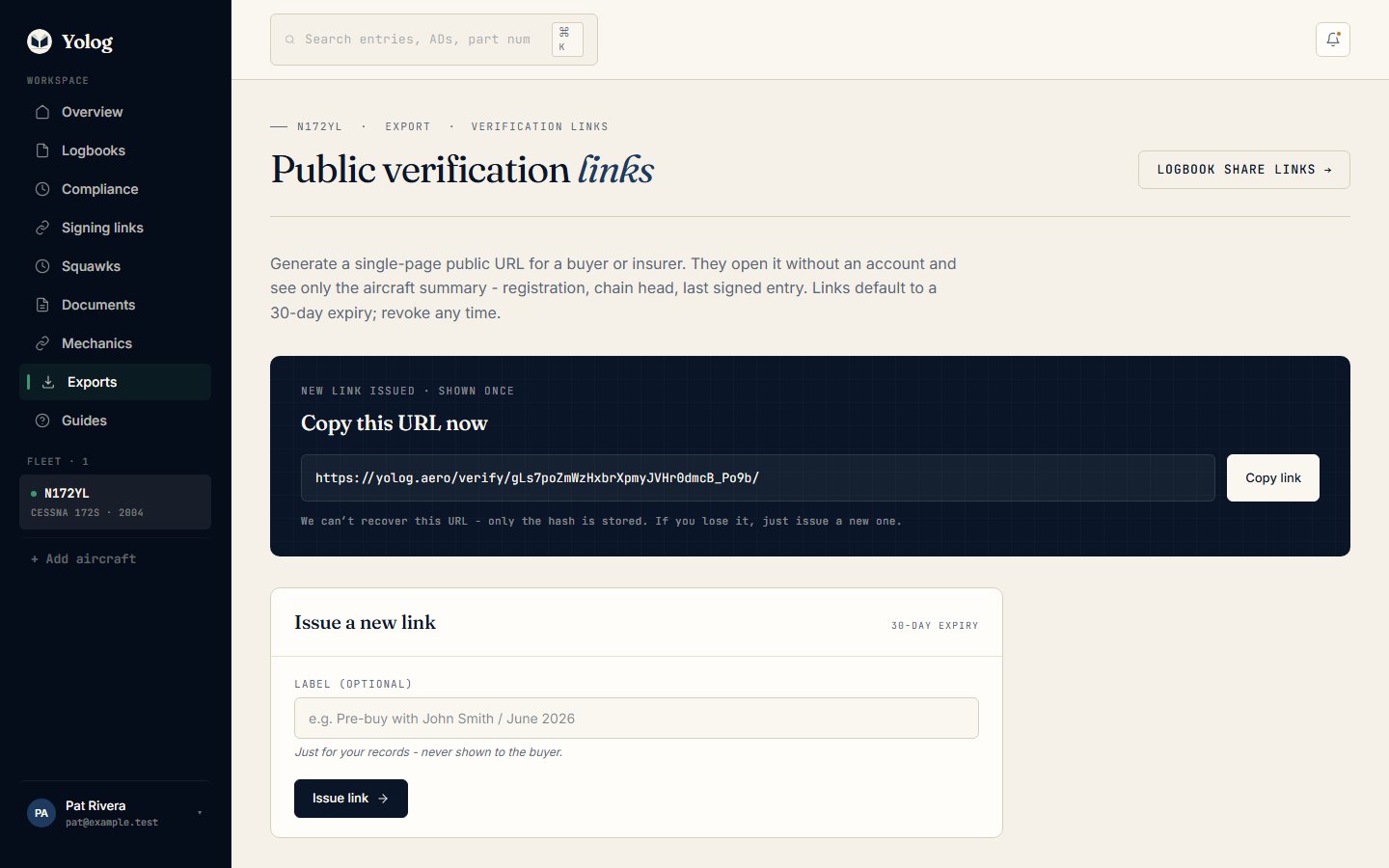
For a buyer or insurer who just needs to confirm the record is real. The page shows the registration, make and model, the chain head, and the most recent signed entry with its mechanic. It doesn’t show the full logbook or your contact details. These links last 30 days.
Choose Manage verification links, add an optional label, and choose Issue link. Revoke it any time.
Pedigree page
For a resale listing. It’s a permanent public page with the chain head, an hours-over-time chart, the last 10 signed entries (date, type, mechanic and tach), compliance items and the current weight and balance. Mechanic notes stay private. It stays live until you revoke it.
Choose Manage pedigree link, then Generate pedigree link. You can only have one at a time: Reissue (replaces this URL) makes a new link and stops the old one working, and Revoke turns it off.
API tokens and webhooks
This part is for technical users, such as an insurer or software that reads your aircraft’s data. Choose Manage API tokens, add an optional label, and choose Issue token. The token is read-only, lasts 90 days, and is shown once. It reads the aircraft, its chain, compliance status and ADs as JSON from /api/v1/.
Under Webhooks, you can attach a callback URL to a token and choose which events it receives, such as Entry signed or Compliance overdue. Choose Add webhook, copy the signing secret shown once, and use Deliveries to see what was sent.
Who can see what
| Share link | Verification link | Pedigree page | |
|---|---|---|---|
| Signed entries | All, with attachments | Most recent only | Last 10, no descriptions |
| Compliance items | No | No | Yes |
| Expires | 24 hours, 7 or 30 days | 30 days | When revoked |
Still stuck? Contact us - a real person reads every message.