Request a signed entry
Send your mechanic one secure link so they can draft, sign and lock a logbook entry.
When your mechanic finishes work on the aircraft, you send them a signing link. They open it on any phone or computer, write up the entry, enter their certificate details and sign. They don’t need a Yolog account. The moment they sign, the entry locks into your logbook and you’re notified.
Only the aircraft’s owner and co-owners can issue and cancel signing links. Members don’t see the Signing links page.
Issue a signing link
- Open the aircraft and choose Request entry (it’s also on the dashboard and on each logbook page).
- Under Which logbook?, pick the logbook the work belongs in. Most work goes in Airframe. Pick the engine or propeller logbook when the work is specific to it. On a twin, you’ll also choose Which engine?
- Under What kind of entry?, choose a Suggested entry type, or leave it on Let the mechanic choose. Your choice only pre-selects a tab on the mechanic’s form. They can change it.
- Under Send to, type the Mechanic name and, if you want Yolog to email the link, their email. Email is optional.
- Under How long should the link work?, keep Until signed (default) or choose Pick a cutoff date (see below).
- Choose Issue signing link.
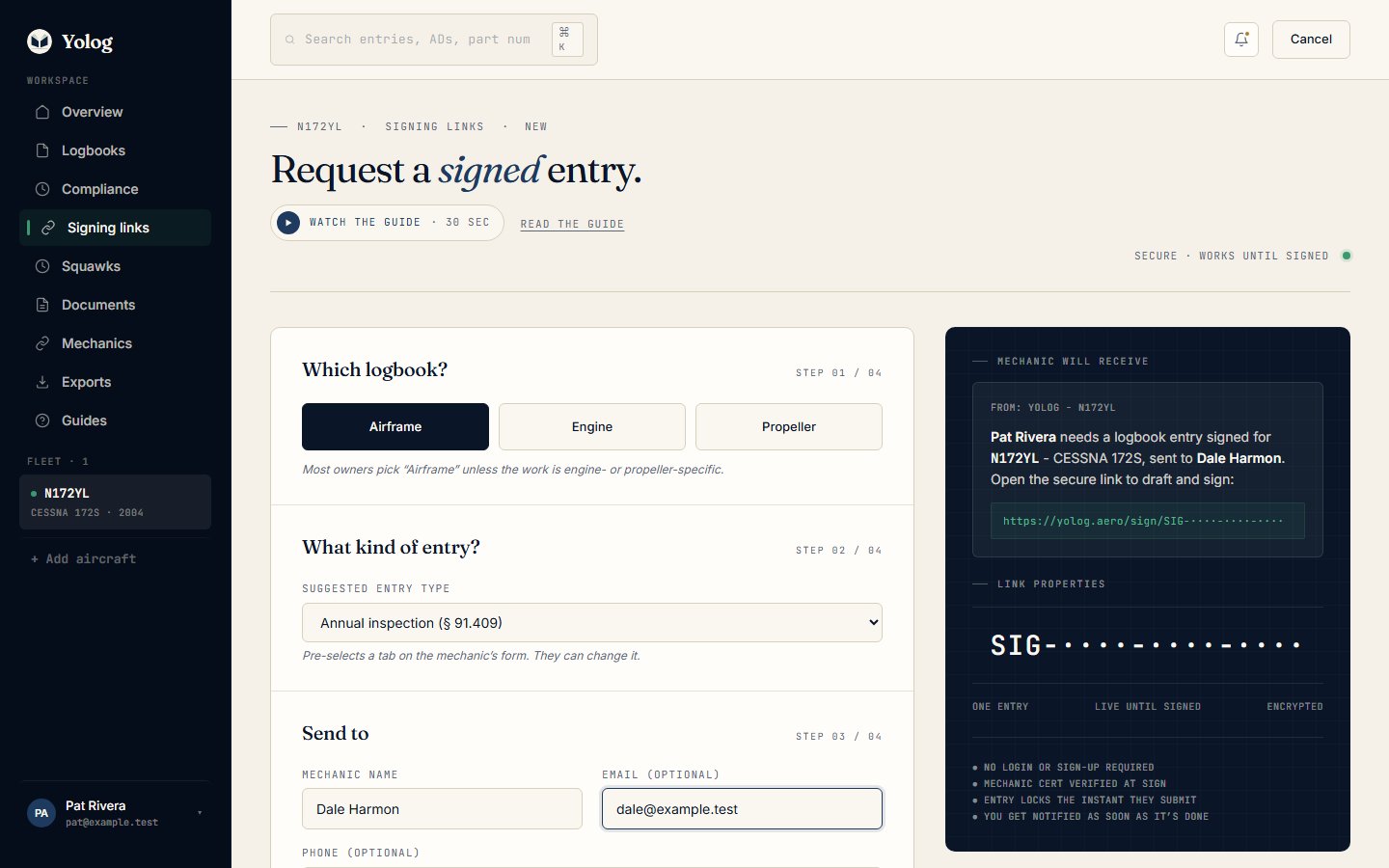
There’s also a Phone (optional) field. Yolog saves the number so you can see who has the link, but it doesn’t text it yet. The form says so: SMS delivery is coming soon. If you’d rather text or AirDrop the link yourself, leave the email blank and copy the link on the next page.
Tip: Found your mechanic in the Mechanics directory? Request work from this mechanic opens this form with their name and email already filled in.
How long the link works
By default a link works until your mechanic signs an entry through it. They can open it as many times as they need before then, and their draft is saved as they go.
If you choose Pick a cutoff date, the link also stops at the end of the date you pick under Link works through (in UTC), up to 30 days out. You can still cancel it early. Either way, one link produces exactly one signed entry. For a second piece of work, issue a second link.
Your mechanic’s link is ready
After you issue the link you land on Your mechanic’s link is ready. If you entered an email, Yolog has already sent it. Choose Copy link to share it any other way: a text, AirDrop or a note in the hangar.
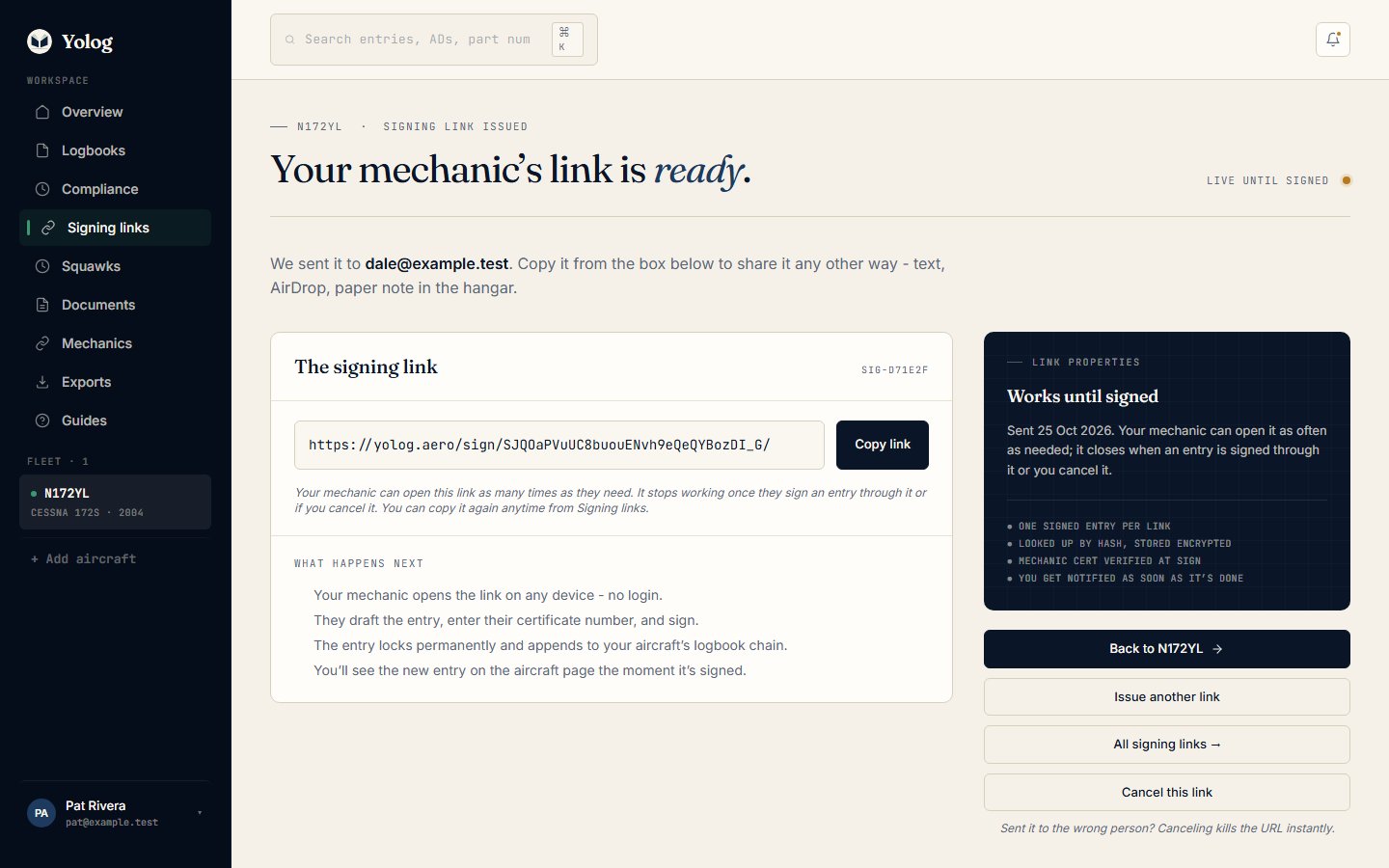
From here you can also choose Issue another link, go to All signing links, or Cancel this link if it went to the wrong person.
What your mechanic receives
If you gave an email, your mechanic gets a message saying you’ve requested a logbook entry for your aircraft, with the secure link. It tells them no account is needed and that the entry locks permanently once they sign. The link opens a page where they choose the entry type, describe the work, add photos if they want, enter their certificate details and sign. Signing an entry walks through it from their side.
The Signing links page
Open Signing links in the sidebar to see every link you’ve issued for the aircraft:
- Awaiting signature lists live links: who has each one, when you requested it, when it expires (or Until signed), and whether the mechanic has opened it or started a draft (DRAFT STARTED). Use Copy link to grab a live link again, or Cancel to stop it.
- Signed entries lists links that came back signed, with View entry to open the locked entry.
- Lapsed & canceled lists links that passed their cutoff date or that you canceled.
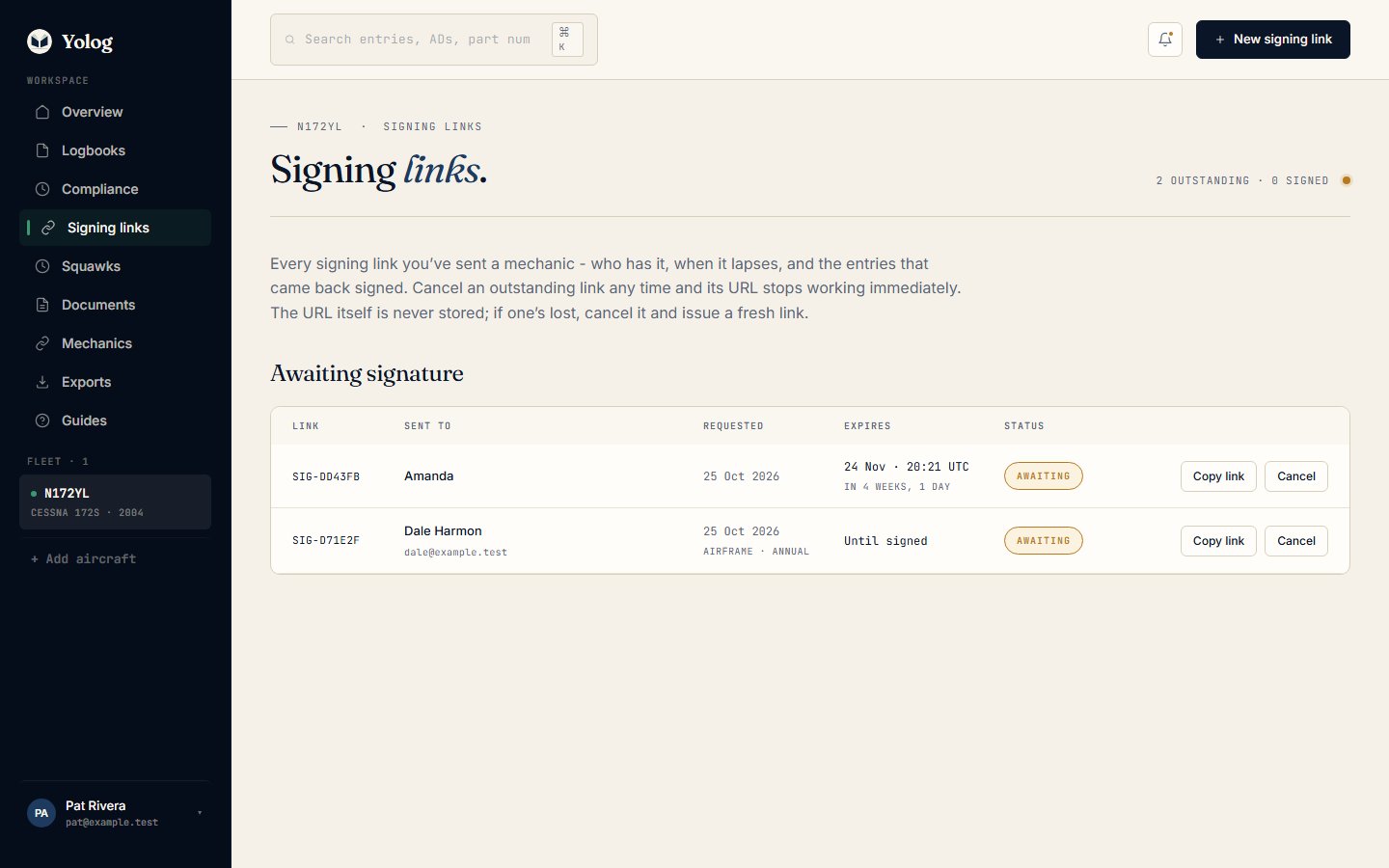
Use New signing link at the top of the page to issue another one.
Cancel a link
Choose Cancel on the Signing links page (or Cancel this link on the link-ready page) and confirm. The URL stops working right away. If your mechanic opens it afterwards, they see a page explaining the link was revoked. Canceling never touches an entry that’s already signed; a signed entry is permanent. If you cancel by mistake, just issue a new link.
Note: Issuing a new link needs an active plan on the aircraft. Viewing your signing links and canceling them doesn’t.
If a signed entry has a mistake in it, see Fixing mistakes.
Still stuck? Contact us - a real person reads every message.